2. Installation
2.1. Windows
2.1.1. Setup Process
The product can be installed by executing the setup.exe (requires administrator privileges) and follow the screen instructions:
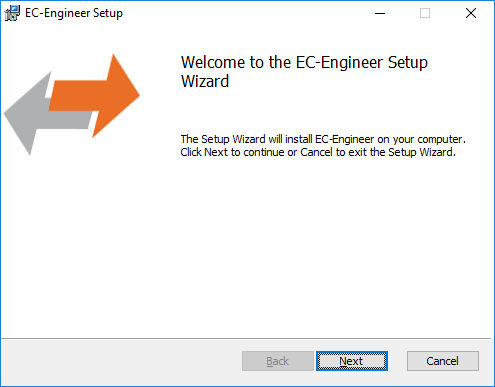
- Welcome page:
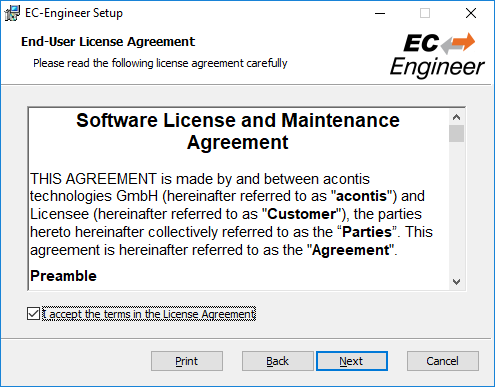
- License Agreement:
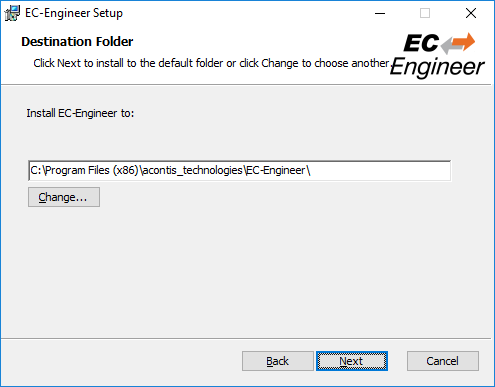
- Select Installation Folder:
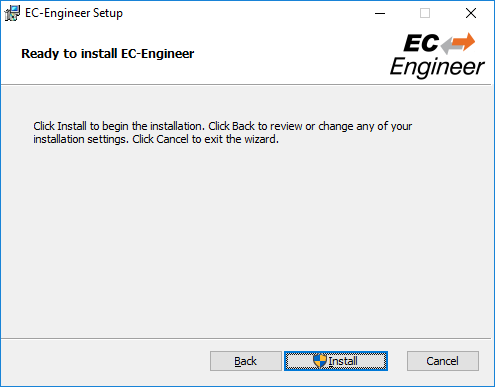
- Confirm Installation:
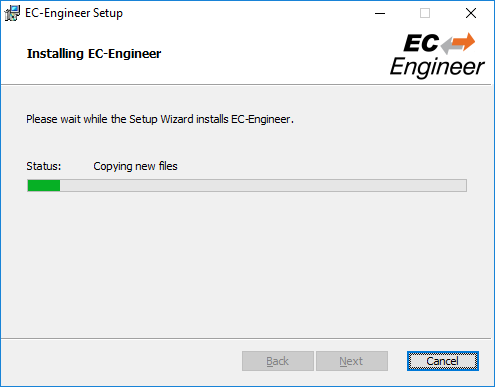
- Installing EC-Engineer:
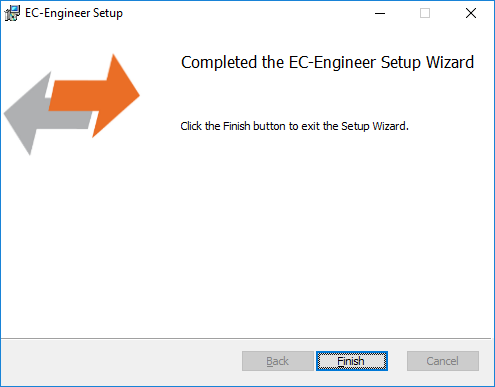
- Installation Complete:
2.1.2. Silent Installation
The product can be also installed in silent mode by using the command line parameters of msiexec.
Sample 1: Installs EC-EngineerWeb into default installation folder
msiexec /i c:/temp/ECEngineerWebSetup.msi /quiet /qn /norestart /log c:/temp/install.log
Sample 2: Installs EC-EngineerWeb into C:/EC-EngineerWeb
msiexec /i c:/temp/ECEngineerWebSetup.msi /quiet /qn /norestart /log c:/temp/install.log INSTALLLOCATION="C:/EC-EngineerWeb"
For more information please refer command line parameters of msiexec.
Note
The system requirements EtherCAT Slave descriptions (ESI files) will be not checked!
2.1.3. File and Folder Structure
The setup process will copy all necessary files into the following folder:
- Installation directory: (Default:
%ProgramFiles%/acontis_technologies/EC-EngineerWeb) /DocRelease notes and the user manual
EcEngineerWeb.exeEcMaster.dll…
- All users directory: (
%ALLUSERSPROFILE%/EC-EngineerWeb, likeC:/ProgramData/EC-EngineerWeb) /EtherCATEtherCAT Slave Information
ESIFiles (can be modified via ESI-Manager)/EMIEtherCAT Master Information files (see User Manual EC-Engineer , Chapter EMI Manager)
ESICache.xmlESI-File-Cache for faster access of
ESIfilesEC-EngineerWeb.logLog file
User.myusername.xmlUser specific settings
2.2. Linux
2.2.1. Setup Process Linux
The product can be installed by following the following step:
Extract it e.g. into /opt/EC-EngineerWeb_Linux-x64/ (sudo is required)
- Optional
- Images are missing you may need to install those libraries:
libc6-dev
libgdiplus
- Dongle version
Install “CodeMeter User Runtime for Linux”: https://www.wibu.com/support/user/downloads-user-software.html
- E.g. Ubuntu-x64
download the package “Linux 64-bit DEB Package”
open context menu and select and install the package
Run /opt/EC-EngineerWeb_Linux-x64/bin/EcEngineerWeb (sudo is required)
Open default browser and enter http://127.0.0.1:5000
2.2.2. File and Folder Structure Linux
The setup process describes how to install all files into the following folder:
- Installation directory: (Default:
/opt/EC-EngineerWeb_Linux-x64/) /binEcEngineerWeb
EcMaster.dll…
/docRelease notes and the user manual
/etcLinux specific
/EMIEtherCAT Master Information files (see User Manual EC-Engineer , Chapter EMI Manager)
EcEngineerWeb.xmlUser specific settings
/varLinux specific
/cacheESICache.xmlESI-File-Cache for faster access of
ESIfiles/libLinux specific
/EtherCATEtherCAT Slave Information
ESIFiles (can be modified via ESI-Manager)/logEcEngineerWeb.logLog file
2.3. MacOS
2.3.1. Setup Process MacOS
The product can be installed by following the following step:
- Extract it e.g. into
/Users/username/Desktop/EC-EngineerWeb_MacOS-x64/ - Optional
- Images are missing you may need to install those libraries:
libgdiplus
- Dongle version
Install “CodeMeter User Runtime for mac OS”: https://www.wibu.com/support/user/downloads-user-software.html
Run /Users/username/Desktop/EC-EngineerWeb_MacOS-x64/EcEngineerWeb
Open default browser and enter http://127.0.0.1:5000
2.3.2. File and Folder Structure MacOS
The setup process describes how to install all files into the following folder:
- Installation directory: (Default:
/Users/username/Desktop/EC-EngineerWeb_MacOS-x64/) /DocRelease notes and the user manual
/EMIEtherCAT Master Information files (see User Manual EC-Engineer, Chapter EMI Manager)
/EtherCATEtherCAT Slave Information
ESIFiles (can be modified via ESI-Manager)EcEngineerWeb.xmlUser specific settings
- EcEngineerWeb
EC-EngineerWeb
ESICache.xmlESI-File-Cache for faster access of
ESIfilesEcEngineerWeb.logLog file