1. Introduction
This guide describes how to set up CODESYS on RT-Linux for the acontis Hypervisor. It is assumed, the steps listed in the Hypervisor Quick Start guide and the Windows Guest Guide have been successfully executed.
2. CODESYS Support Package for the Hypervisor
/hv/guests/etc/rt-linux/files/codesys.Hint
Update CODESYS Control version (optional)
The CODESYS Support Package may contain a specific version of the CODESYS Control for Linux SL package (e.g. “codesyscontrol_linux_4.5.0.0_amd64.deb”). Please follow the steps described in this chapter only in case you want to use a newer version of this package or if this package is missing.
You need to go to the CODESYS webstore (store.codesys.com) and search for “CODESYS Control for Linux SL” and download the respective package.
Unzip the package.
As a result, the folder “Delivery” will contain the CODESYS control debian package (e.g. “codesyscontrol_linux_4.5.0.0_amd64.deb”).
Please transfer the file you got from the webstore to the PC where the hypervisor is running into folder /hv/guests/examples/rt-linux/files/codesys.
3. Extract CODESYS Control
CODESYS Control is shipped as a debian package. Its content has to be extracted before it can be used. After extracting the debian package can be removed.
cd /hv/guests/etc/rt-linux/files/codesys
dpkg-deb -x codesyscontrol_linux_4.5.0.0_amd64.deb files
dpkg-deb -e codesyscontrol_linux_4.5.0.0_amd64.deb control
4. Adjust CODESYS Configuration
You need to adjust some configuration files.
Adjust the CODESYSControl.cfg file to assure the user configuration file is stored at the hard disk:
cd /hv/guests/etc/rt-linux/files/codesys/files/etc
gedit CODESYSControl.cfg
Adjust the FileReference.1 setting:
[CmpSettings]
IsWriteProtected=1
FileReference.0=SysFileMap.cfg, SysFileMap
FileReference.1=/mnt/rtfiles/codesys/files/etc/CODESYSControl_User.cfg
If you want to automatically start the PLC application, adjust the CODESYSControl_User.cfg file:
cd /hv/guests/etc/rt-linux/files/codesys/files/etc
gedit CODESYSControl_User.cfg
Add the Application.1 entry:
[CmpApp]
Bootproject.RetainMismatch.Init=1
;RetainType.Applications=InSRAM
Application.1=Application
5. Codemeter support
CODESYS is software protected via a Codemeter USB dongle. This dongle has to be exposed from the Hypervisor Host to RT-Linux.
Hint
How to expose USB devices is described in the Hypervisor Manual in section “USB device access for RT-Linux guests”.
The standard Linux image shipped with the hypervisor does not support usbip.
You need to exchange this image by the separately provided rtlinux515.x64-usbip.bin image file.
This file is part of the CODESYS package and located in /hv/guests/etc/rt-linux/files/codesys/rtlinux.
You need to adjust the configuration:
cd /hv/guests/examples/rt-linux
gedit guest_config.sh
Adjust the following line:
export osImage=$HV_ROOT/guests/etc/rt-linux/files/codesys/rtlinux/rtlinux515.x64-usbip.bin
6. CODESYS autostart
/hv/guests/examples/rt-linux/files/autostart.sh# load Ethernet drivers if required
modprobe e1000e
modprobe igb
modprobe igc
modprobe r8169
ifconfig eth0 up
/hv/guests/examples/rt-linux/files/autostart.sh# set IP address
ifconfig eth0 192.168.10.10
# run codesys
cd /mnt/rtfiles/etc/rt-linux/files/codesys
./installcodesys.sh
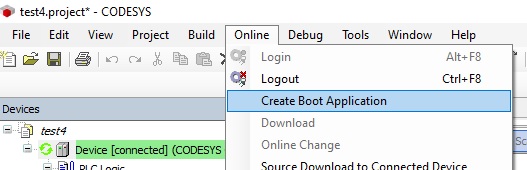
If you want the PLC application to run automatically after CODESYS is started, you need to create a Boot Application. You need select the PLC application, log in into the PLC, download and run the application. Then create the Boot Application.
7. CODESYS PLC logfile
In case of PLC issues, you may take a look into the log file. It is located in RT-Linux, so you need to log in into RT-Linux or get it via ssh.
The following command will store the log file from within RT-Linux into the local filesystem into file plc.log.
The requested password is root:
ssh root@192.168.157.2 cat /tmp/codesyscontrol.log >plc.log
8. Windows Guest
8.1. CODESYS Windows VM Port Forwarding
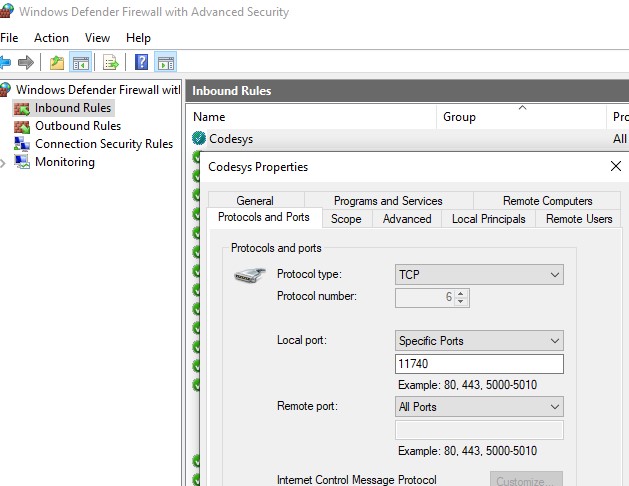
If the CODESYS development system shall be connected with the PLC runtime system, this can be accomplished using the Windows VM IP address and enabling port forwarding. The following steps have to be executed (in the Hypervisor Host).
Replace the file guest_gateway.config in the windows guest folder
/hv/guests/examples/windowscd /hv/guests/examples/windows [ ! -f guest_gateway.config.orig ] && mv guest_gateway.config guest_gateway.config.orig cp /hv/guests/etc/rt-linux/files/codesys/guest_gateway.config .Assure the following line exists in /hv/guests/examples/rt-linux/hv.config (by default, this should be the case)
#include "../windows/guest_gateway.config"
8.2. Diagnosis shortcuts
For diagnosis purposes additional shortcuts can be placed on the Windows desktop.
Start the Windows guest
cd /hv/guests/examples/windows
hv_guest_start -view
Open the Explorer
Switch to folder
\\10.0.2.4\qemu\etc\rt-linux\files\codesys\CodesysDesktopShortcutsCopy all the shortcuts onto your desktop (you may have to adjust the shortcuts based on your Windows version and language)
Hint
To avoid being asked to allow execution any time you start such shortcut, you may adjust the related Windows settings.
Open the Control Panel
select Internet Options
select security
select local intranet
select sites
select advanced
add
\\10.0.2.4\qemu
8.3. Connection to RT-Linux
Hint
This shortcut executes the following command.
%RTE_ROOT%\RtosUpload.exe -attach -osid 1
To automatically attach the communication layer, please copy this shortcut into the Windows startup folder.
-  Press the Windows key as well as the R key
-  Enter the following command: shell:startup
-  Copy the shortcut
Running this command can be accelerated by adding the following registry key:
[HKEY_CURRENT_USER\Software\Microsoft\Windows\CurrentVersion\Explorer\Serialize]
"StartupDelayInMSec"=dword:00000000
8.4. Execute PLC commands
This section shows how to execute PLC control commands (e.g. PLC status check).
Caution
This requires the putty ssh client application being installed and security keys being exchanged.
Download and install .. https://www.putty.org/
Open putty and connect to
192.168.157.2, accept the connection (do not login)Close putty (we only need to execute this step to accept the security keys, they are needed to run the RT-Linux application)