2. Installation and basic configuration
The Hypervisor has to be installed onto an empty installation media. It is directly booted from the BIOS. Side-by-side installation with an existing Windows or Linux is not recommended, but possible. If an existing Windows or Linux system shall be kept, assure a free partition for booting the Hypervisor is available. The minimum required size for the installation media is 10 GByte.
2.1. USB stick boot media creation
You may use the free Rufus tool to create the boot media.
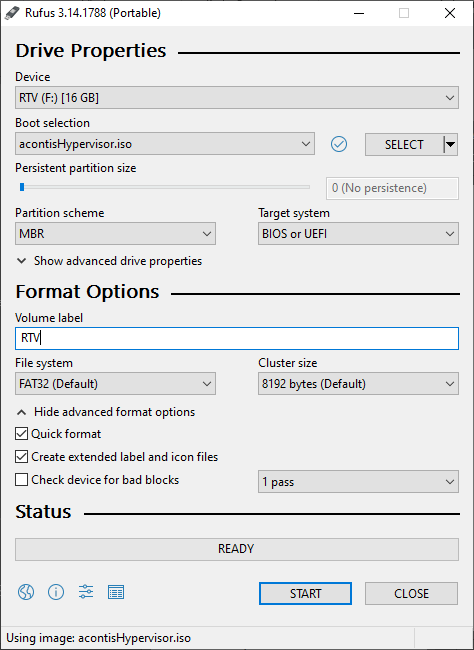
Fig. 2.1 Settings to create the acontis Hypervisor BOOT stick.
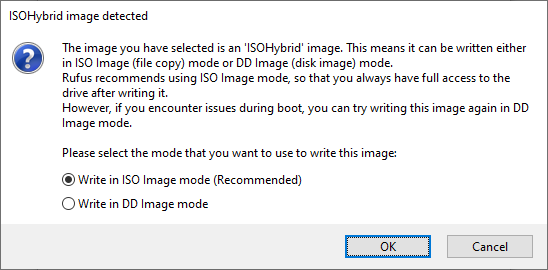
As the ISO is a hybrid ISO, Rufus will ask for the mode. Use the default ISO Image mode.
2.2. Installation
Currently, a light-weight Ubuntu derivate (Xubuntu) is used as the Hypervisor service operating system.
Select
Install acontis RTOSVisorto install the Hypervisor, other options are not supported.Follow the installation instructions.
Do not keep any existing Windows or Linux installation, let the installer erase previously installed OSes.
A user account must be created while installing the Hypervisor.
Note
A password MUST be defined!
After the installation has finished, you have to reboot the system.
When the BIOS startup finished, a boot menu is shown and the default entry
Ubuntu Configure RTOSVisoris selected, keep this and do not select any other entry.
2.3. Remote Access to the Hypervisor using Remote Desktop Connection
When working with Windows for software development, it is recommended to remotely connect to the Hypervisor using a Remote Desktop Connection (using the RDP protocol).
On Xubuntu, the xrdp application will provide such access. When using Remote Desktop you may simply copy paste commands from this manual into the Hypervisor shell.
First you need to determine the IP address of the Hypervisor. Open a shell (right click on desktop and select ‘Open Terminal here’ or press CRTL + ALT + T)
ifconfig
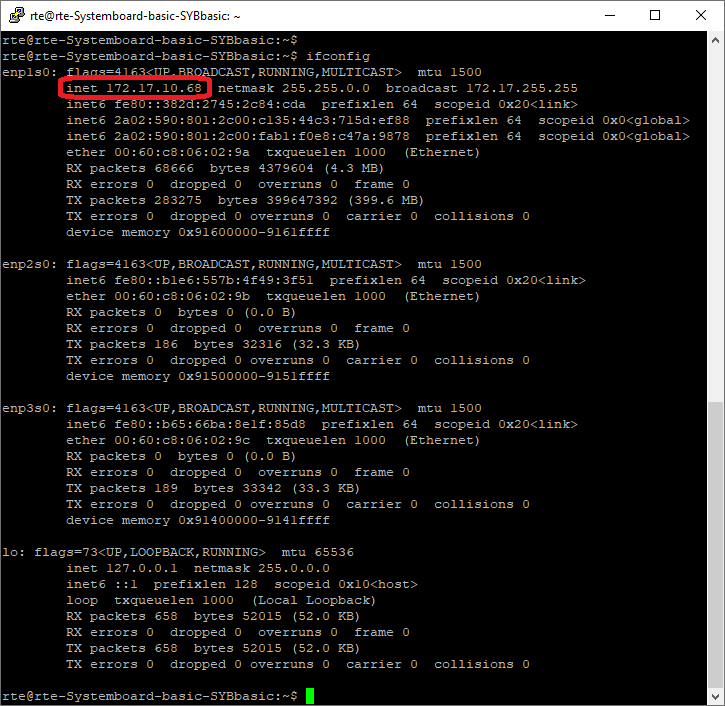
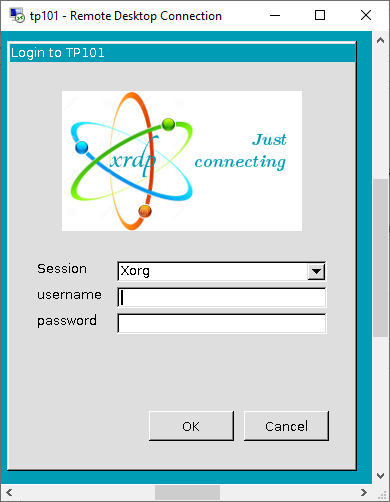
Now its possible to access the Hypervisor system through Windows Remote Desktop using the previously determined IP address.
Hint
Use the user account, which was created when installing the Hypervisor.
Caution
To log-in remote into the hypervisor through xrdp, no other user must be logged-in into the hypervisor.
You can change this behavior by modifying the xrdp startup script /etc/xrdp/startwm.sh.
Add the follwing 3 lines before the test -x command:
if test -r /etc/profile; then
        . /etc/profile
fi

unset DBUS_SESSION_BUS_ADDRESS
unset XDG_RUNTIME_DIR
. $HOME/.profile

test -x /etc/X11/Xsession && exec /etc/X11/Xsession
Alternatively you may kill the current session at the Desktop, run the who -u command to determine the process id:
$ who -u
hvuser   tty7         2023-01-29 18:26 00:08        1182 (:0)
hvuser   pts/2        2023-01-29 18:31   .          2410 (192.168.178.21)
$
The line with the (:0) is the session running at the physical display. You can kill this session:
sudo kill -9 1182
If this does not work, you may kill all sessions of the currently logged in user via the killall command.
For example, to kill all sessions of the user hvuser, run the following command:
sudo killall hvuser
2.4. Basic system configuration
2.4.1. Power Management
To assure deterministic real-time behavior it is necessary to disable all power saving settings.
Several settings in the PC BIOS will have to be adjusted. You may take a look at the acontis website for example BIOS settings or pre-validated hardware BIOS settings
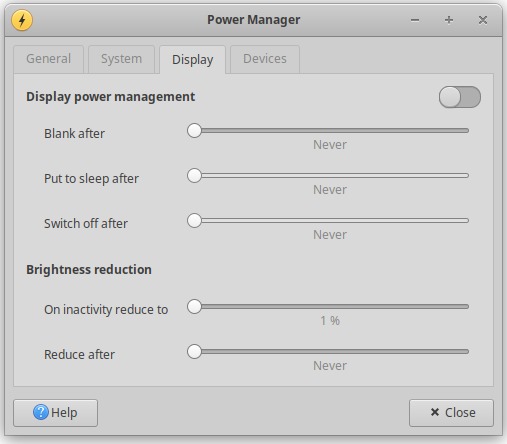
You need also to assure the Display Power Management is turned off in the Hypervisor Host.
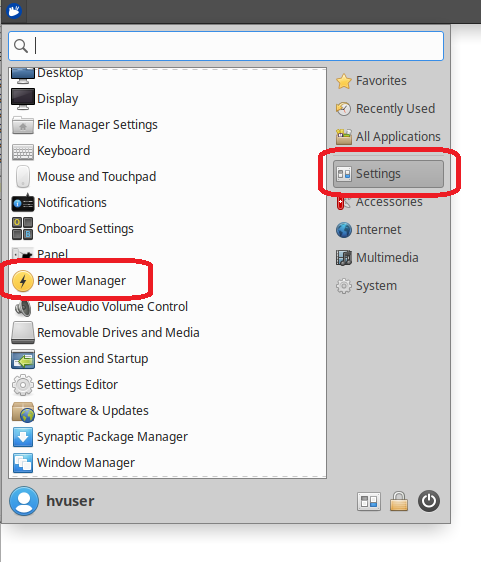
First, open the Power Manager:
Then assure the Display Power Manager is turned off (pull all sliders to the left before):
2.4.2. hypervisor initialization
Open a shell (right click on desktop and select ‘Open Terminal here’ or press CRTL + ALT + T)
Change to the bin folder:
cd /hv/bin
In the next step, the memory configuration for the real-time guest OS is set (this setting is rtos-dependent!). Use the inithv script:
sudo ./inithv.sh [-baseaddr rtos_baseaddr] rtos_memsize shm_memsize
The optional -baseaddr parameter of the inithv.sh script will set the physical base address where the RTOS shall be located.
This parameter is required for RTOS guests which are not relocatable (e.g. VxWorks or RTOS-32).
The next parameter defines the amount of memory to be assigned to the real-time guest OS, the last parameter will define the shared memory pool size.
All units are in MB.
Real-time Linux guest:
sudo ./inithv.sh 256 16On Time RTOS-32 guest:
sudo ./inithv.sh -baseaddr 64 64 16VxWorks guest:
sudo ./inithv.sh -baseaddr 64 64 16
The first parameter of the inithv.sh script will set the amount of memory to be assigned to the real-time guest OS, the second parameters will define the shared memory pool size in MB.
Caution
If you want to install a Windows or Ubuntu guest, the shared memory pool size must be at least 16 MByte and a power of 2 (16, 32, 64, 128, etc.)!
Caution
- If you get the message
WARNING: CPU frequency not stable...when running theinithv.shscript, you may not have properly disabled power settings in the BIOS. Please follow the respective instructions above (Prerequisites). After! rebooting the Hypervisor, resetting the configuration using the
hv_resethvcommand may fix this issue (hv_resethvimplicitly re-runsinithv).
Caution
/hv/guests/examples.bak and the original example guests copied at /hv/guests/examples.hv_resethv
sudo reboot
Hint
hv_adjmemconf command.hv_adjmemconf 768 32
hv_adjmemconf -baseaddr 64 32 8
Now, to get the changes effective, a reboot is required:
sudo reboot
2.5. Validate the configuration
The last step now is to validate if the system is correctly configured. For that purpose, a real-time demo application running in the example real-time guest will be executed. The command to start the guest will automatically start a Debug Console connection to show the output of the guest OS. The Debug Console connection is a low level connection to the guest, similar to a serial line connection on physical guests.
Real-time Linux:
When starting a Real-time Linux guest, you will have to log in first and start the demo manually.
cd /hv/guests/examples/rt-linux
hv_guest_start -view
Log in into Real-Time Linux and run the demo:
vmf64 login: root
password:  root
RealtimeDemo
On Time RTOS-32:
Caution
The On Time RTOS-32 example guest image is located at a fixed address of 64 MByte. Please assure, you have used the parameter
-baseaddr 64when callinginithv.sh,hv_adjmemconforhv_resethv.On RTOS-32 the demo is started automatically and the output shown in the console windows. Adjust the guest configuration setting to prepare starting the RTOS-32Demo:
cd /hv/guests/examples/rtos-32
gedit usr_guest_config.sh
and add the following line:
export osImage=$HV_ROOT/guests/examples/rtos-32/Loader.bin
Adjust the link to the demo application:
cd /hv/guests/examples/rtos-32
rm rtos32app.dlm
ln -s /hv/guests/examples/rtos-32/files/RTOS-32Demo.dlm rtos32app.dlm
Run the demo:
cd /hv/guests/examples/rtos-32
hv_guest_start -view
Terminate the Debug Console connection to the real-time guest and stop showing the respective output messages: CTRL + C
Adjust the link to the RealtimeDemo application:
cd /hv/guests/examples/rtos-32
rm rtos32app.dlm
ln -s /hv/guests/examples/rtos-32/files/RealtimeDemo.dlm rtos32app.dlm
Run the demo:
cd /hv/guests/examples/rtos-32
hv_guest_start -view
VxWorks:
cd /hv/guests/examples/vxworks
hv_guest_start -view
Run the demo:
demoStart
To terminate the Debug Console connection to the real-time guest and stop showing the respective output messages: CTRL + C
As an alternative to the Debug Console on RT-Linux, you may also use a ssh connection:
ssh root@192.168.157.2
The connection can be terminated by entering the exit command:
exit
Finally, stop the Real-time guest OS:
Real-time Linux:
cd /hv/guests/examples/rt-linux
hv_guest_stop
On Time RTOS-32:
cd /hv/guests/examples/rtos-32
hv_guest_stop
VxWorks:
cd /hv/guests/examples/vxworks
hv_guest_stop
To restart a running guest, you can use the hv_guest_restart command, for example:
cd /hv/guests/examples/rt-linux
hv_guest_restart