2. Setup Guests
Important
Always start RTOS as first guest, as this will create the initial instance of RtosVnet!
Hint
This guide focuses on the Ubuntu example guest. Initially, the Hypervisor Host does not provide any example guest folders. To switch to the Ubuntu guest example, you need to perform the appropriate initialization. For instructions on initializing the examples, please see the RTOS Guests chapter in the Hypervisor Manual.
hv_open_example ubuntu_rtlinux
hv_sync_example ubuntu_rtlinux
cd /hv/guests/guestubuntu
With the example ubuntu_rtlinux, an RT-Linux guest and an Ubuntu guest are initialized. However, in this chapter, we need two Ubuntu guests. To achieve this, you must load the current configuration in the system manager with sync. Then create a new Ubuntu guest and subsequently transfer it back to the Hypervisor Host with sync. This second Ubuntu guest will be located in /hv/guests/guest0001.
2.1. Host
No setup required, as this guide uses the default IP address (192.168.157.1) of the Host.
2.2. RT-Linux
No setup required, as this guide uses the default IP address (192.168.157.2) of the RTOS.
2.3. Linux I (UBUNTU)
2.3.1. Linux I Host-side guest configuration
Attention
These changes must be done on the Host side for the Linux (UBUNTU) guest!
Open configuration script of ubuntu and edit the rtosvnet_nw value.
cd /hv/guests/guestubuntu
mousepad ./usr_guest_config.sh
Search the following line:
# Private RtosVnet network between RTOS and GP-OS
export rtosvnet_nw=0
and change it to:
# Private RtosVnet network between RTOS and GP-OS
export rtosvnet_nw=1
Hint
Changes to the other values of the RtosVnet config section are only needed if different IP ranges or names are required!
2.3.2. Linux I Guest-side configuration
Attention
These changes must be done inside the running Linux (UBUNTU) guest!
Caution
To start the Linux I (UBUNTU) guest with a loaded RtosVnet instance, the Rtos (RT-Linux) must be started before!
start
RT-Linux
cd /hv/guests/guestrtlinux
hv_guest_start -view
start
Linux I (UBUNTU)guest
cd /hv/guests/guestubuntu
hv_guest_start -view
Switch into UBUNTU guest and goto Settings -> Network and edit the ens10 adapter.
Goto IPv4 tab and edit the following values:
IPv4 Method: manual
Address: 192.168.157.10
Netmask: 255.255.255.0
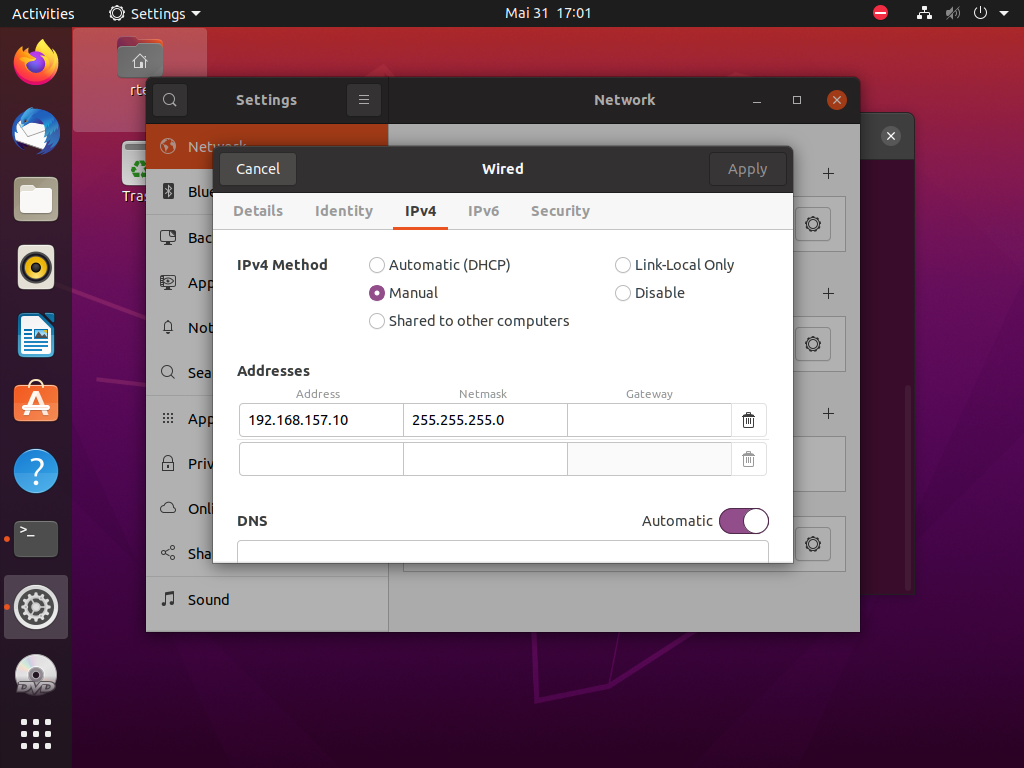
Fig. 2.1 Linux guest I (UBUNTU) network config settings dialog.
2.4. Linux II (UBUNTU)
2.4.1. Linux II Host-side guest configuration
Attention
These changes must be done on the host side for the Linux (UBUNTU) guest!
Open the appropriate guest configuration script of the ubuntu2 guest and edit the rtosvnet_nw value.
cd /hv/guests/guest0001
mousepad ./usr_guest_config.sh
Search the following line:
# Private RtosVnet network between RTOS and GP-OS
export rtosvnet_nw=0
and change it to:
# Private RtosVnet network between RTOS and GP-OS
export rtosvnet_nw=1
Hint
Changes to the other values of the RtosVnet config section only needed if different IP ranges or names are required!
2.4.2. Linux II Guest-side configuration
Attention
These changes must be done in running Linux (UBUNTU) guest!
Caution
To start the Linux II (UBUNTU) guest with a loaded RtosVnet instance, the Rtos (RT-Linux) must be started before!
start
RT-Linux(if not yet started!)
cd /hv/guests/guestrtlinux
hv_guest_start -view
start
Linux II (UBUNTU)guest
cd /hv/guests/guest0001
  hv_guest_start -view
Switch into UBUNTU guest and goto Settings -> Network and edit the ens10 adapter.
Goto IPv4 tab and edit the following values:
IPv4 Method: manual
Address: 192.168.157.11
Netmask: 255.255.255.0
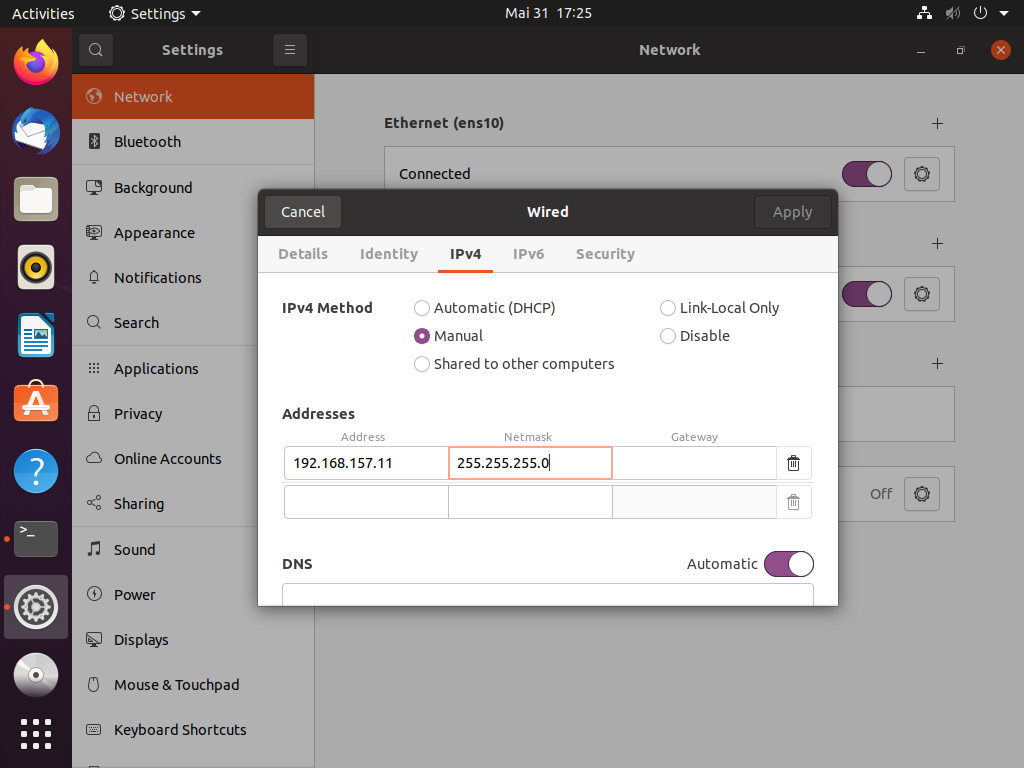
Fig. 2.2 Linux guest II (UBUNTU) network config settings dialog.
2.5. Final IP configuration
Host: 192.168.157.1RT-Linux: 192.168.157.2Linux I (UBUNTU): 192.168.157.10Linux II (UBUNTU): 192.168.157.11