1. Introduction
This guide describes how to set up CodeMeter license in the acontis Hypervisor. It is assumed that the steps listed in the Hypervisor Quick Start guide have been successfully executed.
2. Install RTOSVisor Protected-Package
First copy or download the files from your
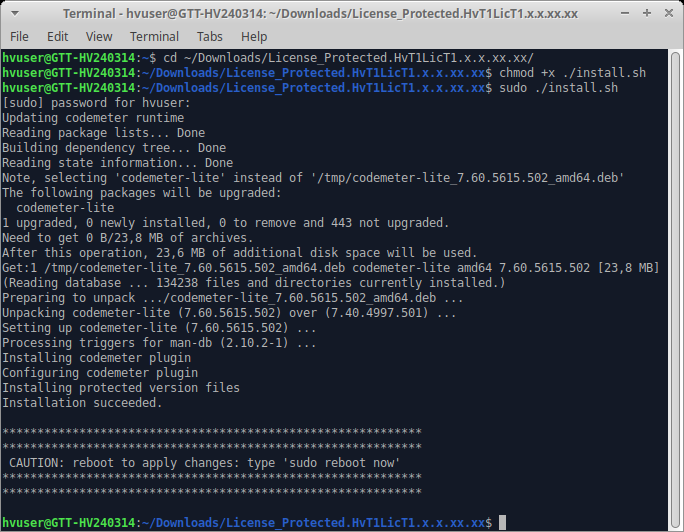
License_Protected.HvT1LicT1....zippackage to RTOSVisor.Now ensure the installation script from the package is executable:
chmod +x ~/install.shNext the installation can be started:
sudo ./install.shFinish the installation by rebooting RTOSVisor.
3. CmAct - Configure Binding Device
‘CmAct’ is a software-based licensing method using a virtual- instead of an USB- dongle. In order to use a virtual dongle license a network card has to be selected.
The license will be bound to this card.
Caution
If the card is removed from the system or assigned to a guest (pass-through) the license will break until the card is returned.
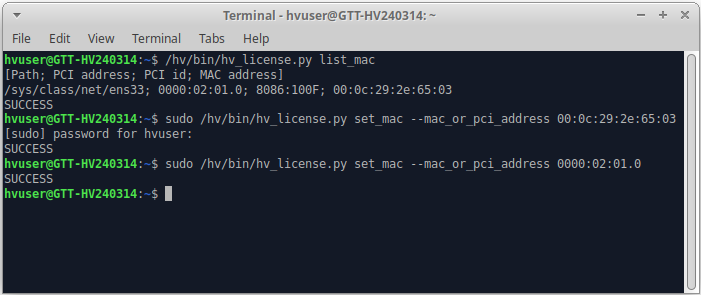
List the cards available:
/hv/bin/hv_license.py list_macIf there are multiple cards you can identify the desired one by calling
ip addrbefore and after disconnecting it.
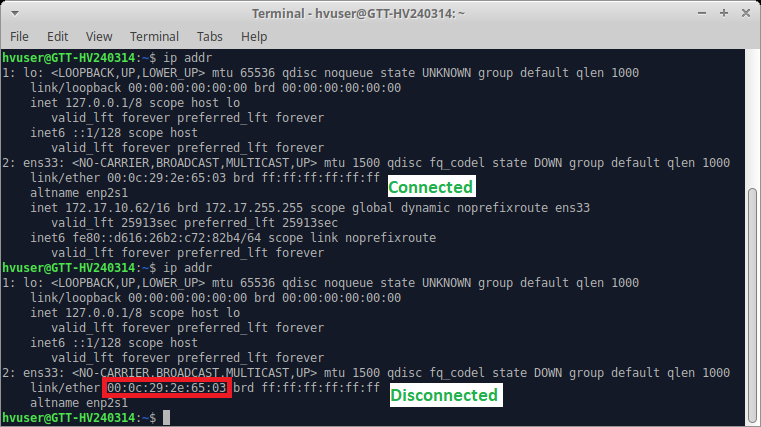
Select the card to be used for licensing using its MAC or PCI address:
sudo /hv/bin/hv_license.py set_mac --mac_or_pci_address 00:0c:29:2e:65:03or
sudo /hv/bin/hv_license.py set_mac --mac_or_pci_address 0000:02:01.0
Hint
The information will be stored at /usr/share/CodeMeter/Plugins/64/6001978/6001978-Mac.cfg
Now everything is prepared to create a license request.
4. CmAct - Breaking the license
The license will break (become invalid) when
the ‘Binding Device’ is not available, not configured or different from the one used for the license request.
the mainboard is changed.
5. CmAct - Create license request
Caution
Continue only if you already installed the ‘Protected-Package’, configured the ‘Binding Device’ and rebooted the system.
Create a license request:
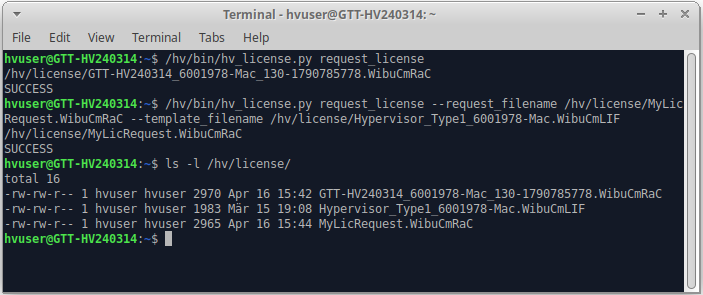
/hv/bin/hv_license.py request_licenseYou can optionally specify the output file or the template file to be used:
/hv/bin/hv_license.py request_license --request_filename /hv/license/MyLicRequest.WibuCmRaC --template_filename /hv/license/Hypervisor_Type1_6001978-Mac.WibuCmLIFThe default directory is
/hv/licenseand the default name is constructed by the computername, the license type and the license’s serial number.
Send the created file (in this example
GTT-HV240314_6001978-Mac_130-1790785778.WibuCmRaC) to your distributor to receive a license update.
6. CmAct - Import license update
Import the license update from your distributor:
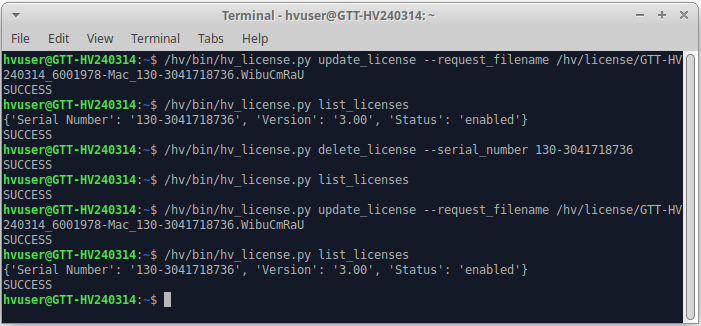
/hv/bin/hv_license.py update_license --request_filename /hv/license/GTT-HV240314_6001978-Mac_130-3041718736.WibuCmRaU
Hint
your filename will be different!
7. CmAct - Additional actions
List all licenses:
/hv/bin/hv_license.py list_licensesDelete a license by its serial number:
/hv/bin/hv_license.py delete_license --serial_number 130-3041718736Re-import a license:
/hv/bin/hv_license.py update_license --request_filename /hv/license/GTT-HV240314_6001978-Mac_130-3041718736.WibuCmRaU
Important
Keep a backup of the license update file and the used MAC address so a re-install of the license is possible.
8. CmAct - System Update/Restore
Keep a backup of the license update file and the used MAC address so you can re-install the license. In case you have to re-install the system these steps are required to re-install the license:
CmAct - Configure Binding Device (you have to configure the same MAC address)
The reboot can be delayed until this step but is required before the next one.
9. Troubleshooting
CodeMeter license problems can be analysed by:
sudo cmu --cmdust
The output can also be redirected to a file to be forwarded to your support:
sudo cmu --cmdust >~/Downloads/cmu_cmdust.txt
The following tables might help to identify some errors.