3. Graphical user interface
3.1. Overview
This section gives an overview about the graphical user interface:

- The graphical user interface is divided into five parts:
- Menu/Tool/Status bar:
Shows current status or mode of the EC-Inspector and allows the user to change it.
- Project Explorer:
Shows different views of the current network configuration
- Device Editor:
Show information about the selected device, like process variables.
- Short Info:
Show short information about selected device, like name, description or vendor.
- Messages:
Shows notifications which occur e.g. when the EtherCAT Device has changed its operation state or a SubDevice has been removed from (or added to) the EtherCAT network.
3.3. Project Explorer
3.3.1. Configuration Mode
There are three topology visualisation views:
- Classic View
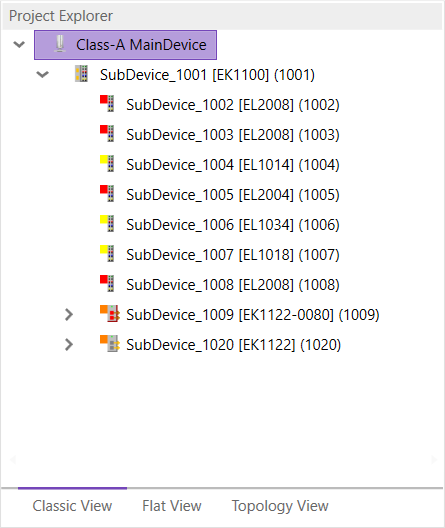
This is a tree view with multiple levels.
- Flat View
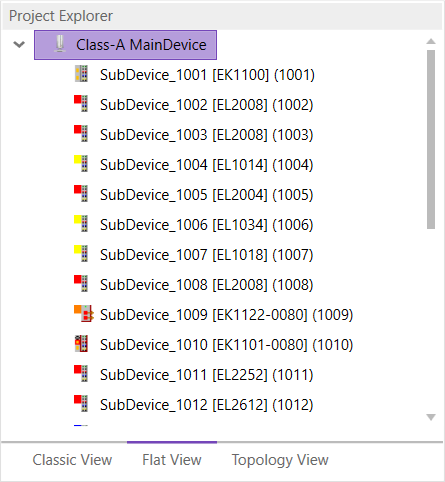
This view shows all SubDevices in a flat list, as they are connected in the EtherCAT network.
- Topology View
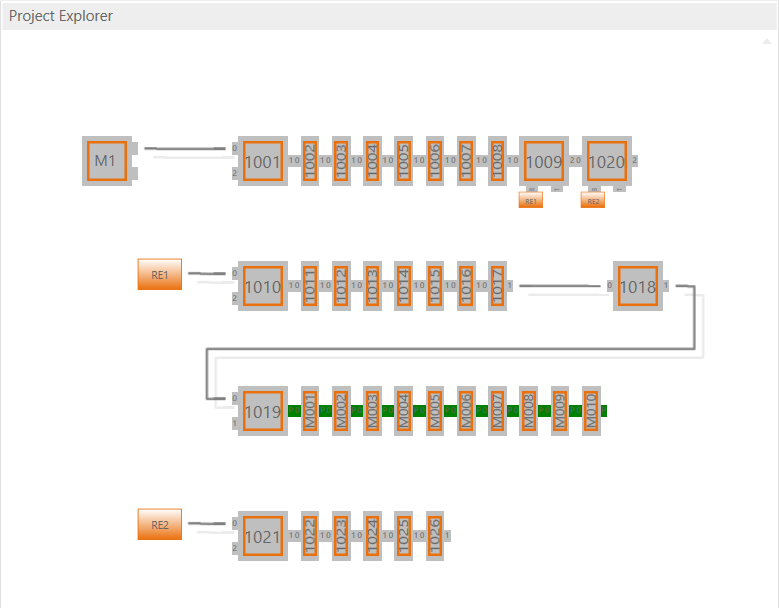
This view shows a graphical tree of all SubDevices, as they are connected in the EtherCAT network.
- The context menu of one or more selected SubDevices has the following entries:
- Enable SubDevices:
Enable disabled slaves
- Disable SubDevices:
Disabled slaves will be ignored by EC-Monitor if they could not be seen by TAP
3.3.2. Diagnosis Mode
There are three topology visualisation views:
- Classic View
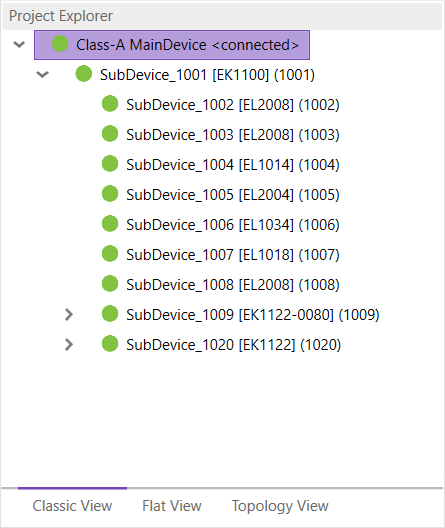
This is a tree view with multiple levels.
- Possible device states:
 Init Bootstrap
 Pre-Op
 Safe-Op
 Op
Op
- Flat View
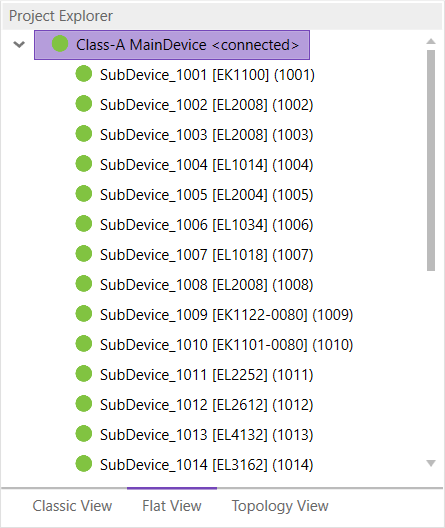
This view shows all SubDevices in a flat list, as they are connected in the EtherCAT network.
- Possible device states:
- Init Bootstrap Pre-Op Safe-Op Op
- Topology View
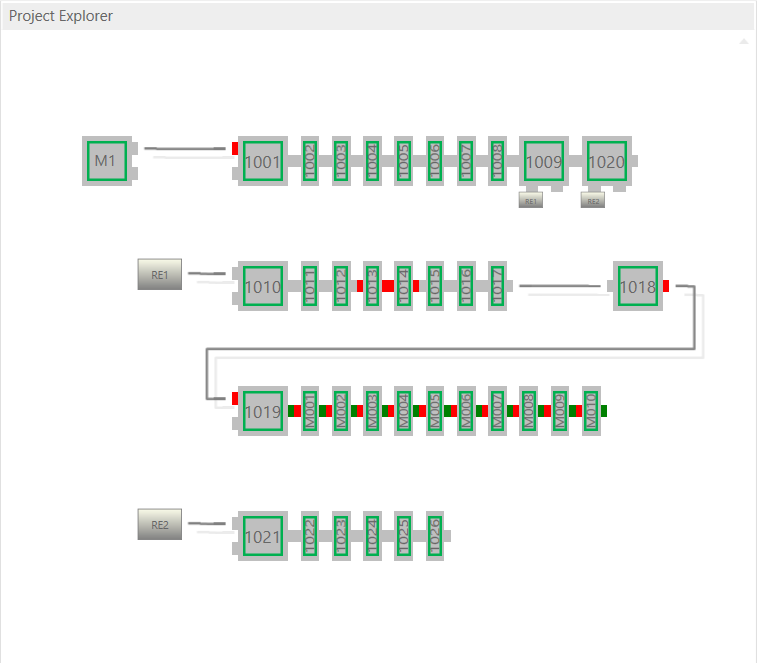
This view shows a graphical tree of all SubDevices, as they are connected in the EtherCAT network.
- Possible device states:
- Init Bootstrap Pre-Op Safe-Op Op
- Possible port states:
- Bad Cable Quality Constricted Cable Quality
 Good Cable Quality
If cable quality is constricted or bad, please check the error counters of the SubDevice (for more information about the extended diagnosis, see Extended Diagnosis).
3.4. Device Editor
- This Editor gives the user the possibility to read and write information of the selected device or SubDevice:
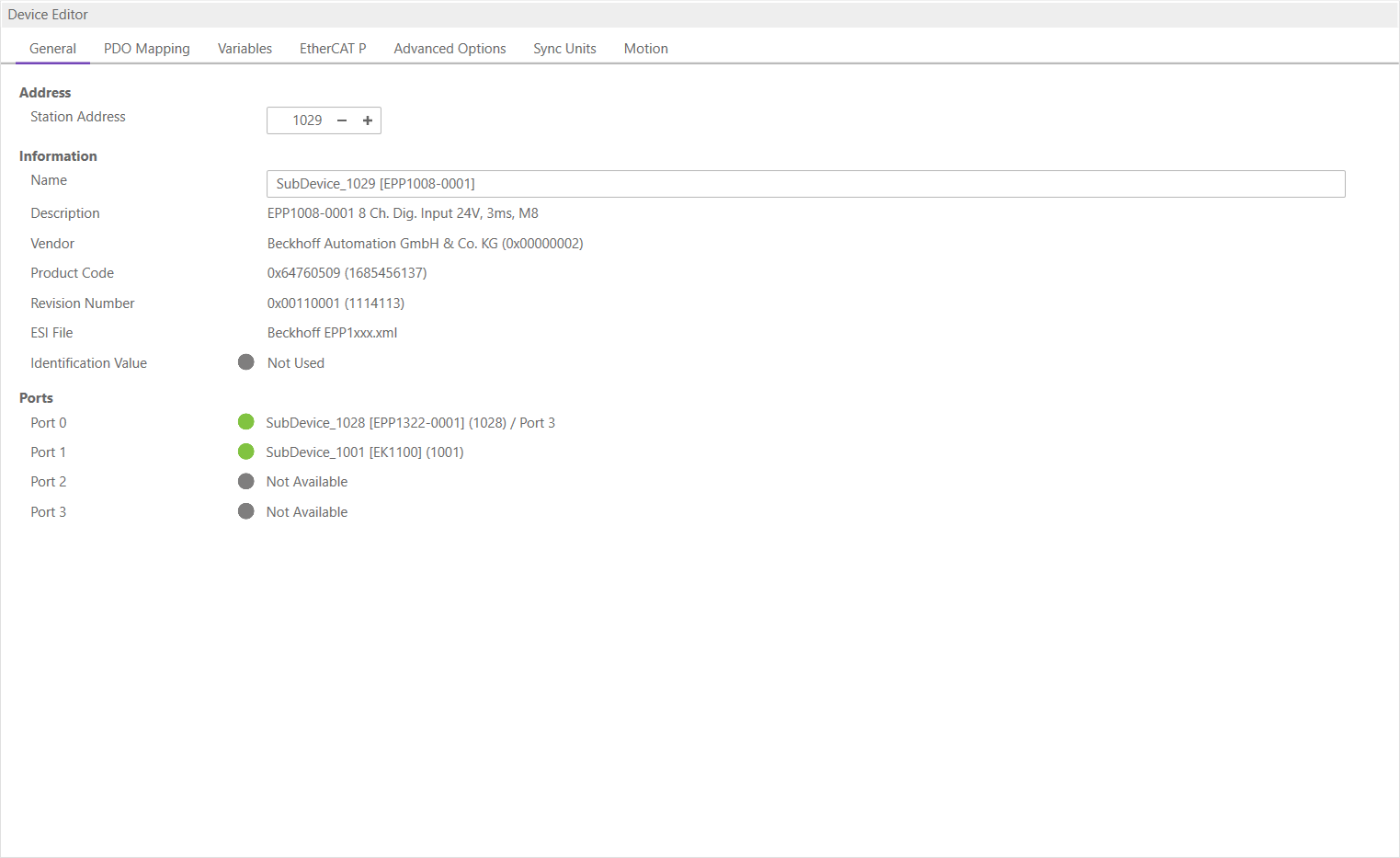
3.5. Short Info
- This window shows short information about selected device, like name, description or vendor:
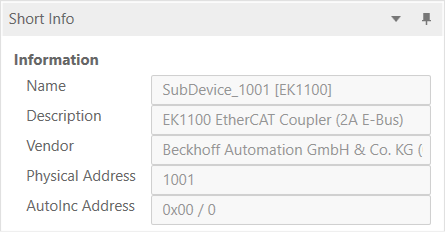
3.6. Message Window
- Shows notifications which occur e.g. when the EtherCAT MainDevice has changed its operation state or a SubDevice has been removed from (or added to) the EtherCAT network:

There is also a SDO Message Window, where only mailbox messages are shown. For example CoE messages and FoE messages. With EC-Inspector it is also possible to save the FoE file which is transferred on the network to a specific folder.