

2.4. Supported IDEs
2.4.1. Python Shell IDLE
This is the default IDE.
- It can be started from Windows Start Menu or by calling
C:/Python/Lib/idlelib/idle.py: 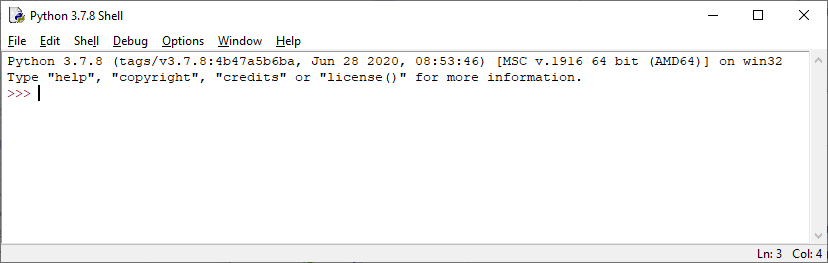
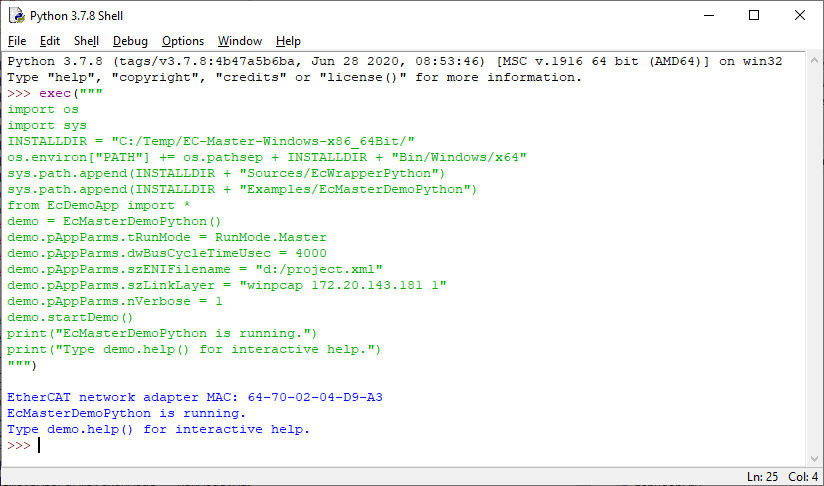
- In this shell, the user can simply copy&paste the sample code from:
Examples/EcMasterDemoPython/EcDemoAppInteractive.py exec(""" import os import sys INSTALLDIR = "C:/Program Files/acontis_technologies/EC-Master-Windows-x86_64Bit/" os.environ["PATH"] += os.pathsep + INSTALLDIR + "Bin/Windows/x64" sys.path.append(INSTALLDIR + "Sources/EcWrapperPython") sys.path.append(INSTALLDIR + "Examples/EcMasterDemoPython") from EcDemoApp import \* demo = EcMasterDemoPython() demo.pAppParms.tRunMode = RunMode.Master demo.pAppParms.dwBusCycleTimeUsec = 4000 demo.pAppParms.szENIFilename = "ENI.xml" demo.pAppParms.szLinkLayer = "ndis 127.0.0.0 1" demo.pAppParms.nVerbose = 3 demo.startDemo() print("EcMasterDemoPython is running.") print("Type demo.help() for interactive help.") """)
- … and the demo is running.
2.4.2. Visual Studio 2019
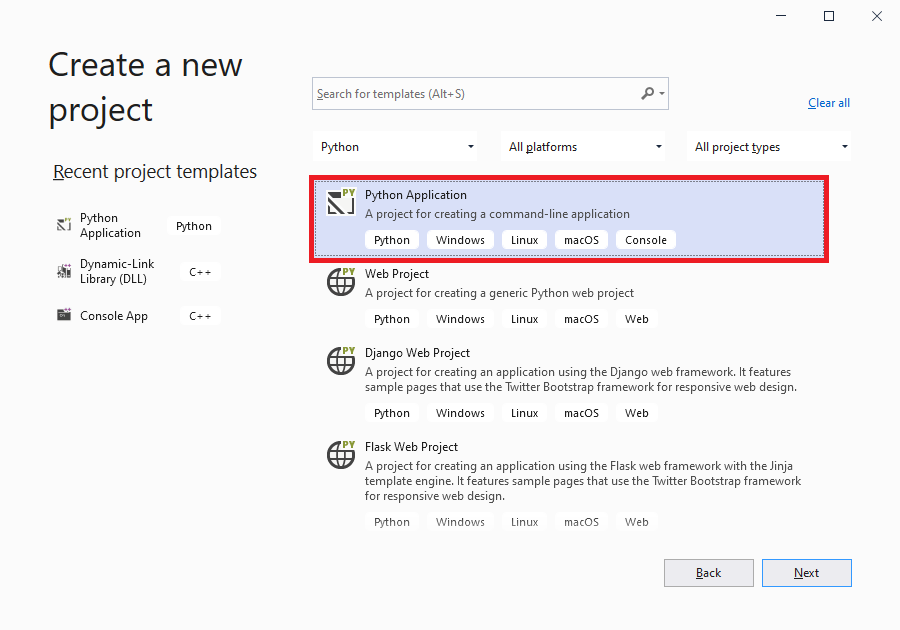
- Create a new project:
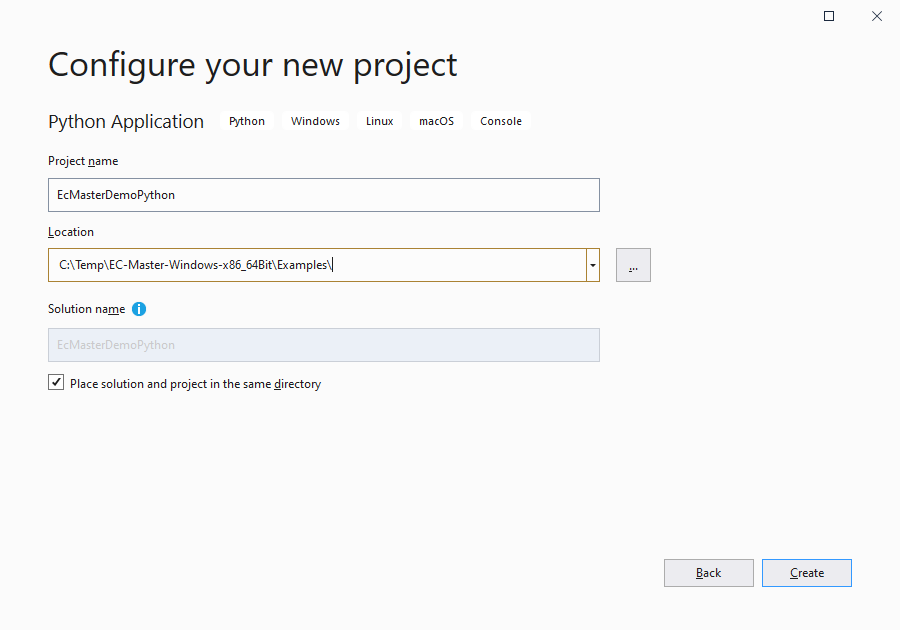
- Configure the project:
Replace the generated file
EcMasterDemoPython.pywith the existingEcDemoApp.py.
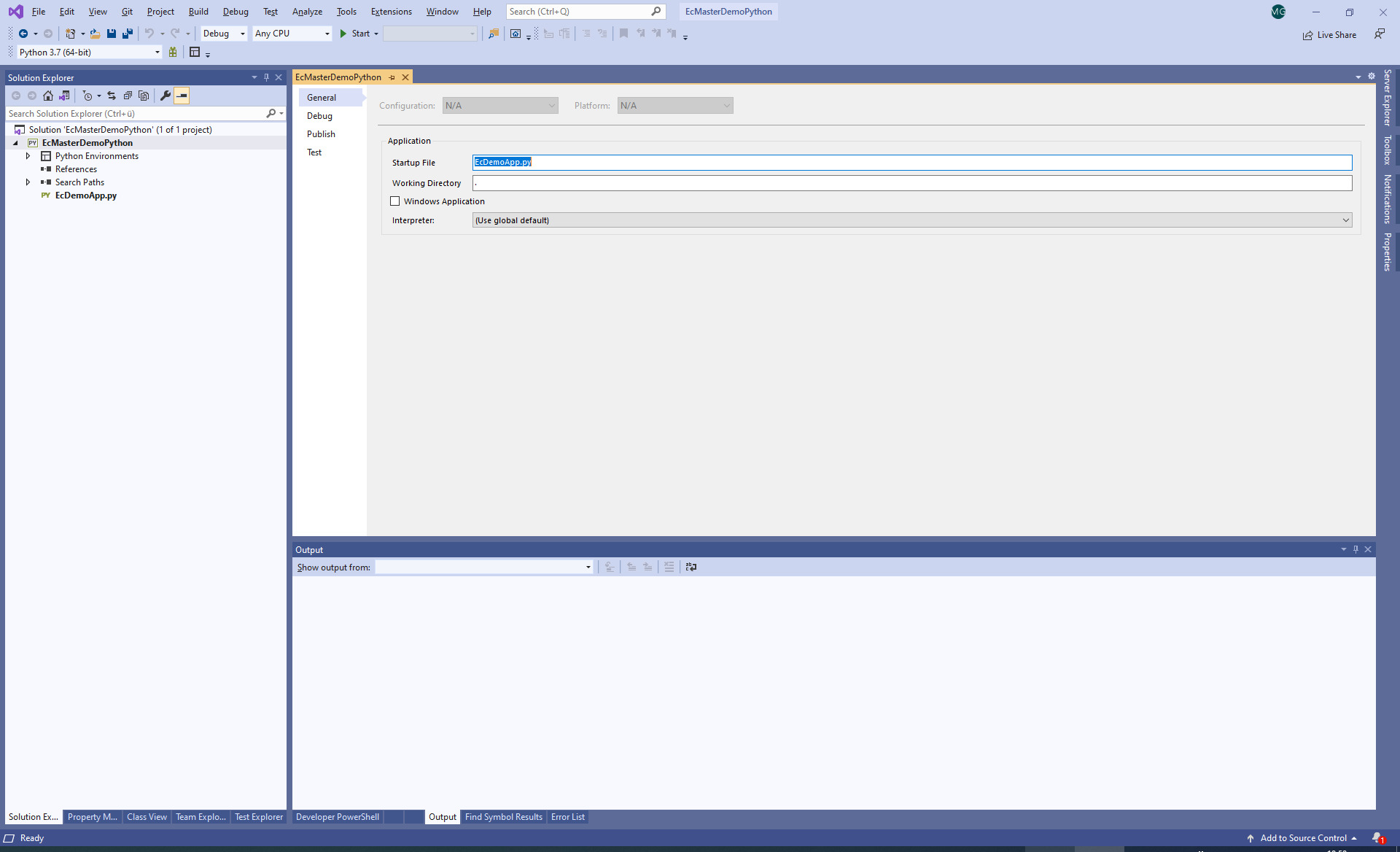
- Configure project General settings:
Startup File:
EcDemoApp.py
- Configure project Debug settings:
Search Paths:
../../Sources/EcWrapperPython;../EcMasterDemoPython
Script Arguments:
-mode 1 -file ENI.xml -link "ndis 127.0.0.0 1 1" -cycletime 4000 -time 1000 -lvl 3
Environment Variables:
PATH=../../Bin/Windows/x64;%PATH%

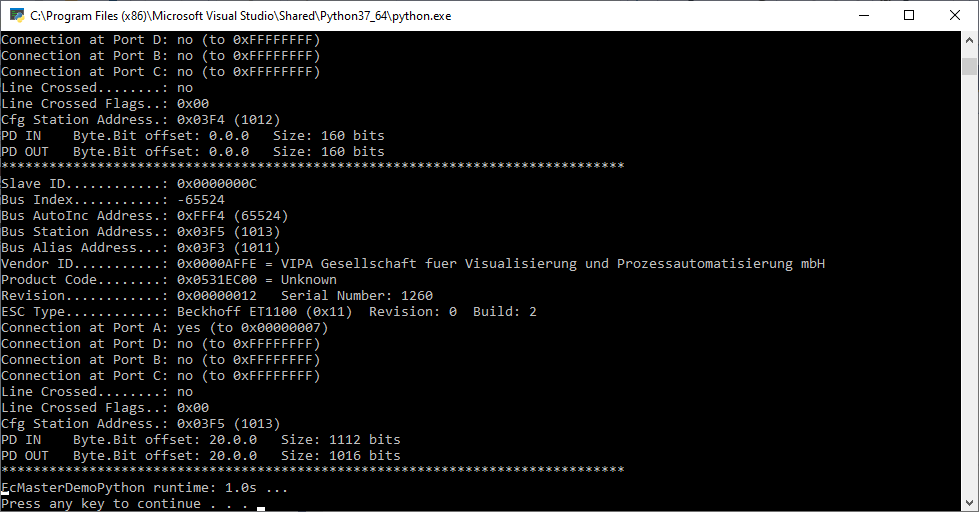
- Press Start and the demo is running:
2.4.3. Visual Studio Code
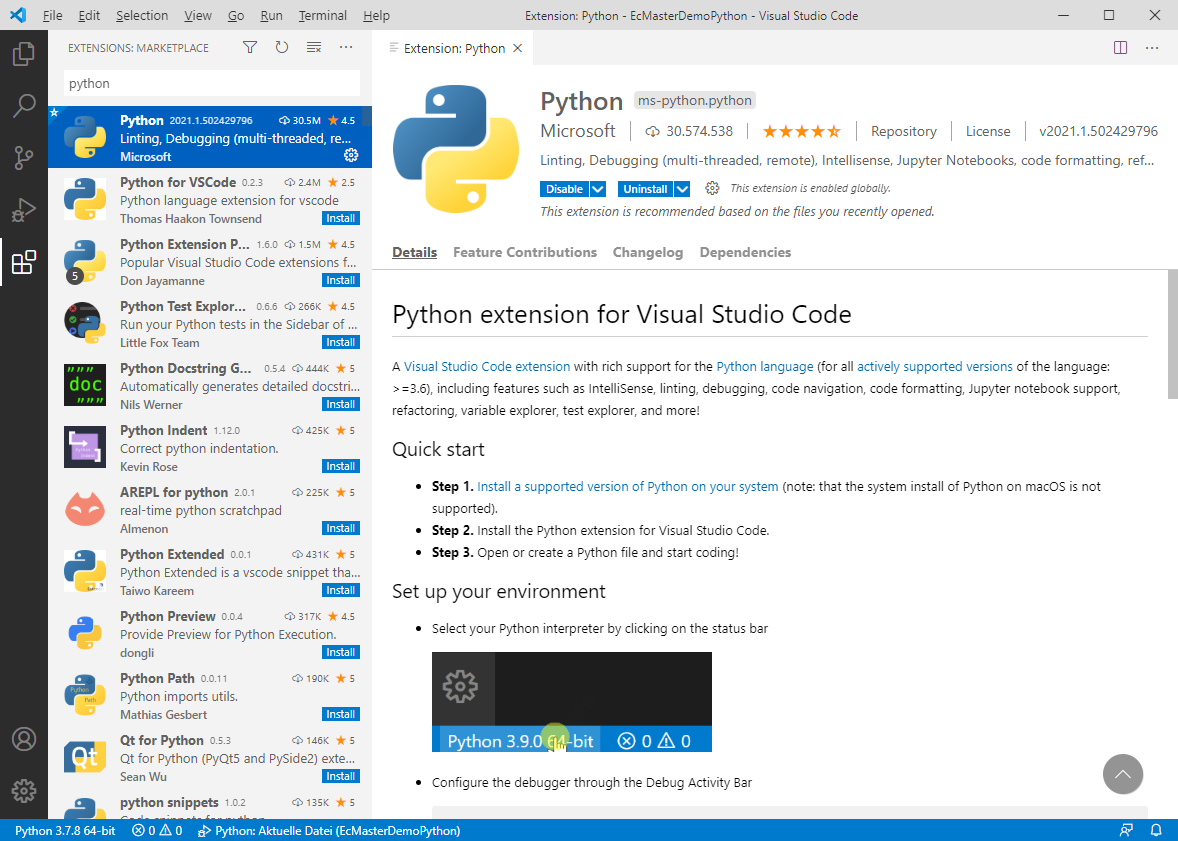
- Install python extension by open extension tab and enter python:
- Open folder
Examples/EcMasterDemoPythonand configure thelaunch.json: { "version": "0.2.0", "configurations": [ { "name": "Python: Aktuelle Datei", "type": "python", "request": "launch", "program": "${file}", "console": "integratedTerminal", "cwd": "", "args" : [ "-mode", "1", "-file", "ENI.xml", "-link", "ndis 127.0.0.1 1", "-cycleTime", "4000", "-time", "1000", "-lvl", "3", ], "env": {"PYTHONPATH": "${workspaceRoot}"} } ] }

- Configure linter in
settings.json: { "git.ignoreLimitWarning": true, "python.linting.pylintArgs": [ "--init-hook='import sys; sys.path.append(\"C:/Temp/EC-Master-Windows-x86_64Bit/Sources/EcWrapperPython\")'" ] }

- Open
EcDemoApp.pyand the following lines to set environment: import os import sys INSTALLDIR = "C:/Temp/EC-Master-Windows-x86_64Bit/" os.environ["PATH"] += os.pathsep + INSTALLDIR + "Bin/Windows/x64" sys.path.append(INSTALLDIR + "Sources/EcWrapperPython") sys.path.append(INSTALLDIR + "Examples/EcMasterDemoPython")

- Start debugging and the demo output will be written into the terminal:
