7. KVM Guest Network
There are various options how to configure a KVM guest for networking.
Private network between the guest and the Hypervisor Host (e.g. for file sharing)
Virtual network provided by the communication subsystem to communicate between KVM guests and RTOS guests via TCP/IP.
One single dynamically bridged automatic network connection to the external network (the network adapter typically is shared between all guests and the hypervisor).
Network adapter statically bridged with a physical adapter in the Hypervisor Host (typically only used by a single guest).
Network adapter statically bridged with the virtual network (if the communication subsystem shall not be used by the guest).
Network adapter dynamically bridged with the virtual network (if the communication subsystem shall not be used by the guest).
Guest internal statically bridged network (KVM guests can communicate over this internal network without using a physical ethernet controller and without using the virtual network).
The network configuration is based on various settings provided in usr_guest_config.sh. See details below.
If one or multiple network configurations are enabled using a static brdige, such bridge is created once when the guest is started. This bridge then will be preserved until they system is rebooted.
To verify which bridges are available, run:
brctl show
You can remove these bridges (after stopping all guests) using the command hv_brdelall:
hv_brdelall
Caution
All static bridges are created once when a guest is started. If you stop the guest and change related configuration you need to remove the related bridges, otherwise the changes will not become effective and the behaviour may become undefined. To accomplish this, just stop all guests and remove all bridges:
hv_brdelall
7.1. Private guest/Hypervisor network
The private network is a Hypervisor internally provided network which is connected to the external physical network via NAT (if the Hypervisor Host is connected to the external network). This connection is safe because it cannot be accessed from outside, but it is also much slower. It is also used for file sharing with the Hypervisor Host. The architecture of the private network looks as follows:
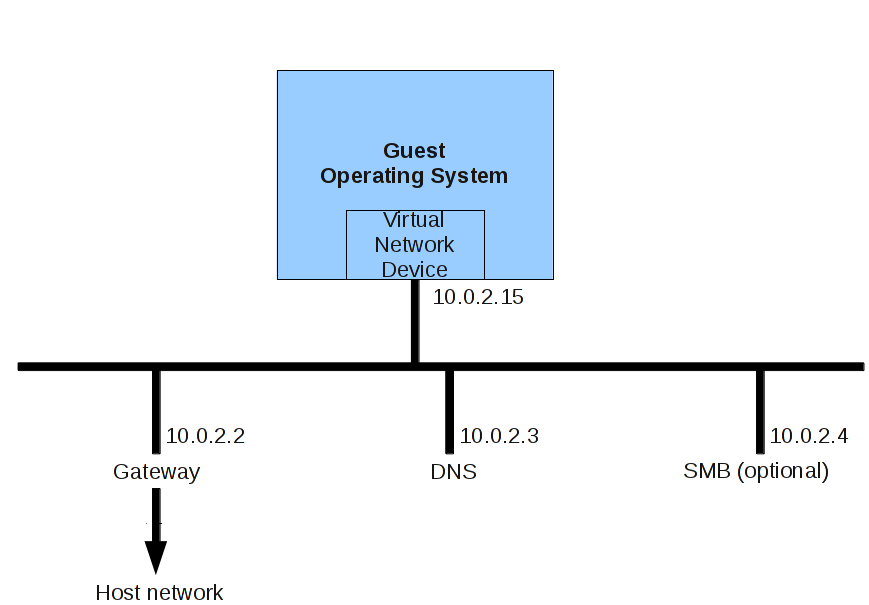
By default, the SMB server is enabled. This server provides access to the Hypervisor Host file system. For details, see File sharing
7.2. Communication subsystem Virtual Network
The communication subsystem is provided by the hypervisor to support guest communication. One of the communication means is the Virtual Network.
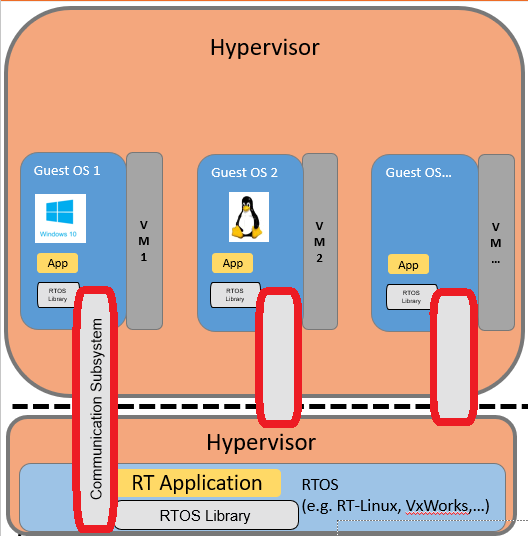
To use the communication subsystem in KVM guests, the hypervisor support package needs to be installed.
Prior to use the communication subsystem, the KVM guest has to attach to the Virtual Machine Framework (VMF) using the Uploader tool.
After installation of the support package, a respective shortcut should be available on the desktop.
You have to set the IP addresses as well as the MAC addresses in the guests to unique values.
7.3. Automatic external network connection (dynamically bridged)
One single automatic network connection to the external network is provided.
To enable this network, set external_nw to a value of 1.
This network typically is shared between all guests and the hypervisor.
The netif_mode setting determines, how this network is set up.
0: manual parameter setting. The parameters
netif_m,defaultgw_m,dns_m,brip_mandbrnm_mhave to be set properly. The Hypervisor Host network settings also need to be set manually then.1: automatic parameter setting. This is the default setting and should be used if the network where the hypervisor is connected to supports DHCP.
2: no IP for Hypervisor Host. In this case, the Hypervisor Host has no IP connection via the adapter defined in
netif_m.
You may have to set the Hypervisor Host network adapter accordingly. See Hypervisor Host network configuration for details.
When the guest is started, a bridge is dynamically created in the Hypervisor Host. This will bridge the physical device with a so called tap device representing the guest.
After stopping the guest, this bridge is removed.
The name of the statically created bridge will be vmbridge.
7.4. Bridged external network connection (static bridge)
One or multiple physical network adapters can be used in the guest using a (static) bridge. Using this method, multiple network adapters can be assigned to guests. Typically in such a use case, a single network adapter is only used by one single guest (not used by the Hypervisor Host nor shared by multiple guests).
To enable this mode, you need to set phys_nw to a value of 1 and enable one or multiple entries physnw_dev, physnw_ip and physnw_repmac.
For each single network adapter all three values need to be provided.
You should replicate the MAC address if only a single guest is using this adapter. You must not replicate the MAC address if the Hypervisor Host or other guests are using the adapter as well.
The name of the statically created bridge will be br-DEVICE, for example br-enp1s0 for the enp1s0 device.
7.5. Bridged virtual network connection (static bridge)
If you want to communicate between a KVM guest and a RTOS guest, you can use the virtual network. This is either possible using the communication subsystem as described above. Alternatively, a static bridge can be used, then avoiding the need to use the communication subsystem.
You need to set rtosvnet_nw to a value of 1 to accomplish this.
The name of the statically created bridge will be br-rtosvnet.
To establish a connection from the KVM guest with the virtual network, an IP address must be assigned to the corresponding Ethernet adapter in the KVM Guest. To modify the address of the virtual network, you can change the value of rtosvnet_br_ip in the configuration file usr_guest_config. By default, the address is set to 192.168.157.1.
Here is an example for a Windows guest:
Query the MAC address with brctl showmacs after the Windows guest has finished booting.
$ brctl showmacs br-rtosvnet
port no  mac addr            is local?    ageing timer
  1      00:60:c8:00:00:00   yes          0.00
  1      00:60:c8:00:00:00     yes          0.00
  2      0a:c1:c3:23:05:01     no           0.13         #---- MAC address needed for configuration
  2      ea:e8:fd:54:69:ee     yes          0.00
  2      ea:e8:fd:54:69:ee     yes          0.00
Use the MAC address with the ‘is local = no’ entry for configuring the network card.
The network card in the KVM guest can be identified by running ipconfig /all in the console. Set the network address in the Windows Network Connections.


Caution
By default, the Windows firewall prevents responding to a ping from the Hypervisor Host. You must disable the firewall or set up an appropriate exception to be able to ping from the Hypervisor Host to the KVM guest.
7.6. Bridged virtual network connection (dynamic bridge)
If you want to communicate between a KVM guest and a RTOS guest, you can use the virtual network. This is either possible using the communication subsystem as described above. Alternatively, a dynamic bridge can be used, then avoiding the need to use the communication subsystem.
You need to set vnet_nw to a value of 1 to accomplish this.
The name of the dynamically created bridge will be vmvnetbridge.
Caution
If you have configured static bridges you have to remove all bridges before setting up the dynamic bridge:
hv_brdelall
To establish a connection from the KVM guest to the virtual network, an IP address must be assigned to the corresponding Ethernet adapter in the KVM guest.
Here is an example for a Windows guest:
You will find the MAC address in the output when starting the KVM guest.
$ hv_guest_start -view
verify and prepare VM parameters
external network MAC = 0A:C0:C3:23:05:01
vnet network MAC = 0A:CA:C3:23:05:01     #---- virtual Network MAC needed for configuration
private network MAC = 0A:C1:C3:23:05:01
start VM
Use the vnet network MAC address for configuring the network card in the KVM guest.
The corresponding network card can be identified by running ipconfig /all in the console. The network address is then set in the Windows Network Connections.
By default, the address of the Hypervisor Host in the virtual network is 192.168.157.1. You can verify the IP Adress on the Hypervisor Host:
$ ip addr show vmvnetbridge
   vmvnetbridge: <BROADCAST,MULTICAST,UP,LOWER_UP> mtu 1500 qdisc noqueue state UP group default qlen 1000
    link/ether 00:60:c8:00:00:00 brd ff:ff:ff:ff:ff:ff
    inet 192.168.157.1/24 brd 192.168.157.255 scope global vmvnetbridge


Caution
By default, the Windows firewall prevents responding to a ping from the Hypervisor Host. You must disable the firewall or set up an appropriate exception to be able to ping from the Hypervisor Host to the KVM guest.
7.7. KVM guest internal network (static bridge)
For guest internal TCP/IP communication it is possible to set up a guest internal network. This network has no connection to the outside physical network.
You need to set guest_nw to a value of 1 to enable this network.
The Hypervisor Host may also be connected to this network by setting the guest_br_ip parameter to an appropriate IP address and network mask.
In the default case, the Hypervisor Host is not connected to this network (guest_br_ip set to no).
The name of the statically created bridge will be br-guest.
7.8. Guest Ethernet MAC addresses
In the GUEST_FOLDER the script GUEST_NAME_setmac.sh defines the Ethernet MAC address for the virtual network adapters inside the guest. By
default, if this file does not exist, this script file is automatically generated using random local administered addresses. You will have to
change these addresses by an official address related to your company.
The content of this file looks as follows:
export ethmacVM1=0A:C0:3E:89:08:04
export ethmacVM2=0A:C1:3E:89:08:04
export ethmacVM3=0A:C2:3E:89:08:04
export ethmacVM4=0A:C3:3E:89:08:04
export vnetethmacVM1=0A:CA:3E:89:08:04
export ethmacPHYS
ethmacPHYS[0]=0A:D0:3E:89:08:04
ethmacPHYS[1]=0A:D1:3E:89:08:04
ethmacPHYS[2]=0A:D2:3E:89:08:04
ethmacPHYS[3]=0A:D3:3E:89:08:04
ethmacPHYS[4]=0A:D4:3E:89:08:04
ethmacPHYS[5]=0A:D5:3E:89:08:04
ethmacPHYS[6]=0A:D6:3E:89:08:04
ethmacPHYS[7]=0A:D7:3E:89:08:04
ethmacPHYS[8]=0A:D8:3E:89:08:04
ethmacPHYS[9]=0A:D9:3E:89:08:04
The ethmacVM1 address belongs to the bridged Ethernet controller (bridged to the external network).
The ethmacVM2 address belongs to the private (internal) Ethernet controller (using NAT).
The ethmacVM3 address belongs to the statically bridged Virtual network.
The ethmacVM4 address belongs to the guest internal network.
The vnetethmacVM1 address belongs to the dynamically bridged Virtual network.
The ethmacPHYS[#] addresses belong to the statically bridged external network (if MAC replication is turned off).