2. Installation and basic configuration
The Hypervisor has to be installed onto an empty installation media. It is directly booted from the BIOS. Side-by-side installation with an existing Windows or Linux is not recommended, but possible. If an existing Windows or Linux system shall be kept, assure a free partition for booting the Hypervisor is available. The minimum required size for the installation media is 10 GByte.
2.1. USB stick boot media creation
To install RTOSVisor, you will need to create a bootable USB stick using the file:RTOSVisor.iso file. Use a tool such as Rufus (for Windows) or the dd command (for Linux/macOS) to write the file:RTOSVisor.iso file to the USB stick. Once the USB stick is successfully created, it can be used to boot and install RTOSVisor on the target system.
In this guide, we will use Rufus to create the bootable media.
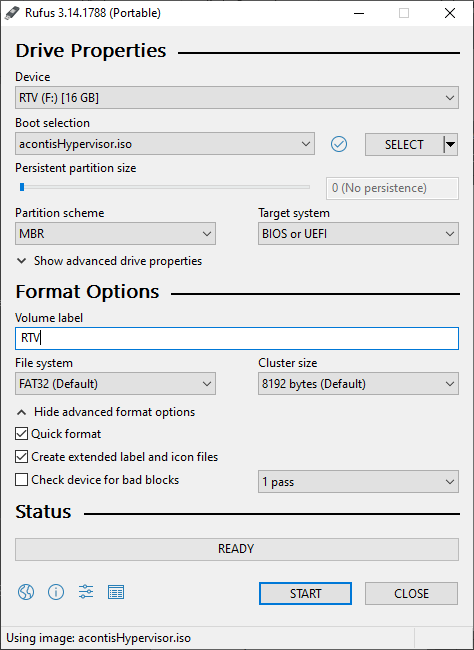
Fig. 2.1 Settings to create the acontis Hypervisor BOOT stick.
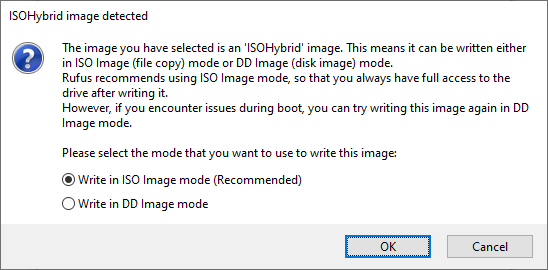
As the ISO is a hybrid ISO, Rufus will ask for the mode. Use the default ISO Image mode.
2.2. Installation
Boot the target PC from the USB stick you just created.
A stripped down and light-weight Debian Linux is used as the Hypervisor service operating system.
Select
Install acontis RTOSVisorto install the Hypervisor, other options are not supported.Follow the installation instructions.
Do not keep any existing Windows or Linux installation, let the installer erase previously installed OSes.
A user account must be created while installing the Hypervisor.
Note
A password MUST be defined!
After the installation has finished, you have to reboot the system. You may also wish to reset the BIOS settings so that USB is no longer the primary boot device.
When the BIOS startup finished, a boot menu is shown and the default entry
Configure RTOSVisoris selected, keep this and do not select any other entry.
2.3. Remote Desktop Access to the Hypervisor
When working with Windows for software development, you may want to connect remotely to the Hypervisor Host using a Remote Desktop Connection (using the RDP protocol).
The xrdp application of the Hypervisor Host will provide such access. When using Remote Desktop you may simply copy paste commands from this manual into the Hypervisor shell.
If you want to work directly on the Hypervisor Host, you can skip this chapter.
First, you need to connect your Hypervisor Host to your company network and then determine the IP address. Open a shell (right click on Hypervisor Host desktop and select ‘Open Terminal here’ or press CRTL + ALT + T)
Caution
An active RDP session MUST be left by a explicit log-out. Closing the RDP window without explicit log-out leaves the current session active and this prevents a later local log-in into the system! In such case, you need to terminate the existing session. First, the process ID of the session needs to be determined, then the process be killed (replace <username> by your username, in the below example, the process id is 2637):
pgrep -a -u <username> Xorg
2637 /usr/lib/xorg/Xorg :11 -auth .Xauthority -config xrdp/xorg.conf -noreset -nolisten tcp -logfile .xorgxrdp.%s.log
sudo kill 2637
To automatically end RDP sessions after a few seconds of inactivity or disconnection, you need to configure the xrdp-sesman service.
This is handled by the /etc/xrdp/sesman.ini file. You may adjust the below two parameters to force killing disconnected sessions after 2 seconds and then restart the service:
sudo mousepad /etc/xrdp/sesman.ini

:   :   :   :
[Sessions]
KillDisconnected=true
DisconnectedTimeLimit=2
:   :   :   :

sudo systemctl restart xrdp
ifconfig
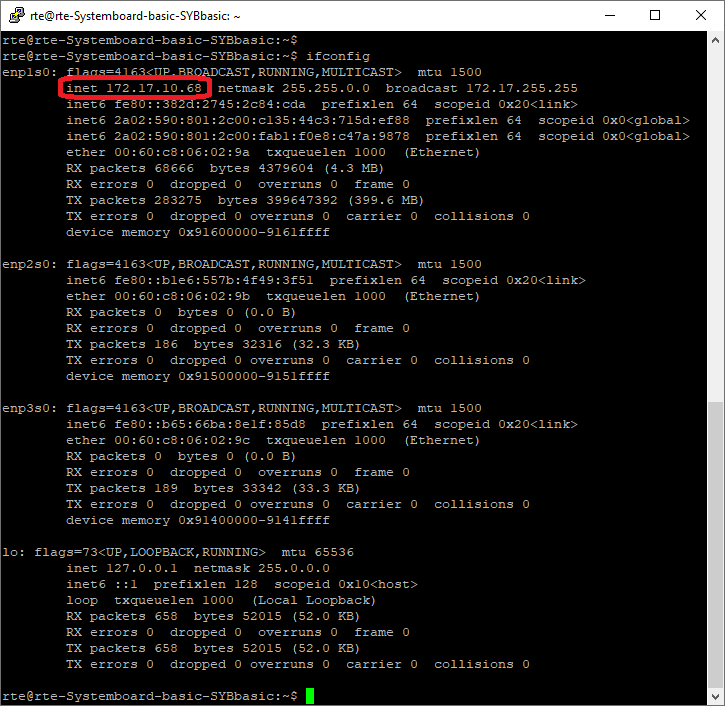
Now its possible to access the Hypervisor system through Windows Remote Desktop using the previously determined IP address.
Hint
Use the user account, which was created when installing the Hypervisor.
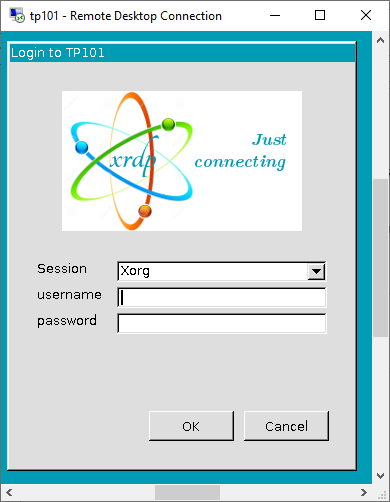
Caution
To log-in remote into the hypervisor through xrdp, no other user must be logged-in into the hypervisor.
You can change this behavior by killing the current session at the Desktop, run the who -u command to determine the process id:
$ who -u
hvuser   tty7         2023-01-29 18:26 00:08        1182 (:0)
hvuser   pts/2        2023-01-29 18:31   .          2410 (192.168.178.21)
$
The line with the (:0) is the session running at the physical display. You can kill this session:
sudo kill -9 1182
If this does not work, you may kill all sessions of the currently logged in user via the killall command.
For example, to kill all sessions of the user hvuser, run the following command:
sudo killall hvuser
2.4. Basic System Configuration
2.4.1. Power Management
To assure deterministic real-time behavior it is necessary to disable all power saving settings.
Several settings in the PC BIOS will have to be adjusted. You may take a look at the acontis website for example BIOS settings or pre-validated hardware BIOS settings
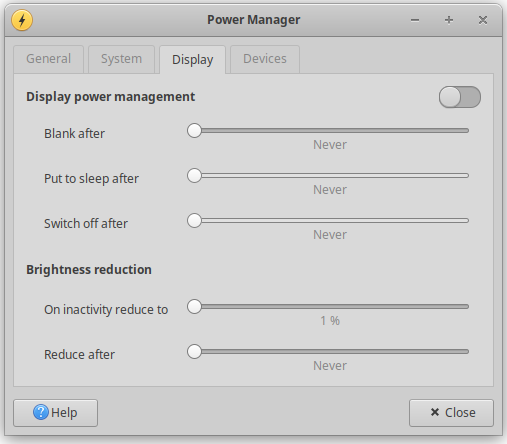
You need also to assure the Display Power Management is turned off in the Hypervisor Host.
First, open the Power Manager:
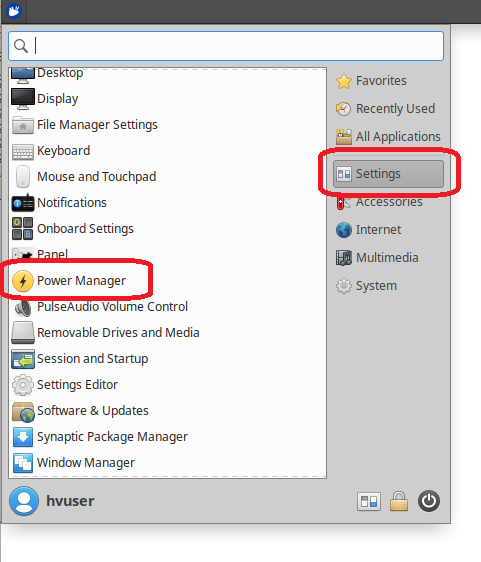
Then assure the Display Power Manager is turned off (pull all sliders to the left before):