12. FAQ, Tips
12.1. Help in case of a problem
If you have a problem with EC-Engineer or something does not run as expected, please try first the following things:
Read messages in message window
Increase message level
Read log file for more information
Restart EC-Engineer and try to do it again
- Contact support by sending a mail to ecsupport@acontis.com and attach the following information
Project file
.eccor.eciif availableEC-Engineer Version
Log file
Short description how the reproduce it
12.2. Shortcuts
EC-Engineer supports shortcuts for the most commonly used actions, like:
- Menu
Ctrl + N: Create new project
Ctrl + O: Open project
Ctrl + S: Save project
Alt + F4: Exit program
12.3. Internal User Specific Settings
EC-Engineer saves all user specific settings in a subfolder of the all users directoy %ALLUSERSPROFILE%/EC-Engineer like C:/ProgramData/EC-Engineer.
In this directoy there is a XML file called User.myusername.xml. In this file, the user can find additional settings, which can be helpful for solving some problems:
- MasterUnitLocalCycleTime = 1
Bus cycle time of the internal MainDevice in milliseconds
- MasterUnitLocalWorkerSleepTimeMs = 100
Cycle time of the local MainDevice thread in milliseconds
- MasterUnitRemoteWorkerSleepTimeMs = 300
Cycle time of the remote MainDevice thread in milliseconds
- MasterUnitTimerNormalCount = 4
Time shift to cycle time of the normal refresh cycle
E.g. local MainDevice = 100 ms, normal refresh cycle is every 400 ms
Used e.g. for updating MainDevice information, error counters of SubDevice, …
- MasterUnitTimerSlowerCount = 20
Time shift to cycle time of the slower refresh cycle
E.g. local MainDevice = 100 ms, slower refresh cycle is every 2 seconds
Used e.g. for updating the SubDevice information, EEPROM data, register data, …
- MasterUnitTimerSlowestCount = 120
Time shift to cycle time of the slowest refresh cycle
E.g. local MainDevice = 100 ms, slower refresh cycle is every 12 seconds
Used e.g. for updating the CoE Object Dictionary, …
- MasterUnitScanBusTimeout = 5000
Timeot for bus scan in milliseconds
- MasterUnitMailboxTimeout = 5000
Timeout for mailbox access in milliseconds
- MasterUnitStateChangeTimeout = 5000
Timeout for changing state machines in milliseconds
- MasterUnitRegisterTimeout = 3000
Timeout for register access in milliseconds
- MasterUnitProcessDataTimeout = 1000
Timeout for process data access in milliseconds
- MasterUnitEepromTimeout = 3000
Timeout for EEPROM access in milliseconds
- MasterUnitRasCycleTime = 0
Internal RAS cycle time for polling
- MasterUnitRasWatchDog = 0
Internal RAS watchdog interval
- MasterUnitRasWdToLimit = 0
Internal RAS watchdog limit
- DiagGeneralErrorLvlLostLink = 10
Theshold value for the “Lost Link Errors”, which leads to an error
- DiagGeneralWarningLvlLostLink = 1
Theshold value of the “Lost Link Errors”, which leads to a warning
- DiagGeneralErrLvlRxError = 10
Theshold value for the “RX Errors”, which leads to an error
- DiagGeneralWarnLvlRxError = 0.001
Theshold value of the “RX Errors”, which leads to a warning
- DiagGeneralErrLvlInvalidFrame = 10
Theshold value for the “Invalid Frames”, which leads to an error
- DiagGeneralWarnLvlInvalidFrame = 0.001
Theshold value of the “Invalid Frames”, which leads to a warning
- DiagGeneralErrLvlProcUnitErr = 1000
Theshold value for the “Processing Unit Errors”, which leads to an error
- DiagGeneralWarnLvlProcUnitErr = 100
Theshold value of the “Processing Unit Errors”, which leads to a warning
- MasterDebugMessageLevel = 0
Activates extended debug messages of the EC-Master (0 = Silent, 1 = Any, 2 = Critical, 3 = Error, 4 = Warning, 5 = Info, 6 = InfoApi, 7 = Verbose, 8 = VerboseCyc)
- GuiDebugMessageLevel = 0
Activates extended debug messages of the GUI (0 = Off, 1 = Errors, 2 = All)
- IndentXmlFiles = False
Activates indenting of
XMLfiles (makes exportedXMLfiles readable, but increases size)- EnhancedUtf8Support = False
Activates the enhanced UTF-8 support, which might be necessary if characters will be not displayed correctly
12.4. FAQ
Solutions for possible problems:
- The integrated Device does not react as estimated
Increase the message level (Menu Settings All Messages) and try it again.
- EC-Engineer reports a message with ErrCode: 0x…
Error Codes comes directly from the Device. If you want to know what to know how to solve this problem, please refer the manual of EC-Master / EC-Monitor.
- EC-Engineer reports the following message: Not all EtherCAT SubDevice devices are in operational state
Check if all SubDevices have a green icon. If the color is not green, open tab “Diagnosis SubDevice General”. Here you can see the error state of the SubDevice. If it has no error, try to change the state to OP again.
- EC-Engineer reports the following message: Changing topology failed: Bus configuration mismatch (ErrCode: 0x9811001E)
The configured bus and the currently connected bus does not match. Please open the ‘Network Mismatch Analyzer’ (Menu Network Network Mismatch Analyzer) to solve the problem.
- EC-Engineer reports the following message: SubDevice ‘…’ has unexpected state (Current state: ‘…’, Expected state: ‘…’)
Select the SubDevice and open the tab “General”. Here you can see the error state of the SubDevice. If it has no error, try to change the state again.
- SubDevice reports the error state: “Sync manager watchdog” (Diagnosis SubDevice General)
You need a realtime operating system. If you still want to use your SubDevice on Windows, you can turn off this watchdog (SubDevice->Advanced Settings: Set SM Watchdog = 0).
- How can I update the firmware of my SubDevice via FoE?
- For updating the firmware of your SubDevice via FoE, please follow these steps:
Enable diagnosis mode
Set MainDevice state to INIT
Select your SubDevice, and set his state machine to BOOTSTRAP
Enter path of file on SubDevice (optional)
Enter password (optional)
Press button “Download” (it will open the FileOpen-Dialog, where you can choose the file which contains the new firmware and uploads this file)
- Connect to local system is not possible
Is Npcap / NDIS installed?
Is at least one network adapter installed?
- Why is the process image size different between EC-Engineer and EC-Master?
EC-Engineer shows on tab not the real size of the process data image. It show only the offsets and the size of the variables.
If you want to get the real size of the process data image, which is used from EC-Master, you have to look into the
ENIfile:EtherCATConfig/Config/ProcessImage/Inputs/ByteSizeorEtherCATConfig/Config/ProcessImage/Outputs/ByteSize. This is the offset + size of the last variable and additional administration data depending on the SubDevices which are used (ALStatus, DC Support, Mailbox, …).
- EC-Engineer reports the following message: Failed to query EtherCAT SubDevices. No SubDevices found.
Verify that NDIS or Npcap driver is installed. WinPcap may not work anymore.
Try to restart you operating system, because this is sometimes necessary if you e.g. using a USB network adapter
Increase the message level (Menu Settings All Messages)
- Turn on debug message of the MainDevice
Stop “EC-Engineer”
Set “MasterDebugMessageLevel” to “7” (verbose) in
%ProgramData%/EC-Engineer/user.myusername.xmlStart “EC-Engineer” again
- EC-Engineer reports the following message: Network scan successful - 0 SubDevices found.
Make sure you have connected the input and not the output port of your first SubDevice to the computer.
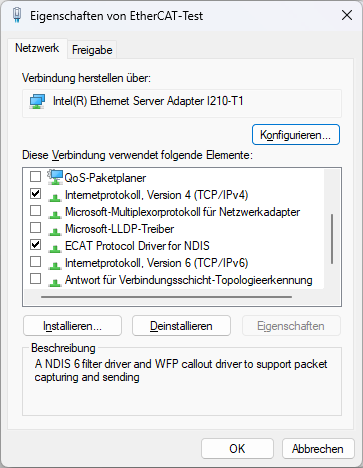
- Open “Network and Internet Connections Network Connections” and open the properties of your network adapter and uncheck all protocols except “Internet Protocol (TCP/IPv4)”
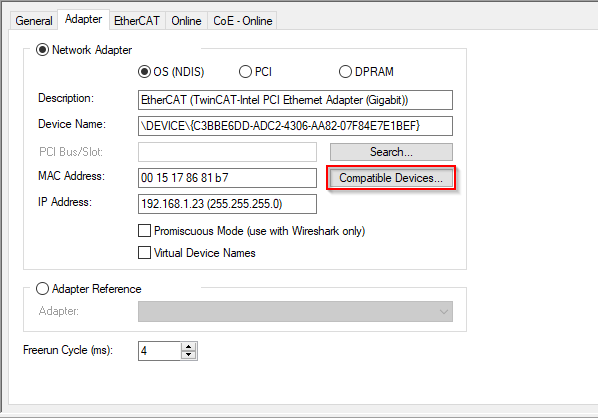
- Do you have TwinCAT installed on this machine?
- Open “Compatible Devices”:
- Uninstall or disable the “TwinCAT RT-Ethernet Adapter” for your network adapter:
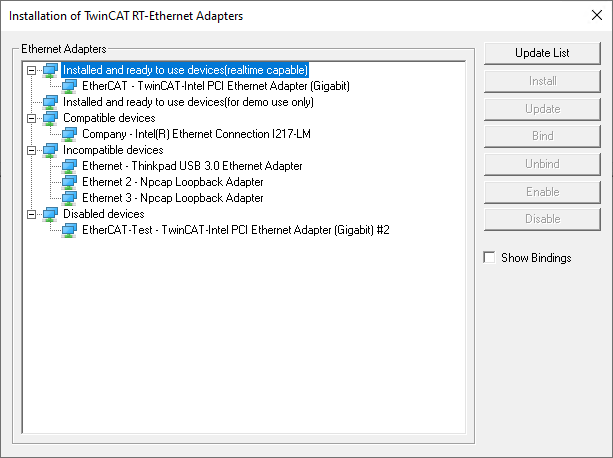
If this doesn’t help, try to disable the “TwinCAT RT-Ethernet Driver” in the properties of your network adapter and reboot your system.
Run EC-Engineer with administrative rights? Does it help?
- Do you have a some kind of security software (like firewall, antivirus, …) installed on this machine?
Try to turn it off and check if problem is solved
- Do you have problems on sending or receiving pakets?
Install “Wireshark” and check which pakets are missing
- Do you have only problems on sending packets?
Try to exclude ethernet protocol type “0x88a4” from your firewall. For more information see https://en.wikipedia.org/wiki/EtherCAT/
Try it with Npcap instead of WinPcap. Make sure you chose “Install Npcap in WinPcap API-compatible Mode”
- How can I create
ENIfiles for SubDevices from the Beckhoff CX5000 series? The
ENIfile of those SubDevices must start with an Ebus SubDevice, but EC-Master exports only an MII port. This problem can be solved by first adding a helper SubDevice “EK1200”. The “real” EBus SubDevices can be connected afterwords to this helper SubDevice.
- How can I create
- WebAdmin in Dongle-Version shows page not found, what can I do?
You have to download and install the Code Meter Runtime from WIBU https://www.wibu.com/
- UTF8 characters e.g. in variables or PDOs will be not displayed correctly
This requires the enhanced UTF-8 support and can be enabled by setting “EnhancedUtf8Support = True”, (see Internal User Specific Settings)