4. Additional Tutorials
4.1. Run shipped RTOS container
Caution
This tutorial is only for completeness and handles some edge cases like VxWorks! See chapter Installation and Configuration for the general Hypervisor-Quickstart-Guide!
4.1.1. General
RTOS images (containers) are located in the appropriate directory beyond /hv (e.g. /hv/lx for RT Linux containers).
The first time, when a RTOS container is started, the RTOS Virtual Machine is loaded and the configuration for the RTOS container(s) are loaded. In case a configuration entry has changed, all RTOS containers need to be stopped and the RTOS Virtual Machine to be reloaded.
Configuration files are stored in config files. The following operations are supported via calling the appropriate scripts:
start RTOS (e.g.
lx.shto start the RT Linux image)stop RTOS:
rtosstop.shstop RTOS and RTOS Virtual Machine:
stopall.shopen Debug Console:
dbgcon.sh
4.1.2. Real-time Linux container
Important
you need at least 256 Mbyte RAM for the shipped Linux image. Assure the inithv.sh script was executed with the appropriate RAM size.
Real-time Linux containers are stored in /hv/lx
Start the container using the lx.sh script.
From within the real-time Linux OS you may access the Hypervisor filesystem via the /mnt/rtfiles mount point. The root directory will point to the Hypervisor directory /hv/lx/rtfiles.
4.1.3. VxWorks container
VxWorks containers are stored in /hv/vx
Start a VxWorks container using the vx.sh script.
4.1.3.1. File system access
To access the Hypervisor filesystem from within VxWorks, you may use FTP.
For security reasons, by default, there is no FTP server installed.
Follow these instructions to install an FTP server in the Hypervisor.
sudo apt-get install vsftpdactivate the entry
write_enable=YESin/etc/vsftpd.confRestart the FTP server:
/etc/init.d/vsftpdrestart- Create an FTP user target with password vxworks:
adduser target
passwd vxworks
You may use visudo to add the user target to the sudoers group (duplicate the root entry)
After executing the above steps, from within VxWorks, you should be able to access the directory
/home/target
4.1.4. On Time RTOS-32 container
RTOS-32 from “On Time” company is a hard real-time operation system. It is one of the operating systems supported by RTOSVisor.
- Directories:
/hvthis root directory contains all RTOSVisor files and executables.
/hv/rtos-32RTOS-32 configuration files and start/stop scripts as well as OS binaries.
/hv/rtos-32/rtfilesdirectory for your
.dlmfiles.
- Most important bash scripts:
/hv/rtos-32/realtimedemo.shstarts RTOS-32 VM and the acontis tool measuring context switch and interrupt latencies.
/hv/rtos-32/realtimedemo-debug.shstarts debug monitor that awaits requests from a remote debugger on a Windows PC with installed EcWin, Visual Studio, and RTE Plugin.
/hv/rtos-32/ecmasterdemo.shstarts RTOSVisor RTOS-32 VM and EtherCAT MasterStack demo.
/hv/rtos-32/stopall.shstops VM and RTOSVisor.
/hv/rtos-32/dbgcon.shopens interactive RTOS-32 VM console, so you can interact with your app here.
- Specific scripts used for debugging:
/hv/hvctl/brvnetset.shcreates a virtual network bridge on Linux host to forward debugger TCP/IP/UDP packets from LAN1 to RTOS-32 VM. It is required to start this script if you need to perform remote debugging of a RTOS-32 app from another machine.
Hint
See chapter “Bridge virtual and physical network” in the Hypervisor manual for details how to configure the bridge.
/hv/hvctl/brvnetclr.shdeletes bridge, after the RTOS-32 VM has been stopped.
Start a RTOS-32 container using the rtos-32.sh script.
4.1.4.1. PC Configuration Prerequisites
It is assumed that you already have installed RTOSVisor and configured it as it is described in this Hypervisor.pdf file.
It is also assumed, that your Hypervisor PC has two LAN ports and you already have assigned LAN2 to RTOSVisor, as it is described in Hypervisor.pdf in the
PCI/PCIe device assignment section. Ths step is only required if you want to start EcMasterDemo, because it requires one LAN port to communicate with EtherCAT slaves.
If you want just run other demoes (ex. realtimedemo), or want to remotely debug your RTOS-32 app, you can skip this step.
4.1.4.2. Achieving Hard Real-Time Capabilities
It is important to understand, which factors have influence to the real-time capabilities of your hardware. Most important of them are BIOS Settings (no CPU power saving modes should be activated, no CPU throttling, no variable CPU Frequency, USB Legacy support should also be disabled). Please refer to the RTOSVisor documentation). SMI must be also avoided.
Video Card has usually a huge impact on the real-time capabilities of the real-time system, because it can not only generate SMI but also perform huge background DMA transfers from/to DRAM memory.
For example, if you have Intel i915 video card on your Linux host, its Linux driver can produce significant interrupt/context latencies.
First step, in order to achieve better latencies, is to disable LightDM graphics manager in your Xubuntu Installation of RTOSVisor.
Simply run the following command sudo apt-get remove lightdm and the reboot your system.
This step converts your system into console only mode, no GUI. But it is not enough, because a video card can do DMA Transfers even without GUI.
- The easiest and fastest solution here is to kill its driver as follows:
establish connection with Hypervisor PC via SSH (port 22)
kill video driver
sudo rmmod -f i915. Now the computer monitor cannot be used anymore.start realtime demo and make sure, that context switch/interrupt delays much better now (200%+):
cd /hv/rtos32 sudo /realtimedemo.sh
4.1.4.3. How to run a sample preconfigured RTOS-32 App (Realtimedemo)
RTOSVisor has a special tool (RealtimeDemo), which can accuratelly measure the real-time capabilities of a machine and the
hypervisor. This tool can be also used as a first sample realtime app, to play with the RTOSVisor.
To start it, execute /hv/rtos-32/realtimedemo.sh script. This script loads/starts RTOSVisor VM, RTOS-32 OS Image and starts RealtimeDemo.dlm.
Execute /hv/rtos-32/stopall.sh script to stop everything.
Most important parameters here are: Interrupt Delay and Task Delay (in microseconds). These parameters show the realtime capabilities of the Hypervisor PC and RTOSVisor.
You can press Ctrl + C to exit from the console into Linux Terminal. Please execute dbgcon.sh script to return to the RTOS-32 console again.
It is also easily possible to run the realtime demo in the background, completely detached from the console. So, use dbgcon.sh script in this
case, to open interactive RTOS-32 terminal from a new console.
4.1.4.4. How to run EcMasterDemo that uses a network card and the EtherCAT stack
It is assumed that your Hypervisor PC has two ethernet ports LAN1 and LAN2. The first one can be used for a TCP/IP traffic and/or to establish a debug connection with a DevPC.
It is also assumed, that your second LAN port was already assigned to RTOSVisor, as it is described in this Hypervisor.pdf in the PCI/PCIe device assignment section.
Execute the following steps:
Connect LAN2 port to a EtherCAT slave.
cd/hv/rtos32sudo./ecmasterdemo.sh
All required files like EcMasterDemo.dlm, EcMaster.dlm, emllRTL8169.dlm are already in the rtfiles/ecmaster subdirectory.
4.1.4.5. How to remotely debug a RTOS-32 app from a Windows PC with Visual Studio
It is assumed, that you also have a second Windows PC (DevPC), where you installs Visual Studio + EcWin + RTE Plugin. DevPC is used to develop your RTOS-32 Application and perform a remote debugging of this app on the Hypervisor PC.
acontis has developed a special Visual Studio plugin that provides the possibility to create a RTOS-32 project, compile, debug it (local or remote) and configures a Visual Studio environment for you.
Requirements for a Windows PC:
* Visual Studio 2015 or newer should be installed
* acontis Rtos32Win/EcWin should be installed
Topics like creating a new RTOS-32 Project are out of scope of this document. Please refer to the official acontis RTOS-32 documentation to find details.
Before we start, it is important to understand, how RTOS-32 Apps work in the RTOS-32 VM. Every app consists of a Loader part (/hv/rtos-32/Loader.bin) and a dynamically loaded module in a .dlm
format (/hv/rtos-32/rtfiles/yourapp.dlm). Loader.bin is provided with full source code and comes as a separate Visual Studio project. It is automatically generated by the RTE Visual Studio Plugin using the method described
above.
But an application, that is is supposed to be debugged, should use a separate bootloader called RTOS-32 Monitor (/hv/rtos-32/debug/Monvmf.bin).
The monitor starts in RTOS-32 VM and listens to a TCP/IP traffic from the remote Visual Studio debugger.
The second important thing: all Monitor settings (like an IP address to listen to) are always embedded into the Monvmf.bin file. So, copy Monvmf.bin to the Hypervisor PC from DevPC every time when you change
remote IP address in the System Manager (the part of EcWin/Rtos32Win).
Network Configuration:
The Hypervisor PC should be configured to peform the remote debugging; scripts and configuration files should contain specific IP addresses/masks/subnets. The requirement is that DevPC, Hypervisor PC and
RtosVM are in the same subnet, in our example 172.17.x.x.
Our sample network configuration:
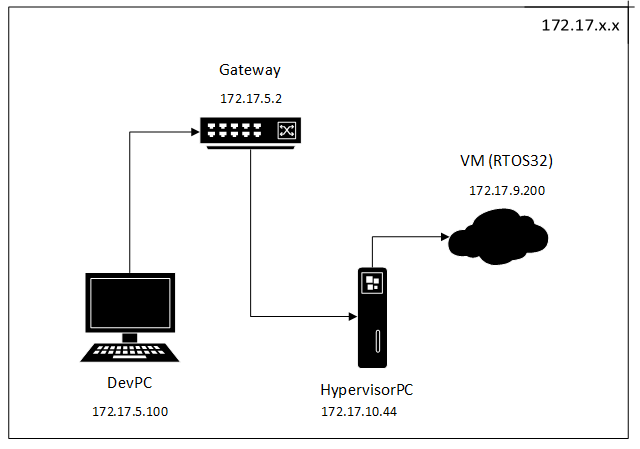
All these IP addresses should be set here: /hv/hvctl/brvnetconfig.sh
In our example, the gateway is a simple router with running DHCP server, that assigns static 172.17.5.\* addresses to development PCs in the
office and dynamic 172.17.10.\* addresses to all other computers connected to the router.
VM with address 172.17.9.200 is in a separate subnet, not physically connected to the router. But Hypervisor PC accepts MASK 172.17.255.255 on
its virtual network bridge (read below) and can forward all traffic to and from a VM from the 172.17.x.x network.
By simple words, the DevPC communicates always with VM. In the VM a special debug stub is started (called RTOS-32 Debug Monitor) that listents to the 172.17.9.200 IP address.
Open project of a sample demo app (we describe here how to debug RealtimeDemo):
DevPC: open System Manager and right click
RTOS #1\Applicationand chooseCreate New Application Project (Debug Only)Choose
RealtimeDemoand click button. Visual Studio projects are generated now and copied toRtFilesand other subdirectories of your System Manager workspace.
Prepare a debugger bootloader (RTOS-32 Monitor):
DevPC: Select and click button near to a grayed IP text field.
Enter
172.17.9.200in the IP text field and press button. Please note, now the new RTOS-32 Monitor binary (Monvmf.bin) is generated and the target IP addresss is embedded into the binary.
Compile the .dlm project:
DevPC: Click button.
In the Visual Studio two projects are available in the solution explorer:
LoaderandRealtimeDemo.Right click every project and click
Copy binaries to the target (Hypervisor PC):
Copy
RealtimeDemo.dlmfrom theRtFilesdirectory in your workspace on DevPC to/hv/rtos-32/rtfiles/debug/directory.Copy
projects/monvmf/Monvmf.binto/hv/rtos-32/debug/directoryMake sure
/hv/rtos-32/realtimedemo-debug.configfile has correct settings. It should have a valid file server directory (hv/rtos-32/rtfiles/debug/) and it should of course include.configfile for a PCI Card for LAN2 port, that is assigned to the RTOS VM.
Start RTOS-32 VM and the RTOS-32 Monitor (Hypervisor PC):
Execute
/hv/rtos-32/realtimedemo-debug.sh. Please note, the.dlmmodule was already added to therealtimedemo-debug.configin theRtos\Loadersection.You should see a RTOS-32 Monitor output. It listens to the IP address
172.17.9.200to receive the remote debugger traffic.
Please check all your network setings here: /hv/hvctl/brvnetconfig.sh
Please note, vnet0 virtual network adapter is created on Linux host, when the VM is started. Please consider this adapter as a virtual PCI network card inside the RTOS-32 VM,
that is visible in Linux host as vnet0.
By default the 192.168.178.1 address is assigned to this adapter on a Linux side.
Configure a virtual bridge network adapter
Configure a virtual bridge network adapter to forward all incoming debugger traffic from LAN1 to the virtual network adapter vnet in the RTOS VM.
Please execute /hv/hvctl/brvnetset.sh script. The virtbr network adapter is created on the linux side.
Start debugging (DevPC):
In Visual Studio open file
Loader.cpp.Locate
main()functionSet a breakpoint.
Press F5 key to start debug.
How to repeat/stop debugging:
There is no need to restart the RTOS-32 Monitor if you want to stop the debugging.
Simply click Stop in the Visual Studio and then press F5 again.
It is not needed to copy the RTOS-32 Monitor binary (
Monvmf.bin) every time you make changes in the loader or a.dlmproject. Only when the IP address is changed.- If you found a bug in your
.dlmmodule and need to upload a new verison into the Hypervisor PC, please do the following: compile project
copy changed
.dlmbinary to the/hv/rtos-32/rtfiles/debug/directory.
- If you found a bug in your
- If you want completely stop your VM, make it in the following sequence:
Execute
/hv/hvctl/brvnetclr.shto remove the bridgeExecute
/hv/rtos-32/stopall.sh
4.2. Install Windows or Linux guest (SecureBoot)
Attention
See chapter Installation and Configuration for the general tutorial HV-WindowsGuest-Guide.
This tutorial describes the case with SecureBoot.
4.2.1. UEFI and Legacy BIOS
4.2.2. UEFI
4.2.2.1. What is SecureBoot
Secure Boot is an interface between UEFI and Operating System. When SecureBoot is activated, it prevents the loading of unsigned boot loaders or drivers
Read More: https://en.wikipedia.org/wiki/Unified_Extensible_Firmware_Interface
4.2.2.2. Preparing keys for SecureBoot
The key thing in SecureBoot is a platform key (Platform). It establishes relationship between a platform owner and a platform firmware. PK is a self-generated certificated owned by OEM.
Another important key is a KEK key. This key is obtained from an OS manufacturer (for ex. Microsoft) and is used to establish trust relationship between the firmware and OS.
Generating the platform key:
openssl req -newkey rsa:2048 -nodes -keyout PKpriv.key -x509 -days 365 -out PK.crt
Generating a 2048 bit RSA private key
....+++
.+++
writing new private key to 'PKpriv.key'
-----
You are about to be asked to enter information that will be incorporated into your certificate request.
What you are about to enter is what is called a Distinguished Name or a DN.
There are quite a few fields but you can leave some blank
For some fields there will be a default value,
If you enter '.', the field will be left blank.
-----
Country Name (2 letter code) [AU]:DE
State or Province Name (full name) [Some-State]:Bayern
Locality Name (eg, city) []:Munic
Organization Name (eg, company) [Internet Widgits Pty Ltd]:Beer Inc
Organizational Unit Name (eg, section) []:
Common Name (e.g. server FQDN or YOUR name) []: BayernBeer
Email Address []:
OVMF supports keys in DER format only. So we need to convert t:
openssl x509 -in PK.crt -outform der -out PK.der
Download Key Exchange Key (KEK): MicCorKEKCA2011_2011-06-24.crt https://go.microsoft.com/fwlink/p/?linkid=321185
Download Signature Database (allows Windows to boot): MicWinProPCA2011_2011-10-19.crt https://go.microsoft.com/fwlink/?LinkId=321192
Download Microsoft signer for third party UEFI binaries via DevCenter: MicCorUEFCA2011_2011-06-27.crt https://go.microsoft.com/fwlink/p/?LinkID=321194
4.2.2.3. Building OVMF with SecureBoot support
By default, OVMF is built without SecureBoot support.
So it is recommended to fetch this project from its repository and build OVMF yourselves.
Install required packages:
sudo apt-get install build-essential git uuid-dev iasl nasm –y
sudo apt-get install iasl -y

git clone git://github.com/tianocore/edk2.git
cd edk2
Prepare build tools:
git submodule update –init
make -C BaseTools
.edksetup.sh
make -C ./BaseTools
export EDK_TOOLS_PATH=/home/rte/edk2/BaseTools
.edksetup.sh BaseTools
Edit Conf/target.txt:
ACTIVE_PLATFORM = OvmfPkg/OvmfPkgX64.dsc
TARGET_ARCH = X64
TOOL_CHAIN_TAG = GCC5
Build OVMF with SecureBoot support:
OvmfPkg/build.sh \\
    -a IA32 -a X64 \\
    -D SMM_REQUIRE -D SECURE_BOOT_ENABLE \\
    -D FD_SIZE_2MB -D EXCLUDE_SHELL_FROM_FD
Binaries can be found in the Build directory.
4.2.2.4. Embedding SecureBoot keys to OVMF
Create a OVMF-SecureBoot directory and copy Build/OvmfX64/DEBUG_GCC5/FV/OVMF_CODE.fd and Build/OvmfX64/DEBUG_GCC5/FV/OVMF_VARS.fd to this directory.
Create a hda subdirectory and copy all generated and downloaded keys to this subdirectory.
Run qemu:
cd OVMF-SecureBoot
qemu-system-x86_64 -L . \\
    -drive if=pflash,format=raw,readonly,file=OVMF_CODE.fd \\
    -drive if=pflash,format=raw,file=OVMF_VARS.fd \\
    -hda fat:hda \\
    -net none
After booting you get to a UEFI shell. Type exit.
Go to Device Manager / Secure Boot Configuration / Secure Boot Mode and change from Standard Mode to Custom Mode.
PK Options / Enroll PK / Enroll PK Using File and choose
PK.derKEK Options / Enroll KEK / Enroll KEK Using File and choose
MicCorKEKCA2011_2011-06-24.crtDB Options / Enroll Signature / Enroll Signature Using File and choose
MicWinProPCA2011_2011-10-19.crtRepeat last step and choose
MicCorUEFCA2011_2011-06-27.crt
The Secure Boot Mode should be Enabled now.
Exit from BIOS, shutdown the machine.