18. Filesystem access and file sharing
This chapter provides information about how guests can access the filesystem which is under control of the Hypervisor host.
18.2. SMB (Windows) file share
Instead of using the (limited) default SMB share, you may use SAMBA to get a more flexible solution.
You need to configure the SMB server properly.
It is recommended to use the same username for the network share as you are using for the Hypervisor Host.
To determine the user, you may run:
whoami
In this document we assume, the username is hvuser.
If you want use a different user for the SMB share, this user must also be configured for the Hypervisor Host.
For example, to add a new user smbuser, run the following command:
sudo adduser smbuser
To create a file share which is accessible from a remote (Windows) computer, go to the SAMBA configuration file:
sudo mousepad /etc/samba/smb.conf
In the below example, we will create a share with the name guests ([guests]) which will share the folder /hv/guests.
We will add the Hypervisor host username (hvuser) as well as the additional user smbuser.
Add the following section to the end of the smb.conf file and save:
[guests]
  comment = guests share
  path = /hv/guests
  browseable = yes
  valid users = hvuser, smbuser
  guest ok = yes
  read only = no
If you encounter issues with the file share, you may also adjust the following section in the smb.conf file:
[global]
map to guest = never
Then you need to provide network share access for the user hvuser and smbuser:
sudo smbpasswd -a hvuser
sudo smbpasswd -a smbuser
Restart the SAMBA service:
sudo systemctl restart smbd.service nmbd.service
Verify, if the users have been correctly added:
sudo pdbedit -L
To check, if the share is active, try to access the SAMBA share from a Windows computer using the explorer.
You may have to use the IP address of the hypervisor.

18.3. FTP access
The vsftpd FTP server is running on the Hypervisor Host. You can login using the username and password of the Hypervisor.
FTP clients can be used to exchange files between guests or external computers and the Hypervisor.
Write access is disabled by default. You can enable it by editing the /etc/vsftpd.conf configuration file (uncomment the write_enable=YES line).
18.4. SSH access
A Secure Shell server (SSH) is running on the Hypervisor Host. SSH or SFTP clients can be used to exchange files between guests or external computers and the Hypervisor.
18.5. NFS access
For some guests (e.g. VxWorks) it may be necessary to use the NFS (Network Filesystem) protocol.
You will have to determine the folder you want to share with guests. In this example, we assume the /hv/guests folder shall be shared.
Edit the Exports File
sudo mousepad /etc/exports
At the end of this file, add the directory you want to share, followed by the network range that should have access and the permissions. For example:
/hv/guests *(rw,sync,no_root_squash,no_subtree_check)
Apply the Export Configuration
sudo exportfs -a
Start and Enable NFS Service
sudo systemctl start nfs-kernel-server
sudo systemctl enable nfs-kernel-server
Verify NFS Server
sudo exportfs -v
18.6. Sharing removable devices
Using the hv_diskshare tool it is possible to share removable devices like USB sticks or Compact Flash cards with multiple guests.
The hv_diskshare tool is an integral part of the hypervisor solution, providing robust file-sharing capabilities for removable devices.
The tool is capable to mount the file systems on the hypervisor and expose the file system via NFS (network file system) and/or SMB (server message block).
The exposed file systems then can be accessed from within one or multiple guests.
This chapter outlines the features and usage of the hv_diskshare tool to manage NFS and SMB shares for removable devices.
18.6.3. Mounting and sharing removable devices
USB filesystems are mounted at
/mnt/diskshare/usb, for example/mnt/diskshare/usb/sda1SATA filesystems are mounted at
/mnt/diskshare/sata, for example/mnt/diskshare/sata/sr0The share name under which the filesystem will be exposed to guests will be the physical device name (e.g.
sda1orsr0).
Inside a Windows or Linux guest, if you want to determine which filesystems are exposed, you can use the following commands:
Show NFS shares in Linux/Windows clients:
showmount -e <IP-Address>Show SMB shares in Linux clients:
smbclient -L IP-Address -NShow SMB shares in Windows clients:
net view \\IP-Address
18.6.4. Installing and Removing NFS and SMB Servers
The tool supports the installation and removal of both NFS and SMB servers, ensuring that the necessary services are available for sharing devices. By default, both servers should already be installed.
Install NFS Server:
hv_diskshare --nfs
This command installs the NFS server if it is not already installed.
Caution
By default, this function does not work as modifying the installation is disabled.
Remove NFS Server:
hv_diskshare --rmnfs
This command removes the NFS server if it is installed.
Install SMB Server:
hv_diskshare --smb
This command installs the SMB server if it is not already installed.
Caution
By default, this function does not work as modifying the installation is disabled.
Remove SMB Server:
hv_diskshare --rmsmb
This command removes the SMB server if it is installed.
18.6.5. Listing Removable Devices
To list all removable devices connected to the hypervisor, use the following command:
hv_diskshare --devs
This provides a detailed list of all removable devices, including their labels, device nodes, and other relevant information.
18.6.7. Dynamic Device Monitoring and Sharing
The script can dynamically monitor devices for changes, such as additions or removals, and handle sharing and unsharing as needed.
Enable Dynamic Monitoring:
hv_diskshare --dyn
This command starts the observer to monitor block devices and trigger device events dynamically. Log messages show details about added or removed devices, mounted filesystems and exposed network shares.
If you want to run the observer as background task, run:
hv_diskshare --dynback
Once the background observer mounted and shared a device, it will be kept until the device is removed or hv_diskshare --stopall or hv_diskshare --stop my_devicename is called.
The log file which includes all observed events is located in $HV_BIN/pylib/diskshare.log.
Print the log file content:
hv_diskshare --printlog
Remove the log file:
hv_diskshare --dellog
To stop running the background observer, run:
hv_diskshare --stopdyn
Filesystem access from Windows or Ubuntu guests
Each time when a device is added or removed, a python script $HV_BIN/pylib/diskshare_hook.py is called which can be used to start a user specific action.
For example, an application can be started which sends a message to a specific guest to notify that guest about a new device being connected or disconnected.
Alternatively, you may also share the /mnt/diskshare folder to guests via NFS or SMB (see SMB (Windows) file share or NFS access).
Then all removable devices will be automatically visible inside the guest whenever they are connected.
Windows guests
SMB
The SMB network shares will be accessible via the 10.0.2.2 internal network:
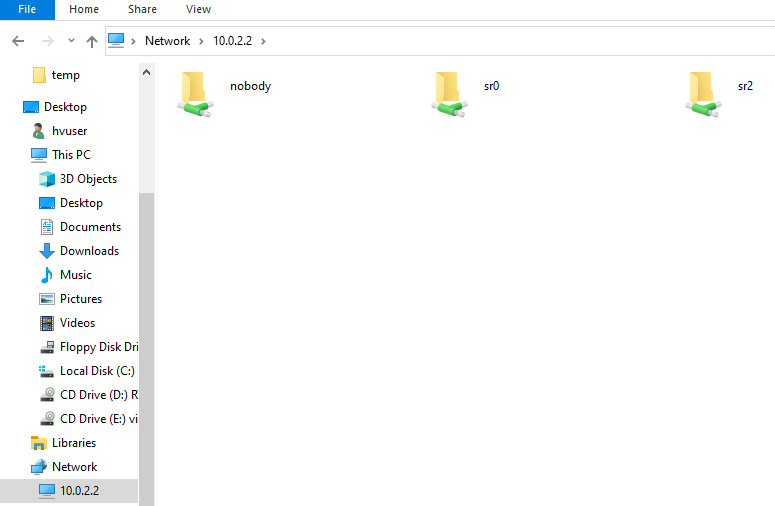
You can also run the command net view \\\\10.0.2.2 to see which SMB shares are available.
Caution
In case of errors, please check Windows security settings: Using the default SMB share on Windows guests.
NFS
If you want to use NFS in a Windows guest, you need to enable the Client for NFS Windows feature.
You need to create the following two files (replace username by the appropriate Windows username):
C:\Windows\System32\drivers\etc\passwdusername:x:1000:1000:username:c:\users\username
C:\Windows\System32\drivers\etc\groupusername:x:1000:1000
Then you can run the following command to see which NFS shares are available:
showmount -e 10.0.2.2
To mount or unmount a NFS share, run the following command (mounting drive letter Y: and assuming the showmount command returned /mnt/diskshare/usb/sda1):
mount \\10.0.2.2\mnt\diskshare\usb\sda1 Y:
net use Y: /delete
Linux guests
NFS
In case you have uninstalled the NFS client, re-install the NFS client again:
sudo apt update
sudo apt install nfs-common
Then you can run the following command to see which NFS shares are available.
showmount -e 10.0.2.2
To mount a NFS share, run the following commands (assuming the showmount command returned /mnt/diskshare/usb/sda1):
sudo mkdir -p /mnt/usb/sda1
sudo mount -v -o vers=4,nolock,proto=tcp 10.0.2.2:/mnt/diskshare/usb/sda1 /mnt/usb/sda1
SMB
In case you have uninstalled, re-install the SMB client again:
sudo apt update
sudo apt install samba-client cifs-utils
Then you can run the following command to see which SMB shares are available:
smbclient -L 10.0.2.2 -N
To mount a SMB share, run the following commands (assuming the smbclient command returned sda1 as share name), replace myuser with the actual username:
sudo nano /etc/fstab
add this line at the end of the file: //10.0.2.2/sda1  /home/myuser/mnt/usb  cifs  user,noauto,guest  0  0
sudo systemctl daemon-reload
mkdir -p /home/myuser/mnt/usb
mount -t cifs //10.0.2.2/sda1 /home/myuser/mnt/usb -o user=myuser