6. KVM Guests (Windows, Ubuntu, Debian, …)
Important
You need to be familiar with chapter Hypervisor Guests - General before reading this chapter!
6.1. KVM guests, general
There are no example KVM guests shipped with the RTOSVisor. Instead, these operating systems have to be installed under control of the hypervisor from an installation media (an ISO file).
6.2. Filesystem access and file sharing
6.2.1. Default SMB share
The Hypervisor Host by default exposes the /hv/guests folder to KVM guests via a SMB share (Windows file share).
The share can be accessed from within the guest using the IP address 10.0.2.4 and the share name qemu.
See more here: Default SMB share.
6.2.1.1. Using the default SMB share on Windows guests
On Windows the default SMB share can be accessed through \\10.0.2.4\qemu.
Caution
You may get an error (0x80004005) when accessing the share due to some restrictive Windows settings. In that case, try to allow insecure guest logins. Windows blocks guest logins to network devices using SMB2 by default. You might need to disable that setting.
Open the Registry Editor and then navigate to HKLM\SYSTEM\CurrentControlSet\Services\LanmanWorkstation\Parameters using the menu on the left, or just paste the path into the address bar.
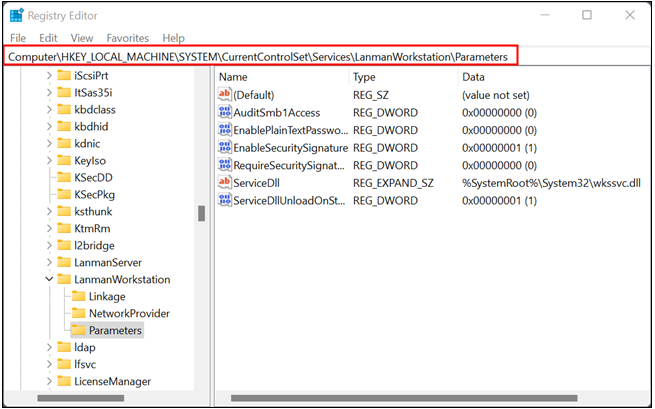
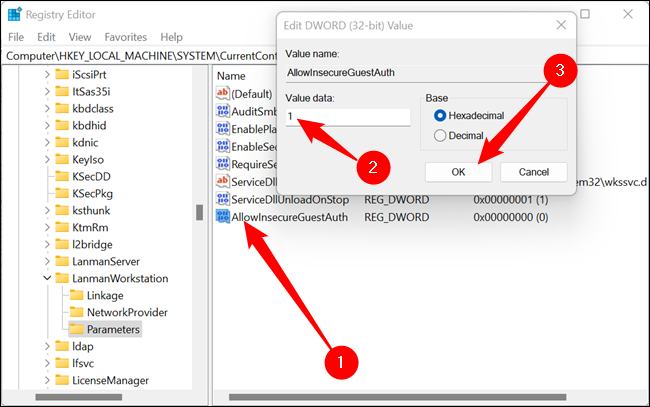
The DWORD you’re looking for is named AllowInsecureGuestAuth — if it isn’t there, you’ll need to create it.
Right-click empty space, mouse to “New,” then click “DWORD (32-bit) Value.” Name it AllowInsecureGuestAuth and set the value to 1.
Caution
Another issue that could block access to the network share is SMB signing. You may encounter a message like You can’t access this shared folder because your computer is configured to require SMB signing. Then, please disable signing via the appropriate policies.
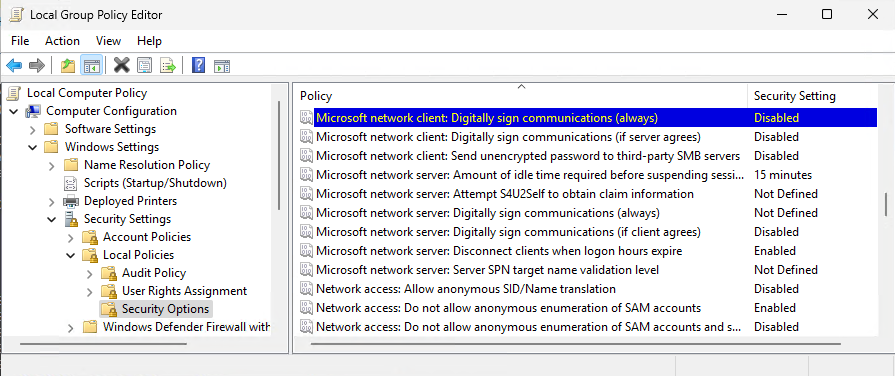
Open the policy editor gpedit.msc.
Navigate to Computer Configuration - Windows Settings - Security Settings - Local Policies - Security Options.
Locate policies such as Microsoft network client: Digitally sign communications (always) and Microsoft network server: Digitally sign communications (always).
Disable these policies
6.2.2. SMB (Windows) file share
Instead of using the (limited) default SMB share, you may use a full featured SMB solution using SAMBA.
On the hypervisor, SAMBA must be installed in a first step: SMB (Windows) file share
6.2.2.1. Using the SMB share on Windows guests
Using the command
net view \\192.168.178.156
you can see which SMB shares are available on the hypervisor (assuming its IP address is 192.168.178.156).
Alternatively, try to access the SMB share from the Windows explorer (we assume, the share name is guests).
You may have to use the IP address of the hypervisor.

6.3. Communication Subsystem
- A KVM guest may use the communication subsystem which provides specific functions to communication with other guests:
Direct access to the Virtual Network (compared to bridged access if the communication subsystem is not used)
RTOS-Library functions (Shared Memory, Pipes, Events etc.)
Hint
The communication subsystem is part of the RTOS Virtual Machine Framework (VMF)
To enable access to the communication subsystem, the following settings are required in the guest_config.sh or usr_guest_config.sh configuration file:
export rtosOsId=#####
export hvConfig=%%%%%
The rtosOsId value needs to be a unique RTOS guest id, this id is used by the guest to attach to the communication subsystem.
Valid ids are in the range from 1 to 4.
The hvConfig value will have to point to the appropriate hv.config file used for the hypervisor configuration.
The very first time, when an RTOS container or such a KVM guest is started, the RTOS Virtual Machine Framework (VMF) is loaded.
Loading the VMF will also load the hypervisor configuration stored in the hv.config configuration file.
This hypervisor configuration describes all guests and their related guest ID which is used to attach the guest to the VMF.
In case a configuration entry has changed, all RTOS containers need to be stopped and the RTOS Virtual Machine to be reloaded.
Configuration files are stored in *.config files.
6.3.1. KVM guest folder
Besides the standard files described in General guest folder content, all KVM guest folders contain the following additional file(s).
OVMF_CODE.fd: UEFI firmware imageOVMF_VARS.fd: UEFI firmware variable storeguest_gateway.config: Configuration for guest port forwarding from an external ethernet network to the virtual network
Additional configuration files may exist depending on the guest type and operation mode.
Hint
Disk Image File in the system manager project, the location and name of the guest image files can be determined. The Disk Image File entry always consists of a path (starting with /hv/VMs) and filename with the .qcow2 extension (e.g., /hv/VMs/windows/win10_20h2.qcow2).6.4. KVM Guest Operation
Besides the commands described in Guest operation the following KVM guest specific commands are available.
hv_guest_start [-view | -kiosk]:Start the guest. The-view optionwill show the guest desktop in standard mode (resizable window), the-kioskoption in full screen mode.hv_guest_console [-kiosk]:Show guest desktop in full screen mode (-kioskoption).hv_guest_stop [-reset | -kill]:Reset (-resetoption) or Power off (-killoption) the guest (instead of gracefully shutdown without any option).hv_guest_monitor:Start the KVM guest monitor. Monitor commands are described in here: https://en.wikibooks.org/wiki/QEMU/Monitor
6.4.1. Kiosk mode
If you want to generally enable the kiosk mode after the next start of the guest VM, adjust the guest configuration:
cd GUEST_FOLDER
mousepad usr_guest_config.sh
export kiosk_mode=1
6.4.2. Displaying the guest desktop
To display the guest desktop, you need to run the hv_guest_console command from within the guest folder.
Typically you need to first log in and then start the guest and the console. It will then be displayed on the RTOSVisor desktop.
Alternatively it is also possible to use X11 forwarding in an SSH session.
The display device to be used is set in the DISPLAY environment variable.
A local display is identified by :0.0, an X11 forwarded display can look like localhost:10.0.
You can determine it as follows:
echo $DISPLAY
To check if the display is accessible, run:
[[ $(xset -q 2 2>/dev/null) ]] && echo "display works"
If the result is display works, then everything is set correctly.
Hint
The display is accessed via the X protocol which needs authentication. The authentication file is defined in the XAUTHORITY environment variable.
Typically it is located in the user’s home folder: /home/MyUser/.Xauthority.
If for some reason this file does not exist, you may turn off authentication:
xhost +
NOTE: The root user typically does not have access to the display.
Hint
This section applies to the System Manager. By default, the System Manager is automatically started as a service without any display access. Thus, the desktop (guest console) for KVM guests cannot be launched by default. To enable launching the console from within the System Manager, you may have to log in and restart the System Manager service:
hv_sysmgr restart
You typically restart the service from within the RTOSVisor locally (by logging in in its desktop), in that case the RTOSVisor desktop will be used to show the guest desktop. Alternatively, if you restart the service inside an SSH session, there will be two options:
If X11 forwarding is enabled, the guest desktop will be forwarded to a remote display.
If X11 forwarding is disabled, the local desktop will be used. In this case you need to login first before launching the console.
6.4.3. Log files
The following log files (located in the guest folder) will be created when starting a guest:
qemuif.loglog messages of setting up network bridging on guest boot and terminate network bridging on guest shutdown.kvmguest.logguest VM logging (KVM hypervisor).kvmview.logguest VM viewer log file.shutdown_svc.logguest shutdown service log messages.shutdown_hook.logguest shutdown hook log messages.
6.5. Example KVM Windows guest
The example KVM Windows guest configuration is located in /hv/guests/guestwindows after initializing the example.
You need to install the Windows guest using an ISO installation media.
Please read the Windows Guest Guide for more information about Windows guests.
Hint
Initially, the Hypervisor Host does not provide any example guest folders. To switch to an example guest, you must execute the corresponding initialization. For instructions on how to initialize the examples, refer to Example guest folders.
6.6. Example KVM Ubuntu guest
The example KVM Ubuntu guest configuration is located in /hv/guests/ubuntu after initializing the example.
You need to install the Ubuntu guest using an ISO installation media.
Please read the Ubuntu Guest Guide for more information about Ubuntu guests.
Hint
Initially, the Hypervisor Host does not provide any example guest folders. To switch to an example guest, you must execute the corresponding initialization. For instructions on how to initialize the examples, refer to Example guest folders.
6.7. KVM guest basic settings
Hint
GUEST_FOLDER is related to the folder where the guest configuration files are located (e.g. /hv/guests/guestwindows).GUEST_NAME is related to the guest name (e.g. windows).6.7.1. Guest multiple monitors
If more than one monitor is connected to the system, these can also be used for VM guests (up to a maximum of 4 monitors).
For Windows guests, the following settings are required in usr_guest_config.sh:
export num_monitors=# (where # is the number of monitors)
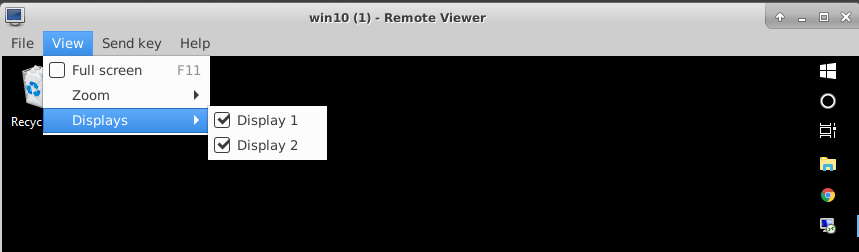
To enable additional monitors being displayed, select the displays via the View – Displays menu in the viewer application.
6.7.2. Guest Multi Touch
In KVM Windows guests, multitouch functionality is available. Therefore, it is necessary to display the guest in full-screen mode either by using remote-viewer or kiosk mode.
To enable multitouch, it’s necessary to identify the corresponding touch event on the Hypervisor Host:
ls -la /dev/input/by-id | grep -event-
The following settings are required in usr_guest_config.sh:
export enable_multitouch=1
export multitouch_event_device=""  # fill in the corresponing touch device
In the following example you would use usb-wch.cn_TouchScreen_9LQ0172005164-event-if00 as multitouch_event_device.
hvuser@PC-035476:~$ ls -la /dev/input/by-id | grep -event-
lrwxrwxrwx 1 root root   9 Jul  2 12:36 usb-LITEON_Technology_Corp._HP_125_Wired_Keyboard-event-if01 -> ../event6
lrwxrwxrwx 1 root root   9 Jul  2 12:36 usb-LITEON_Technology_Corp._HP_125_Wired_Keyboard-event-kbd -> ../event5
lrwxrwxrwx 1 root root   9 Jul  2 12:36 usb-PixArt_HP_125_USB_Optical_Mouse-event-mouse -> ../event8
lrwxrwxrwx 1 root root   9 Jul  2 12:36 usb-wch.cn_TouchScreen_9LQ0172005164-event-if00 -> ../event3
lrwxrwxrwx 1 root root   9 Jul  2 12:36 usb-wch.cn_TouchScreen_9LQ0172005164-if02-event-mouse -> ../event2
6.7.3. QXL - Graphics Memory
Graphics memory is the dedicated RAM on the virtual GPU that holds framebuffers, textures and other graphical data used by the guest OS. In RTOSVisor QEMU/KVM, the QXL driver is chosen for Windows guests without multitouch support, which provides efficient 2D/3D acceleration. You can control how much graphics memory is allocated by defining vga_memsize_mb passed to the QXL VGA device.
By default you can leave it at 64 MiB for a single, low-resolution display, but if you’re driving two or more monitors (or anything above 1920×1080) you’ll want at least 128 MiB so the guest has enough video RAM to hold all your desktop surfaces.
The settings can be adjusted in usr_guest_config.sh:
export vga_memsize_mb=64
Hint
If you encounter video-memory allocation errors in your dmesg or Xorg logs, try increasing the vga_memsize_mb setting to allocate more VRAM to the guest.
[   38.035369] qxl 0000:00:02.0: object_init failed for (9220096, 0x00000001)
[   38.035389] [drm:qxl_alloc_bo_reserved [qxl]] *ERROR* failed to allocate VRAM BO
[   58.259390] qxl 0000:00:02.0: object_init failed for (9220096, 0x00000001)
6.8. Windows installation
Attention
See Hypervisor - Windows Guest Guide for tutorial.
6.8.1. Additional settings for Windows guests:
Disable Sleep ():
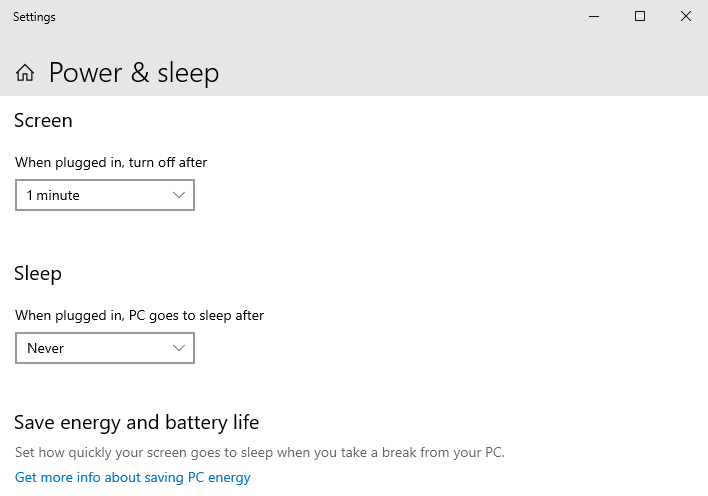
6.9. Ubuntu installation
Attention
See Hypervisor - Ubuntu Guest Guide for tutorial.
6.10. Windows/Linux COM port guest access
It is possible to passthrough a COM port to a guest VM.
It works for both legacy serial ports and USB-to-Serial converters.
Modify the usr_guest_config.sh file and change
export OTHER_HW=$OTHER_HW
to
export OTHER_HW=$OTHER_HW" -serial /dev/ttyUSB0 -serial /dev/ttyS0"
This example creates COM1 port in the VM and it uses USB-to-Serial converter on a Hypervisor Host and
creates COM2 port in the VM and it is the real COM1 port on Hypervisor Host.
6.11. PCI Device passthrough (Windows/Linux)
6.11.1. Why pass-through
Typically, Windows or Linux guest operating systems will run in a sandbox like virtual machine with no direct hardware access. There are scenarios when this is not sufficient, for example some PCI devices (e.g. CAN cards) will not be virtualized and thus would not be visible in such a guest OS. There may also be significant performance impacts in some cases if virtual hardware is used (especially for graphics hardware). To overcome these limitations, the guest will have to use the real physical hardware instead of virtual hardware. PCI Device passthrough will directly assign a specific PCI device to a Windows or Linux guest.
It is mandatory to have hardware support for IOMMU (VT-d). VT-d should be supported by your processor, your motherboard and should be enabled in the BIOS.
Virtual Function I/O (VFIO) allows a virtual machine to access a PCI device, such as a GPU or network card, directly and achieve close to bare metal performance.
The setup used for this guide is:
Intel Core I5-8400 or I3-7100 (with integrated Intel UHD 630 Graphics) - this integrated graphics adapter will be assigned to the Windows VM.
AMD/ATI RV610 (Radeon HD 2400 PRO) – optional, as a second GPU, only needed to have display output for Hypervisor Host. Later, the Hypervisor Host is reached only via SSH.
Intel I210 Gigabit Network Card - optional, to demonstrate how to pass through a simple PCI device to a Windows VM.
6.11.2. Ethernet PCI Card/Custom PCI device assignment
Some manual work is required to pass through the PCI Device to a Windows VM.
6.11.2.1. Understanding IOMMU Groups
In order to activate the hardware passthrough we have to prevent the ownership of a PCI device by its native driver and assign it to the vfio-pci driver instead.
In a first step, an overview of the hardware and related drivers is required. In the below example we want to passthrough the I210 Ethernet Controller to the guest VM.
rte@rte-System-Product-Name:~$ lspci
00:00.0 Host bridge: Intel Corporation 8th Gen Core Processor Host Bridge/DRAM Registers
00:01.0 PCI bridge: Intel Corporation Xeon E3-1200 v5/E3-1500 v5/6th Gen Core Processor
00:02.0 VGA compatible controller: Intel Corporation Device 3e92
00:14.0 USB controller: Intel Corporation Cannon Lake PCH USB 3.1 xHCI Host Controller
00:14.2 RAM memory: Intel Corporation Cannon Lake PCH Shared SRAM (rev 10)
00:16.0 Communication controller: Intel Corporation Cannon Lake PCH HECI Controller
00:17.0 SATA controller: Intel Corporation Cannon Lake PCH SATA AHCI Controller (rev 10)
00:1c.0 PCI bridge: Intel Corporation Device a33c (rev f0)
00:1c.5 PCI bridge: Intel Corporation Device a33d (rev f0)
00:1c.7 PCI bridge: Intel Corporation Device a33f (rev f0)
00:1f.0 ISA bridge: Intel Corporation Device a303 (rev 10)
00:1f.4 SMBus: Intel Corporation Cannon Lake PCH SMBus Controller (rev 10)
00:1f.5 Serial bus controller [0c80]: Intel Corporation Cannon Lake PCH SPI Controller
01:00.0 VGA compatible controller: [AMD/ATI] RV610 [Radeon HD 2400 PRO]
01:00.1 Audio device: [AMD/ATI] RV610 HDMI Audio [Radeon HD 2400 PRO]
03:00.0 Ethernet controller: Intel Corporation I210 Gigabit Network Connection (rev 03)
04:00.0 Ethernet controller: Realtek Semiconductor Co., Ltd. RTL8111/8168/8411 PCI Express Gigabit Ethernet Controller (rev 15)
The I210 device is determined as 03:00.0
Caution
The IOMMU has to be activated, you can verify this as follows:
sudo dmesg | grep -e "Directed I/O"
DMAR: Intel(R) Virtualization Technology for Directed I/O
Hint
In case the IOMMU is activated, all devices are divided into groups. The IOMMU Group is an indivisible unit. All devices in the same group must be passed through together, it is not possible to only pass through a subset of the devices.
In the next step, we need to get an overview of the IOMMU architecture and determine to which group the device we want to pass through belongs to.
for a in /sys/kernel/iommu_groups*; do find $a -type l; done | sort --version-sort
/sys/kernel/iommu_groups/0/devices/0000:00:00.0
/sys/kernel/iommu_groups/1/devices/0000:00:01.0
/sys/kernel/iommu_groups/1/devices/0000:01:00.0
/sys/kernel/iommu_groups/1/devices/0000:01:00.1
/sys/kernel/iommu_groups/2/devices/0000:00:02.0
/sys/kernel/iommu_groups/3/devices/0000:00:14.0
/sys/kernel/iommu_groups/3/devices/0000:00:14.2
/sys/kernel/iommu_groups/4/devices/0000:00:16.0
/sys/kernel/iommu_groups/5/devices/0000:00:17.0
/sys/kernel/iommu_groups/6/devices/0000:00:1c.0
/sys/kernel/iommu_groups/7/devices/0000:00:1c.5
/sys/kernel/iommu_groups/8/devices/0000:00:1c.7
/sys/kernel/iommu_groups/9/devices/0000:00:1f.0
/sys/kernel/iommu_groups/9/devices/0000:00:1f.4
/sys/kernel/iommu_groups/9/devices/0000:00:1f.5
/sys/kernel/iommu_groups/10/devices/0000:03:00.0
/sys/kernel/iommu_groups/11/devices/0000:04:00.0
The I210 device (03:00.0) belongs to the IOMMU group 10.
It is important to know that all devices in a single group are shared.
No other device belongs to this IOMMU group so we can pass through the I210 device to the guest.
We need to determine the PCI vendor and device ID of the I210 device now:
rte@rte-System-Product-Name:~$ lspci -s 03:00.0 -vvn
03:00.0 0200: 8086:1533 (rev 03)
    ...
    Kernel driver in use: igb
    Kernel modules: igb
Now we can check whether multiple devices share the same vendor:device ID. In this example, we’re checking for multiple Intel I210 devices. The output might look like this:
rte@rte-System-Product-Name:~$  lspci -nnk | grep 8086:1533
    02:00.0 Ethernet controller [0200]: Intel Corporation I210 Gigabit Network Connection [8086:1533] (rev 03)
    03:00.0 Ethernet controller [0200]: Intel Corporation I210 Gigabit Network Connection [8086:1533] (rev 03)
If we have found only one device or want to pass all identical devices to the KVM guest, you can continue with the chapter Passing Devices Using Vendor:Device ID.
If we have found multiple devices and want to pass only a single device (e.g., 03:00.0 - I210), proceed with the chapter Passing Device by PCI Address.
Hint
As mentioned before, device passthrough requires IOMMU support by the hardware and the OS. It is needed to add intel_iommu=on iommu=pt to
your kernel command line. These parameters are added by RTOSVisor during the installation (via the /hv/bin/inithv.sh script which executed automatically by the system).
Typically, one or multiple PCI devices will also be assigned to an RTOS, for example Real-time Linux. In such a case (one or more PCI devices are passed through to a Windows or Ubuntu guest as well as one or multiple PCI devices are assigned to an RTOS) it is required to deactivate IOMMU Interrupt Remapping in the Linux Kernel.
The following kernel command line parameters usually are added as well by the /hv/bin/inithv.sh script into the GRUB entry “Hypervisor” in the /etc/grub.d/40_custom file
and into the GRUB entry “Hypervisor + iGVT-d” in the /etc/grub.d/41_custom file.
You may verify and add these parameters if they are missing. In that case it is also required to execute update-grub and then reboot.
intremap=off vfio_iommu_type1.allow_unsafe_interrupts=1
6.11.2.2. Passing Devices Using Vendor:Device ID
The following steps are required if we have found only one device, or if we want to pass all identical devices (e.g., all I210 devices) to the KVM guest.
To ensure that the vfio-pci driver is loaded before the kernel driver (in this case, igb) and automatically binds to the specified device, create or edit the following configuration file:
sudo mousepad /etc/modprobe.d/vfio.conf
Add the following lines (replace igb with the driver for your device, and 8086:1533 with the correct vendor and device ID for your hardware):
softdep igb pre: vfio-pci
options vfio-pci ids=8086:1533
After editing the configuration, regenerate the initramfs so the changes take effect on the next boot:
sudo update-initramfs -u
Add the following parameter to the Linux kernel command line: vfio-pci.ids=8086:1533.
To modify the kernel parameters, edit the files /etc/grub.d/40_custom and /etc/grub.d/41_custom.
After making the changes, run update-grub and reboot the system.
Hint
Only one vfio-pci.ids parameter is allowed in the kernel command line. If an existing vfio-pci.ids entry is already present, such as in the case of GPU passthrough, append the new PCI device ID using a comma as a separator (e.g., vfio-pci.ids=8086:3ea5,8086:1533).
sudo mousepad /etc/grub.d/40_custom

menuentry 'Hypervisor' --class gnu-linux --class gnu --class os $menuentry_id_option 'rtosvisor-gnulinux-simple' {
        load_video
        gfxmode $linux_gfx_mode
        insmod gzio
        if [ x$grub_platform = xxen ]; then insmod xzio; insmod lzopio; fi
        insmod part_gpt
        insmod ext2
        set root='hd0,gpt2'
        if [ x$feature_platform_search_hint = xy ]; then
          search --no-floppy --fs-uuid --set=root --hint-bios=hd0,gpt2 --hint-efi=hd0,gpt2 --hint-baremetal=ahci0,gpt2  b885c987-3f50-4c4b-b242-3b3c429ebde8
        else
          search --no-floppy --fs-uuid --set=root b885c987-3f50-4c4b-b242-3b3c429ebde8
        fi
        linux       /boot/vmlinuz-5.15.0-88-acontis241007 root=UUID=b885c987-3f50-4c4b-b242-3b3c429ebde8 ro  quiet splash $vt_handoff find_preseed=/preseed.cfg auto noprompt noefi priority=critical locale=en_US memmap=4K\$4K amemmap_vmf=8M\$4M amemmap_shm=16M\$16M memmap=256M\$256M  intel_pstate=disable acpi=force pcie_aspm.policy=performance idle=poll nohalt pcie_port_pm=off pcie_pme=nomsi cpuidle.off=1 intel_idle.max_cstate=0 nox2apic intel_iommu=on iommu=pt intremap=off vfio_iommu_type1.allow_unsafe_interrupts=1 i915.enable_psr=0 i915.enable_rc6=0 i915.enable_dc=0 i915.disable_power_well=0 i915.enable_guc=2 vfio-pci.ids=8086:1533
        initrd      /boot/initrd.img-5.15.0-88-acontis241007
}
sudo update-grub
sudo reboot
Hint
Normally no other steps are needed to replace the native driver by the vfio-pci driver. If you have conflicts between
these two drivers, it may be required to disable the loading of the native driver. Add the parameter module_blacklist=igb to the kernel command line in that case.
6.11.2.3. Passing Device by PCI Address
If there are multiple identical PCI devices and only one should be passed to the KVM guest, we need to specify the device using its PCI address in a udev rule. This ensures that the selected device is detached from its default kernel driver at system startup and bound to the vfio-pci driver.
Create or modify a udev rules file for persistent binding:
sudo mousepad /etc/udev/rules.d/10-vfio-pci.rules
Insert the following rule, replacing 03:00.0 with the PCI address of your device:
# bind 03:00.0 to vfio-pc
ACTION=="add", SUBSYSTEM=="pci", ENV{PCI_SLOT_NAME}=="0000:03:00.0", \
RUN+="/bin/sh -c '\
    /sbin/modprobe vfio-pci && \
    echo vfio-pci > /sys/bus/pci/devices/0000:03:00.0/driver_override && \
    echo 0000:03:00.0 > /sys/bus/pci/devices/0000:03:00.0/driver/unbind && \
    echo 0000:03:00.0 > /sys/bus/pci/drivers/vfio-pci/bind\
'"
Then run these commands to make the setting effective:
sudo udevadm control --reload
sudo udevadm trigger --action=add --subsystem-match=pci
After a reboot, the device is bound to vfio-pci:
rte@rte-System-Product-Name:~$  lspci -k -s 03:00.0
03:00.0 Ethernet controller: Intel Corporation I210 Gigabit Network Connection (rev 03)
        Kernel driver in use: vfio-pci
        Kernel modules: igb
6.11.2.4. VM configuration
The last step is to edit the usr_guest_config.sh file located in the GUEST_FOLDER and add the PCI Ethernet Card information here.
Uncomment #export OTHER_HW variable and set it to:
export OTHER_HW=" -device vfio-pci,host=03:00.0"
In case you pass through a multifunction device (e.g. 2 functions on bus 0 and device 14), then you need to add the multifunction=on setting:
export OTHER_HW=" -device vfio-pci,host=00:14.0,multifunction=on"
export OTHER_HW+=" -device vfio-pci,host=00:14.2"
6.11.3. Intel Integrated Graphics (iGVT-d) assignment
To use graphics passthrough, less steps compared to standard PCI hardware passthrough are required, because Hypervisor automates most of the steps.
6.11.3.1. Understanding GPU modes UPT and Legacy
There are two modes “legacy” and “Universal Passthrough” (UPT).
Hypervisor uses only Legacy mode, but it could be important to understand the difference.
UPT is available for Broadwell and newer processors. Legacy mode is available since SandyBridge. If you are unsure what processor you have, please check this link https://en.wikipedia.org/wiki/List_of_Intel_CPU_microarchitectures
In Legacy it is meant that IGD is a primary and exclusive graphics in the VM. Additionally the IGD address in the VM must be PCI 00:02.0, only
440FX chipset model (in VM) is supported and not Q35. The IGD must be the primary GPU for Hypervisor Host as well (please check your BIOS settings).
In UPT mode the IGD can have another PCI address in VM and the VM can have a second graphics adapter (for example qxl, or vga).
Please read here more about legacy and UPT mode: https://git.qemu.org/?p=qemu.git;a=blob;f=docs/igd-assign.txt
There are a lot of other little things, why IGD Passthrough could not work. For example in legacy mode it expects an ISA/LPC Bridge at PCI address 00:1f.0
in VM and this is a reason why Q35 chip does not work, because it has another device at this address.
In UPT mode, there is no output support of any kind. So the UHD graphics can be used for accelerating (for example Decoding) but the Monitor remains
black and there is a non-standard experimental qemu vfio-pci command line parameter x-igd-opregion=on, which can work.
6.11.3.2. Blocklisting the i915 driver on the Hypervisor Host
The standard Intel Driver i915 is complex and it is not always possible to safely unbind the device from this driver, that is why this driver is
blocklisted by Hypervisor when executing /hv/bin/inithv.sh script.
6.11.3.3. Deactivating Vesa/EFI Framebuffer on Hypervisor Host
Please also know, when i915 driver is disabled, there are other drivers which are ready to jump on the device to keep the console working.
Depending on your BIOS settings (legacy or UEFI) two other drivers can occupy a region of a video memory: efifb or vesafb.
The Hypervisor blocklists both by adding the following command line parameter:
video=vesafb:off,efifb:off
Please also check if it works: cat /proc/iomem. If you still see that one of these drivers still occupies a part of a video memory, please
try manually another combination:
video=efifb:off,vesafb:off.
6.11.3.4. Legacy BIOS, pure UEFI and CSM+UEFI in Hypervisor Host
It also plays a significant role, in which mode your machine is booted: Legacy BIOS, pure UEFI or UEFI with CSM support. In pure UEFI (on Hypervisor Host)
QEMU cannot read video ROM. In this case you could extract it manually (for example using Cpu-Z utility or just boot in CSM mode, when iGPU is a
primary GPU in BIOS), patch it with the correct device id and provide it to qemu as romfile= parameter for vfio-pci. Please google for rom-parser
and rom-fixer for details.
6.11.3.5. SeaBIOS and OVMF (UEFI) in VM
It also plays a role which BIOS you use in the VM itself. For QEMU there are two possibilities: SeaBIOS (legacy BIOS, which is default for qemu) and OVMF (UEFI).
For your convenience the RTOSVisor is shipped with precompiled OVMF binaries located in the /hv/templates/kvm directory: OVMF_CODE.fd OVMF_VARS.fd
By default, OVMF UEFI does not support OpRegion Intel feature, which is required to have a graphics output to a real display. There are three
possibilities how to solve this problem and the easiest one seems to be using special vbios rom vbios_gvt_uefi.rom, please read more
here https://wiki.archlinux.org/index.php/Intel_GVT-g.
For your convenience, this file is already included in the Hypervisor package in the /hv/bin directory.
Hypervisor uses OVMF (UEFI) for graphics pass-through.
6.11.3.6. How to do it in Hypervisor
The final working configuration which we consider here:
CPU Graphics is a primary GPU in BIOS (Hypervisor Host)
Hypervisor Host boots in pure UEFI mode
OVMF is used as BIOS in Windows VM
vbios_gvt_uefi.romis used as VBIOS inromfileparameter forvfio-pciLegacy mode for IGD, so the Windows VM has only one graphics card Intel UHD 630
Which commands should be executed in Hypervisor to do a pass-through of an Intel Integrated Graphics to a Windows VM?
None! Almost everything is done automatically. When executing /hv/bin/inithv.sh script (which is required to install real-time linux kernel
and to reserve kernel memory for hypervisor needs), a separate GRUB entry “Hypervisor + iGVT-d” is created.
This entry already contains all necessary linux kernel parameters required to do a graphics pass-through: blocklisting intel driver,
disabling interrupt remapping, assigning a VGA device to a vfio-pci driver and other steps.
But one step should be done once, configuring your VM.
Change usr_guest_config.sh script located in the GUEST_FOLDER. Two variables should be uncommented and activated:
export uefi_bios=1
export enable_vga_gpt=1
Just reboot your machine and choose the “Hypervisor + iGVT-d” menu item. If everything is correct, the display of your Hypervisor Host should remain black.
Connect to the machine using an SSH connection or use a second graphics card for Hypervisor Host (read next chapter) and then start the guest using hv_guest_start
Wait 30-60 seconds and.. display remains black? Of course. Windows does not have Intel Graphics drivers.
Remember we configured Windows for a Remote Desktop Access in previous steps? Connect to Windows VM via RDP and install latest Intel Drivers https://downloadcenter.intel.com/product/80939/Graphics
If everything is done correctly, your display should now work and display a Windows 10 Desktop.
6.11.3.7. Using Second GPU Card for Hypervisor Host
X-Windows on the Hypervisor Host does not work properly, when the primary GPU in the System is occupied by the vfio-pci driver. It detects
the first GPU, tries to acquire it, fails and then aborts. We should let it know, that it should use our second GPU card instead.
Log in to the Hypervisor Host (Press Ctrl + Alt + F3, for example), shutdown LightDM manager sudo service lightdm stop.
Execute
sudo X –configure
it creates the xorg.conf.new file in the current directory. When this command is executed, the X server enumerates all
hardware and creates this file. By default, in modern systems, Xserver does not need the xorg.conf file, because all hardware is detected quite
well and automatically. But the config file is still supported.
Look at this file, find a section “Device” with your second GPU (look at the PCI Adress). Copy content of this section to a separate file
/etc/X11/xorg.conf.d/secondary-gpu.conf. Save and reboot.
Section "Device"
    ### Available Driver options are:-
    ### Values: <i>: integer, <f>: float, <bool>: "True"/"False",
    ### <string>: "String", <freq>: "<f> Hz/kHz/MHz",
    ### <percent>: "<f>%"
    ### [arg]: arg optional
    #Option "Accel" # [<bool>]
    #Option "SWcursor" # [<bool>]
    #Option "EnablePageFlip" # [<bool>]
    #Option "SubPixelOrder" # [<str>]
    #Option "ZaphodHeads" # <str>
    #Option "AccelMethod" # <str>
    #Option "DRI3" # [<bool>]
    #Option "DRI" # <i>
    #Option "ShadowPrimary" # [<bool>]
    #Option "TearFree" # [<bool>]
    #Option "DeleteUnusedDP12Displays" # [<bool>]
    #Option "VariableRefresh" # [<bool>]
    Identifier "Card0"
    Driver "amdgpu"
    BusID "PCI:1:0:0"
EndSection
6.11.3.8. Assigning an External PCI Video Card to Windows VM
External PCI Video Cards are not automatically recognized by the /hv/bin/inithv.sh script (unlike the CPU integrated video),
so this entry is not added to the grub boot menu.
So if you want to pass the external GPU to a VM through, you first need to create a separate GRUB entry or modify an existing one.
Let’s assume we’ve already executed the /hv/bin/inithv.sh script (as described in previous chapters) and it created a
“Hypervisor” boot entry.
Boot computer using this “Hypervisor” entry.
- Open
/boot/grub.cfg, find its corresponding menuentry 'Hypervisor'
section
- Edit it and rename the menu entry name to:
menuentry 'Hypervisor + Nvidia Quadro Passthrough'
The kernel command line in this section should look like:
linux   /boot/vmlinuz-5.15.0-88-acontis root=UUID=8b4e852a-54b3-4568-a5a2-dec7b16b8e07 ro  quiet splash $vt_handoff find_preseed=/preseed.cfg auto noprompt priority=critical locale=en_US
        memmap=8k\$128k memmap=8M\$56M memmap=256M\$64M memmap=16M\$384M maxcpus=7 intel_pstate=disable acpi=force idle=poll nohalt pcie_port_pm=off pcie_pme=nomsi cpuidle.off=1
        intel_idle.max_cstate=0 noexec=off nox2apic intremap=off vfio_iommu_type1.allow_unsafe_interrupts=1 intel_iommu=on iommu=pt
First of all we should discover the topology of PCI devices.
Find out which PCI slot is used for our external PCI card. type lspci.
00:00.0 Host bridge: Intel Corporation Device 9b53 (rev 03)
00:02.0 VGA compatible controller: Intel Corporation Device 9bc8 (rev 03)
00:08.0 System peripheral: Intel Corporation Xeon E3-1200 v5/v6 / E3-1500 v5 / 6th/7th Gen Core Proc
00:12.0 Signal processing controller: Intel Corporation Device 06f9
00:14.0 USB controller: Intel Corporation Device 06ed
00:14.1 USB controller: Intel Corporation Device 06ee
00:14.2 RAM memory: Intel Corporation Device 06ef
00:16.0 Communication controller: Intel Corporation Device 06e0
00:17.0 SATA controller: Intel Corporation Device 06d2
00:1b.0 PCI bridge: Intel Corporation Device 06c0 (rev f0)
00:1b.4 PCI bridge: Intel Corporation Device 06ac (rev f0)
00:1c.0 PCI bridge: Intel Corporation Device 06b8 (rev f0)
00:1c.4 PCI bridge: Intel Corporation Device 06bc (rev f0)
00:1c.5 PCI bridge: Intel Corporation Device 06bd (rev f0)
00:1f.0 ISA bridge: Intel Corporation Device 0685
00:1f.4 SMBus: Intel Corporation Device 06a3
00:1f.5 Serial bus controller [0c80]: Intel Corporation Device 06a4
02:00.0 VGA compatible controller: NVIDIA Corporation GM206GL [Quadro M2000] (rev a1)
02:00.1 Audio device: NVIDIA Corporation Device 0fba (rev a1)
04:00.0 Ethernet controller: Realtek Semiconductor Co., Ltd. Device 8125 (rev 05)
05:00.0 Ethernet controller: Intel Corporation 82574L Gigabit Network Connection
Ok. 02:00.0 is our device. Let’s discover, which driver occupies this device.
type "lspci -s 02:00.0 -vv"

02:00.0 VGA compatible controller: NVIDIA Corporation GM206GL [Quadro M2000] (rev a1) (prog-if 00 [VGA controller])
      Subsystem: NVIDIA Corporation GM206GL [Quadro M2000]
      ...
      Kernel modules: nvidiafb, nouveau
So we know now which drivers should be blocklisted in kernel: nvidiafb and nouveau.
But, it looks like we have an integrated audio device in 02:00.1. Most probably we should deactivate its driver as well.
Let’s investigate our IOMMU groups, type find /sys/kernel/iommu_groups/ -type l:
/sys/kernel/iommu_groups/7/devices/0000:00:1b.0
/sys/kernel/iommu_groups/15/devices/0000:05:00.0
/sys/kernel/iommu_groups/5/devices/0000:00:16.0
/sys/kernel/iommu_groups/13/devices/0000:02:00.0
/sys/kernel/iommu_groups/13/devices/0000:02:00.1
/sys/kernel/iommu_groups/3/devices/0000:00:12.0
/sys/kernel/iommu_groups/11/devices/0000:00:1c.5
/sys/kernel/iommu_groups/1/devices/0000:00:02.0
/sys/kernel/iommu_groups/8/devices/0000:00:1b.4
/sys/kernel/iommu_groups/6/devices/0000:00:17.0
/sys/kernel/iommu_groups/14/devices/0000:04:00.0
/sys/kernel/iommu_groups/4/devices/0000:00:14.1
/sys/kernel/iommu_groups/4/devices/0000:00:14.2
/sys/kernel/iommu_groups/4/devices/0000:00:14.0
/sys/kernel/iommu_groups/12/devices/0000:00:1f.0
/sys/kernel/iommu_groups/12/devices/0000:00:1f.5
/sys/kernel/iommu_groups/12/devices/0000:00:1f.4
/sys/kernel/iommu_groups/2/devices/0000:00:08.0
/sys/kernel/iommu_groups/10/devices/0000:00:1c.4
/sys/kernel/iommu_groups/0/devices/0000:00:00.0
/sys/kernel/iommu_groups/9/devices/0000:00:1c.0
so, we see, that our NVidia card belongs to a IOMMU group 13, together with its audio device.
So, repeat steps for audio device, type lspci -s 02:00.1 -vv:
02:00.1 Audio device: NVIDIA Corporation Device 0fba (rev a1)
...
Kernel modules: snd_hda_intel
Now all these 3 drivers should be blocklisted in your system.
Add the following to your “Hypervisor” entry kernel command line: module_blacklist=nouveau,nvidiafb,snd_hda_intel
Secondly, assign devices to the KVM.
In order to make it possible to pass NVidia VGA and Audio device to a Windows VM through we should assign a special driver vfio-pci to
each of our devices.
Let’s determine Vendor and Device IDs:
type "lspci -s 02:00.0 -n"
02:00.0 0300: 10de:1430 (rev a1)

type "lspci -s 02:00.1 -n"
02:00.1 0403: 10de:0fba (rev a1)
Add the following to our kernel command line: vfio-pci.ids=10de:1430,10de:0fba
So our final command line should now look like:
linux   /boot/vmlinuz-5.15.0-88-acontis root=UUID=8b4e852a-54b3-4568-a5a2-dec7b16b8e07 ro  quiet splash $vt_handoff find_preseed=/preseed.cfg auto noprompt priority=critical locale=en_US
        memmap=8k\$128k memmap=8M\$56M memmap=256M\$64M memmap=16M\$384M maxcpus=7 intel_pstate=disable acpi=force idle=poll nohalt pcie_port_pm=off pcie_pme=nomsi cpuidle.off=1
        intel_idle.max_cstate=0 noexec=off nox2apic intremap=off vfio_iommu_type1.allow_unsafe_interrupts=1 intel_iommu=on iommu=pt module_blacklist=nouveau,nvidiafb,snd_hda_intel
        vfio-pci.ids=10de:1430,10de:0fba
If you boot the computer into this new grub entry, you could check if the vfio-pci driver successfully acquired our devices:
type "dmesg | grep vfio"

[    5.587794] vfio-pci 0000:02:00.0: vgaarb: changed VGA decodes: olddecodes=io+mem,decodes=io+mem:owns=none
[    5.606445] vfio_pci: add [10de:1430[ffffffff:ffffffff]] class 0x000000/00000000
[    5.626451] vfio_pci: add [10de:0fba[ffffffff:ffffffff]] class 0x000000/00000000
Everything is ok.
Thirdly, check if your PCI Card is not a primary graphics device in your system. Boot into BIOS and find the corresponding settings. For every BIOS there are own namings for this option.
Often there is no such option in the BIOS and it then detects which HDMI ports are connected and if both Integrated GPU and the external PCI card are connected to monitors, then the integrated card is chosen by BIOS as a primary device. If not, then your PCI card is selected as the primary device.
If your card is not a primary device and integrated CPU graphics is used for Hypervisor Host, skip reading this section. But if not, you should disable frame buffer, because its drivers occupy video card PCI regions.
Add video=efifb:off,vesafb:off disable_vga=1 to your kernel command line.
This trick is also useful, when your PC has no integrated CPU graphics and the external PCI Video card is the only device in your system.
As the fourth step, assign your VGA and Audio devices to your Windows VM (Qemu)
Usually the VM configuation is located in this file: GUEST_FOLDER/usr_guest_config.sh
Find and change OTHER_HW line from
export OTHER_HW=$OTHER_HW
to
export OTHER_HW=$OTHER_HW" -device vfio-pci,host=02:00.0 -device vfio-pci,host=02:00.1 -nographic"
Note
Please note, you need to install your video card manufacturer drivers to a Windows VM, to make the graphics working.
Create a temporary VGA device or a Windows RDP/Qemu VNC connection to your VM to install graphics drivers.
6.11.4. Keyboard and Mouse assignment
Normally your Hypervisor Host with Windows VM and Integrated Graphics passed through works in head-less mode. Windows VM outputs to a monitor via a DVI-D/HDMI connection and the Hypervisor Host is controlled via an SSH connection. Windows has a look and feel as it works without an intermediate hypervisor layer.
So, Windows needs a keyboard and mouse.
Go to /dev/input/by-id/ and find something that looks like a keyboard and mouse and it should contain “-event-” in its name.
ls -la /dev/input/by-id | grep -event-

usb-18f8_USB_OPTICAL_MOUSE-event-if01 -> ../event5
usb-18f8_USB_OPTICAL_MOUSE-event-mouse -> ../event3
usb-18f8_USB_OPTICAL_MOUSE-if01-event-kbd -> ../event4
usb-SEM_USB_Keyboard-event-if01 -> ../event7
usb-SEM_USB_Keyboard-event-kbd -> ../event6
Configure your VM with these parameters by editing usr_guest_config.sh:
export vga_gpt_kbd_event_device="usb-SEM_USB_Keyboard-event-kbd"
export vga_gpt_mouse_event_device="usb-18f8_USB_OPTICAL_MOUSE-event-mouse"
Please also note, disconnecting evdev devices, such as keyboard or mouse, can be problematic when using qemu and libvirt, because it does not reopen the device when the device reconnects.
If you need to disconnect/reconnect your keyboard or mouse, there is a workaround: create a udev proxy device and use its event device instead. Please read more here: https://github.com/aiberia/persistent-evdev.
If everything works, you’ll find new devices like uinput-persist-keyboard0 pointing to /dev/input/eventXXX. Use these device names in:
export vga_gpt_kbd_event_device="uinput-persist-keyboard0"
export vga_gpt_mouse_event_device="mouse-device-name"
6.12. Start a Real-time Application
6.12.1. Start RT-App in Windows guest
In this section we will show how to execute an application on the RT-Linux guest from within the Windows guest.
Caution
It is assumed that
all the provided desktop shortcuts have been placed on the desktop, see last chapter.
RT-Linux was started before the Windows guest.
Start the Windows guest
Download and install the appropriate putty package from https://www.putty.org/
Execute the “Hypervisor Attach” shortcut
Open putty and connect to
192.168.157.2, accept the connection (do not login)Close putty (we only need to execute this step to accept the security keys, they are needed to run the RT-Linux application)
Execute the “Run RT-Linux Application” shortcut
A message should be shown.
Hint
This shortcuts executes the "remote_cmd_exec" sample script located in /hv/guests/guestrtlinux/files/remote_cmd_exec.sh.
You may adjust this file according to your needs.
6.12.2. Start RT-App in Linux guest
In this section we will show how to execute an application on the RT-Linux guest from within the Windows guest.
Caution
It is assumed that
all the steps described in
Hypervisor Ubuntu Guesthave been executed.RT-Linux was started before the Ubuntu guest.
Start the Ubuntu guest
Execute the “Hypervisor Attach” shortcut or call
hv_attachin consoleExecute
ssh root@192.168.157.2in consoleLog into
Real-Time Linux:vmf64 login: root password: root