6. Guest Autostart
You can use the System Manager to configure the Hypervisor to automatically start guests after powering on the system. Select the Hypervisor PC and switch to the Autostart tab:
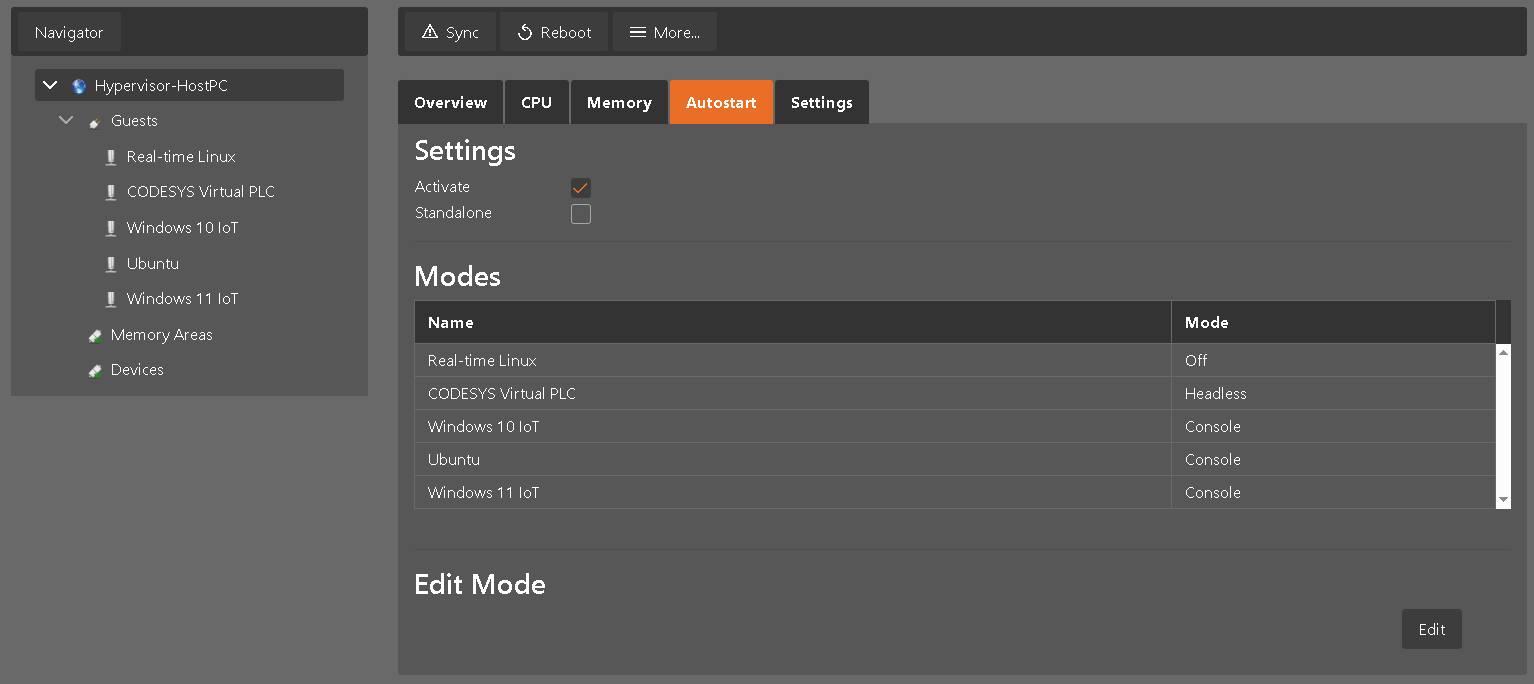
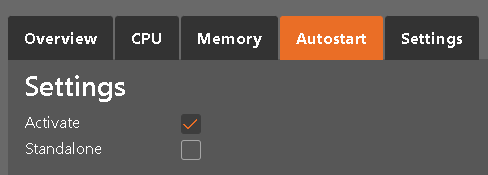
By default, no guest will be started automatically and autostart is disabled. You need to check the Activate checkbox to activate autostart.
6.1. Multiple Consoles
If the Hypervisor has enabled its graphical user interface (usually for in house and debugging scenarios only), you can use a viewer/console for each of the guests that is started.
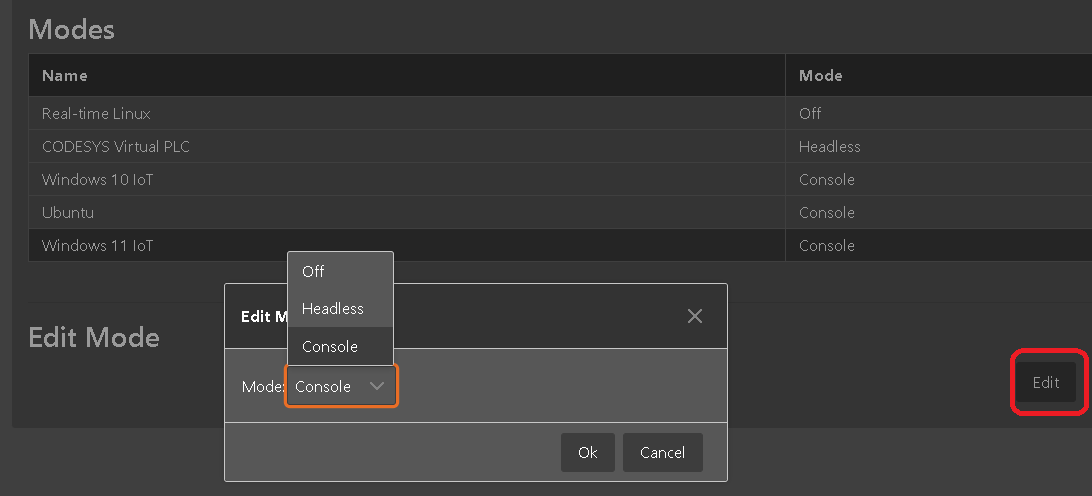
For each guests, there are 3 modes:
Off: do not start guest automatically
Headless: start guest without showing its viewer/console
Console: start guest and show its viewer/console (e.g. the Windows desktop)
Select the appropriate guest, press the Edit button and change its mode.
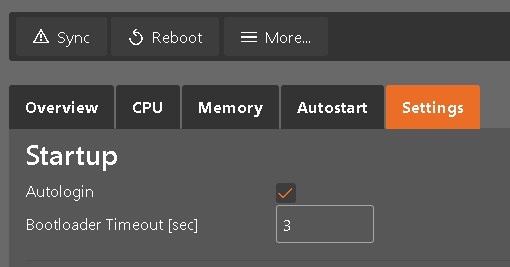
If Autostart is activated, you need to assure that Autologin is selected in the Settings tab.
6.2. Standalone Mode
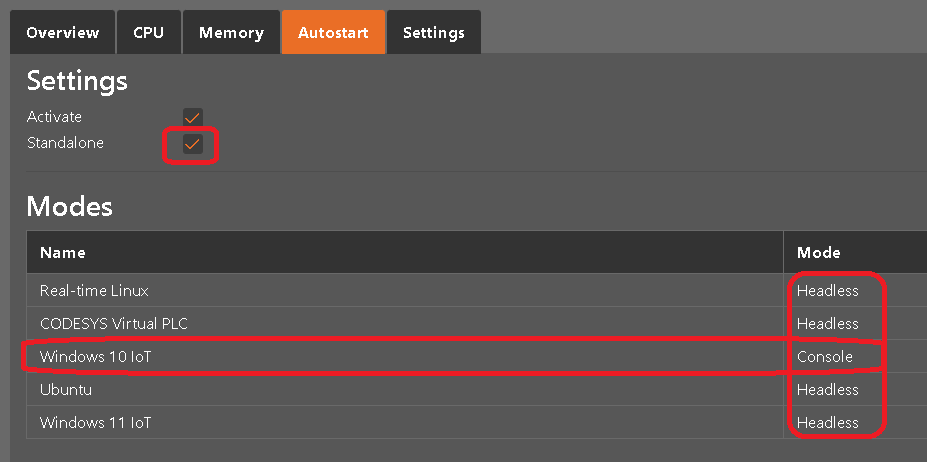
If you want one of the KVM guests to exclusively use the display (typically in production environments), you need to check the Standalone checkbox. In this mode, only one of the KVM guests is allowed to set to Console mode. This guest will then control the monitor exclusively. In Standalone Mode, the Hypervisor host GUI is also disabled.