4.6. Microsoft Windows

4.6.1. OS Compiler settings

Besides the general settings from OS Compiler settings the following settings are necessary to build the example application for Windows.

Extra include paths
<InstallPath>\SDK\INC\Windows
<InstallPath>\Examples\Common\Windows
Extra source paths
<InstallPath>\Examples\Common\Windows
<InstallPath>\Sources\OsLayer\Windows
Extra library paths to the main EtherCAT® components
<InstallPath>\SDK\LIB\Windows

4.6.2. RtaccDevice for Real-time Ethernet Driver

As alternative to the NDIS based or Pcap based Ethernet Driver, an optional Real-time Ethernet Driver on Windows can be installed. The Real-time Ethernet Driver replaces the original Windows driver and also requires an extra license.

To use the Real-time Ethernet Driver under Windows, it is necessary to install the RtaccDevice driver included in the Real-time Ethernet Driver delivery:

  1. Start the “Device Manager”
    Windows Device Manager showing the network adapter where the RtaccDevice Real-time Ethernet Driver will be installed
  2. Assign RtaccDevice to the network adapter
    Windows Device Manager context menu on the network adapter showing the Update driver option
    Windows Update Drivers dialog for assigning RtaccDevice to the network adapter
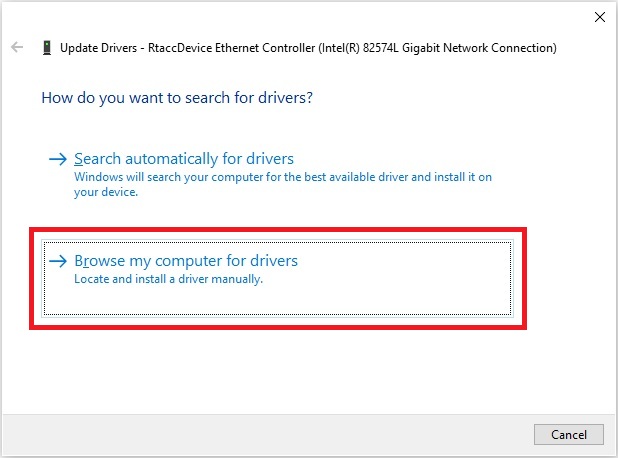
    Windows Update Drivers dialog showing the Browse my computer for drivers option

    Click on “Browse my computer for drivers”

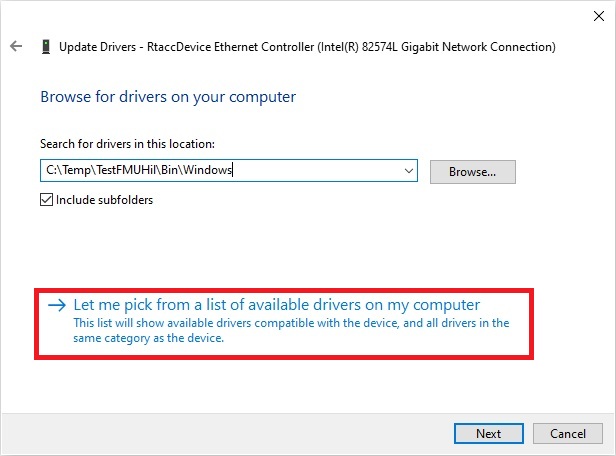
    Windows driver search showing the Let me pick from a list of available drivers option

    Click on “Let me pick…”

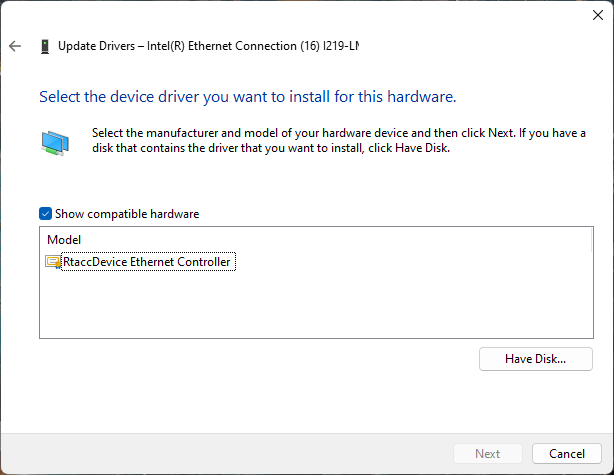
    Windows driver list showing the Have Disk option for installing RtaccDevice from a specific directory

    Click on “Have Disk…”

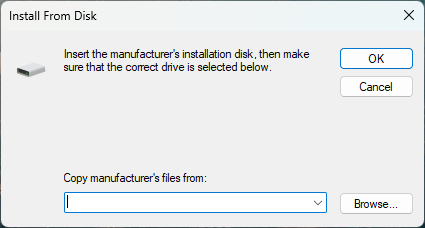
  3. Enter the directory of RtaccDevice Driver

    The default folder if not changed is <InstallPath>\Bin\Windows\x64

    Windows Have Disk dialog for entering the RtaccDevice driver directory path such as the InstallPath Bin Windows x64 folder

    Enter the correct directory at the input box and press OK to proceed.

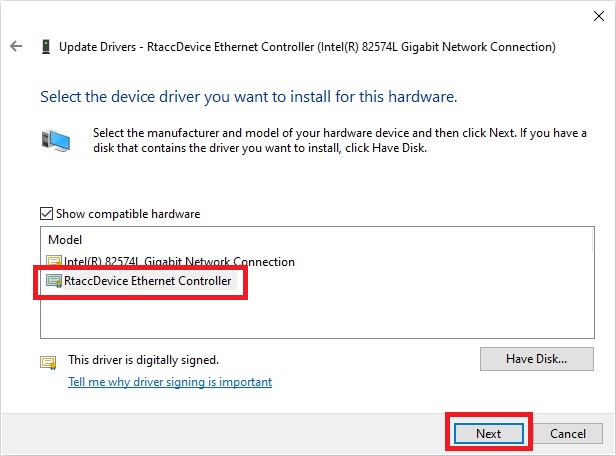
  4. Choose the RtaccDevice Driver and click “Next” and confirm the installation
    Windows driver selection list showing RtaccDevice ready to be chosen for the network adapter
    Windows driver installation confirmation dialog for the RtaccDevice Real-time Ethernet Driver

Optionally modify the search location of the Real-time Ethernet Driver

Search locations for Real-time Ethernet Driver can be adjusted using the PATH environment variable.

The RtaccDevice must be assigned to the network adapter for Real-time Ethernet Driver usage on Windows. In this case it is exclusively bound for EtherCAT® usage. The assignment can be reverted using the following steps:

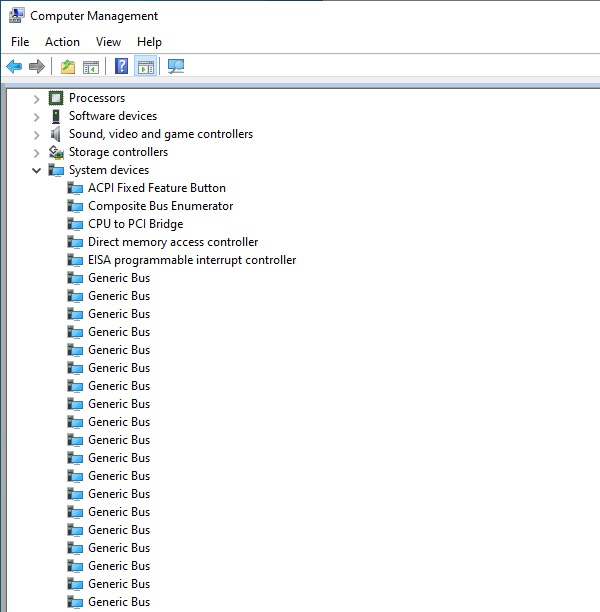
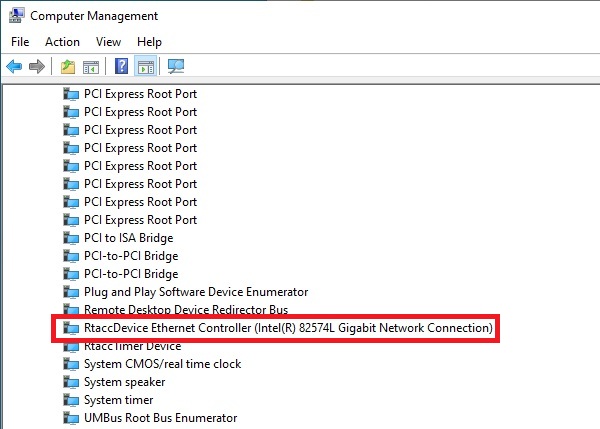
  1. Open the Windows device manager (Computer Management), then go to System devices. The RtaccDevice should be listed there:

Windows Computer Management showing the System devices node where RtaccDevice is listed
Windows Computer Management zoomed view of the RtaccDevice Ethernet Controller in System devices
  1. Right click on the RtaccDevice Ethernet Controller, then click on Properties:

Windows Device Properties dialog for the RtaccDevice Ethernet Controller accessed via right-click Properties
  1. Switch to the tab “Driver”, then click the button “Update driver”:

Windows Device Properties Driver tab showing the Update driver button for reverting the RtaccDevice assignment
  1. Click on “Browse my computer for drivers”:

Windows Update Drivers dialog showing the Browse my computer for drivers option to revert RtaccDevice
  1. Click on “Let me pick from a list of available drivers on my computer”:

Windows driver selection dialog showing the original network adapter driver to restore after removing RtaccDevice

Select the network adapter and click “Next”.

The assignment is now reverted.