4. Guest Configuration
4.1. Guest Types
The RTOSVisor supports Real-time operating system guests (e.g. Real-time Linux) as well as non Real-time (General Purpose) operating systems (e.g. Windows). While the Real-time operating systems are adapted (para-virtualized) to the underlying Real-time hypervisor and shipped as part of the RTOSVisor, the General Purpose operating systems can be used without modification and need to be installed prior to using them.
All guests can use the Communication Subsystem which provides various means to communicate between the guests. General Purpose operating systems may optionally be used without a connection to the Communication Subsystem. They may interact with the other guests using TCP/IP bridging, see the Hypervisor Manual for details.
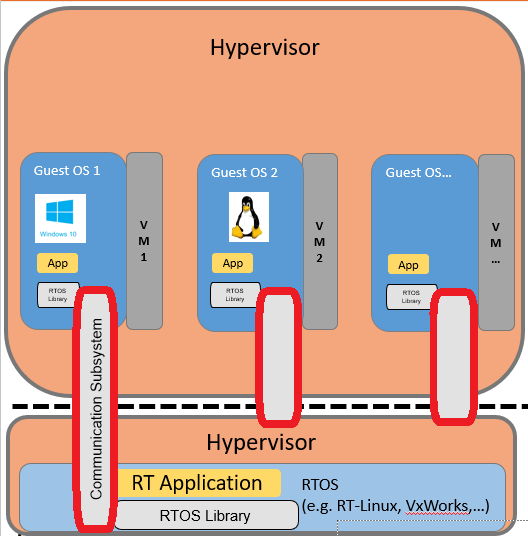
The following guest types are supported.

Real-time Linux: Real-time Linux real-time guest
VxWorks: VxWorks real-time guest
On Time RTOS-32: RTOS-32 real-time guest
General Purpose + CommSubsystem: A General Purpose guest which can attach to the Communication Subsystem
General Purpose: A General Purpose guest without Communication Subsystem access
Caution
In case you intend to add at least one Real-time guest or one General Purpose guest with Communication Subsystem access, the first guest must be a Real-time guest!
4.2. Add RTOS guests
Guests and then + Add Guest.
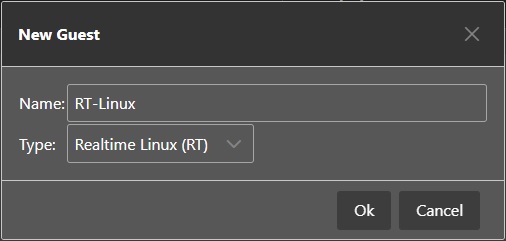
Then select one of the RTOS guests (e.g. Real-time Linux). You should also assign a reasonable name for this guest (e.g. RT-Linux).
4.2.1. Select the RTOS image to boot
Overview tab.
Then select the image you like to use.
4.3. Add General Purpose guests
Adding a General Purpose guest is done in a very similar way as for Real-time guests. You can select two options, either if such guest shall be able to attach to the Communication Subsystem or not.
Guests and then + Add Guest.
General Purpose or General Purpose + CommSubsys guest.
Hint
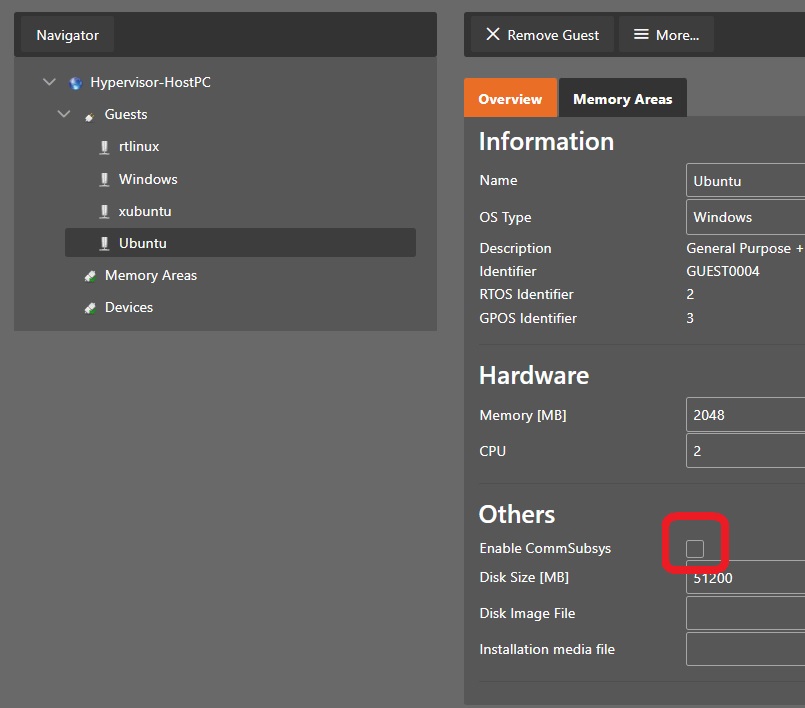
If the guest is configured to get access to the Communication Subsystem, by default access is enabled. Prior to starting such guest, the VMF (Virtual Machine Framework) needs to be started. You may optionally disable access to the Communication Subsystem, then you do not need to start the VMF.
4.3.1. Install Windows/Linux guest
If you want to install a new Windows or Linux guest, please follow the steps below.
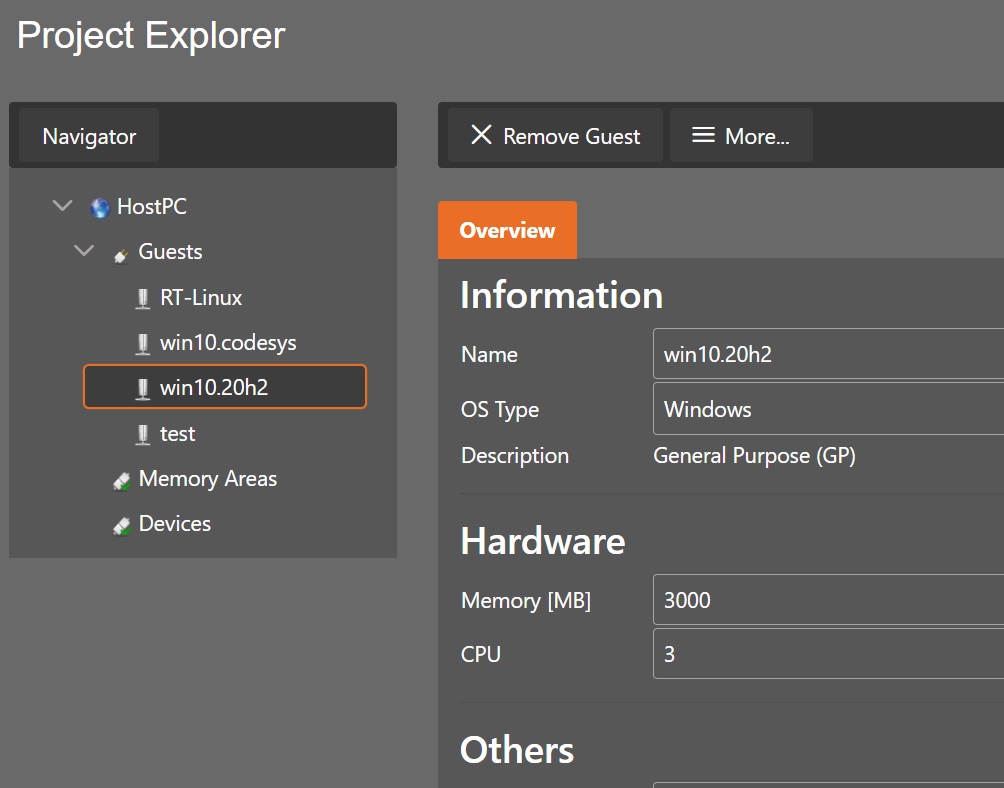
You must set the “OS Type” to the appropriate type.

To install the guest, you need to synchronize the configuration with the Hypervisor Host first and then run the guest. See Guest Operation for more details. The Hypervisor Windows Guest Guide also shows step by step, how to install a new Windows guest.
4.3.2. Select existing Windows/Linux guest
If you want to re-use an existing Windows or Linux guest image, please follow the steps below.
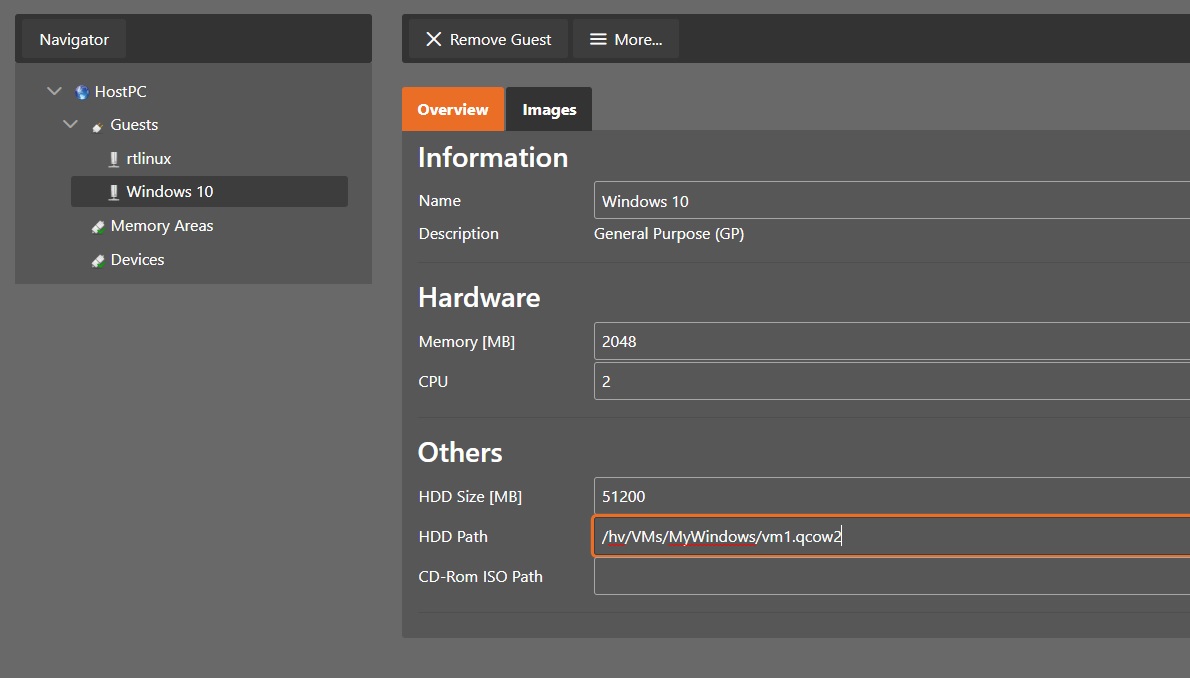
Set the “OS Type” appropriatey.
To run the guest, you need to synchronize the configuration with the Hypervisor Host first and then run the guest. See Guest Operation for more details.
4.3.3. Step by step example
For an example, how to add a Windows guest, see here.
4.4. Remove guests
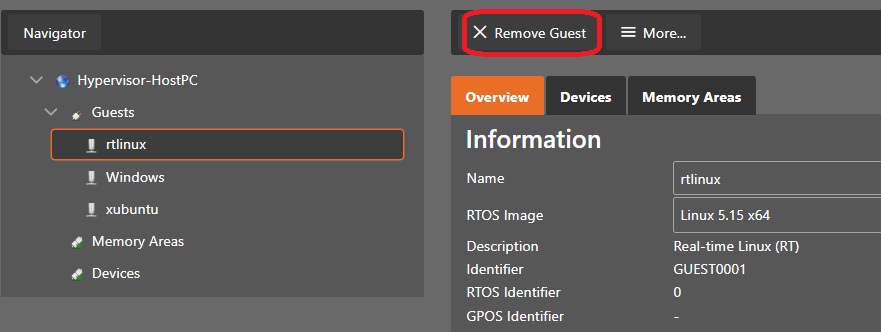
To remove a guest, you need to select the respective guest and then press the Remove Guest button.
Caution
All configuration settings for this guest will be removed, it is not possible to restore those settings. You may save the current project to preserve the settings of all currently configured guests: Project Management.
4.5. Synchronization
Before the configuration becomes effective, you must synchronize the System Manager configuration with the Hypervisor Host. Take a look into the Synchronization chapter for details.
Caution
Writing a new configuration to the Hypervisor Host will destroy the currently active configuration!
4.6. Guest Identifiers
When adding a new guest, it will be assigned a unique Guest Identifier GUEST0001, GUEST0002 etc..
All configuration settings of the guests are located in the respective guest folders, for example /hv/guests/guest0001 or /hv/guests/guest0002.
All Real-time guests as well as General Purpose guests with access to the Communication Subsystem will get a unique identifier, the RTOS Identifier. The number of such guests currently is restricted to 5, the range for the RTOS Identifier will be from 0 to 4. This RTOS identifier is required as a parameter for General Purpose guests when they attach to the Communication Subsystem.
All General Purpose guests, regardless whether they have access to the Communication Subsystem will also get a unique identifier, the GPOS Identifier. The number of such guests currently is restricted to 9, the range for the GPOS Identifier will be from 1 to 9.
This following example shows a Ubuntu guest with access to the Communication Subsystem.
The guest id is GUEST0004, which means that all settings are stored in /hv/guests/guest0004.
The RTOS identifier is 2 which means that the guest needs to use this value when attaching to the Communication Subsystem.
The GPOS identifier is 3 which means it is the third General Purpose guest configured in this project.

4.7. Configuration Files
All configuration files for a specific guest are located in /hv/guests/guest0001, /hv/guests/guest0002 and so on.
See also Guest Identifiers.
The following files are created automatically, when any guest is generated:
guest_config.sh
Basic guest settings, needed when starting the guest. Do not change!
usr_guest_config.sh
User specific guest settings, used when starting the guest. You may override settings defined in
guest_config.sh.guest.config
Default guest configuration settings. Do not change!
usr.config
User specific guest configuration settings. You may override settings defined in
guest.config(and/or indevice.configfor Real-time guests).hv_guest_autostart_xfce.sh
Helper script to launch the guest console, used if guest shall be started automatically. Do not change!
sysmgr_guest.config
System Manager specific configuration information. Do not change!
4.7.1. RTOS guests
The following files are created automatically, when a RTOS guest is generated:
device.config
Guest device configuration settings. Do not change!
hv_guest_autostart.service
Service file, used if guest shall be started automatically. Do not change!
4.7.2. General Purpose guests
The following files are created automatically, when a General Purpose guest is generated:
guest_gateway.config
Guest gateway configuration settings. Specific ports inside the guest can be forwarded to a specific IP address and port. Currently only supported for Windows guests.
hv_guest_autostart.service
Service file, used if guest shall be started automatically. Do not change!
hv_guest_autostart_standalone.service
Service file, used if guest shall be started automatically in standalone mode. Do not change!
OVMF_CODE.fd, OVMF_VARS.fd
Default EFI files, used if guest is configured to use UEFI BIOS. These files can be removed if Legacy BIOS is used.
vm_shutdown_hook.sh
Script which is executed, when after the guest was shutdown.
4.8. User specific configuration
If settings not supported by the System Manager shall be changed, this must be done by adjusting the respective usr.config or usr_guest_config.sh files.
See Configuration Files for an overview of all configuration files.
Especially for General Purpose guests, there are many settings which only can be adjusted using the usr_guest_config.sh file.
4.9. RTOS-32 guests
4.9.1. Boot Image
The image file which is loaded into memory is defined in guest_config.sh using the osImage setting.
By default the RTOS-32 application Loader image will be booted.
4.9.2. Filesystem
The file system root is defined in guest.config (section [Host\FileServer], parameter "HomeDir").
By default it will point to the RTOS-32 example guest.
You may change this to another location, for example the guest folder (e.g. /hv/guests/guest0001).
4.9.3. DLL Loading
If the default image (the RTOS-32 Loader image) is booted, the application itself is stored in one or multiple DLLs (DLMs).
The main DLL is defined in guest.config (section [Rtos\Loader], parameter "DllName").
By default it will point to a link defined in the RTOS-32 example guest.
Caution
All DLLs must be located in the filesystem root folder.