5. Guest Operation
5.1. Synchronization
After finishing the configuration, you need to synchronize the updated configuration with the Hypervisor Host.
5.2. Start the VMF (Virtual Machine Framework)
To start a guest, you need to switch into the “Run” mode first. If the any of the configured guests is using the Communication Subsystem, you need to start the VMF first.

Hint
You may get an error message Hypervisor Host reboot is required.
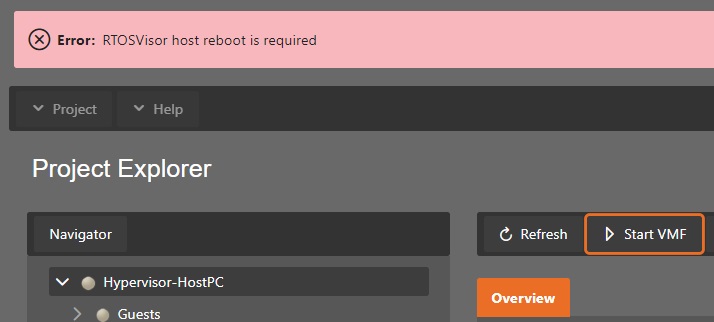
In that case, switch back into Config mode, select the Hypervisor Host and press the Reboot button.
After rebooting, you need to refresh the browser, re-connect with the Hypervisor Host, synchronize, switch into Run mode and try to start the VMF again.
5.3. Start a RTOS guest
Select the guest and press the Start Guest button.

After you started the guest, you need to wait for some time and finally the status indicators should have switched to green.
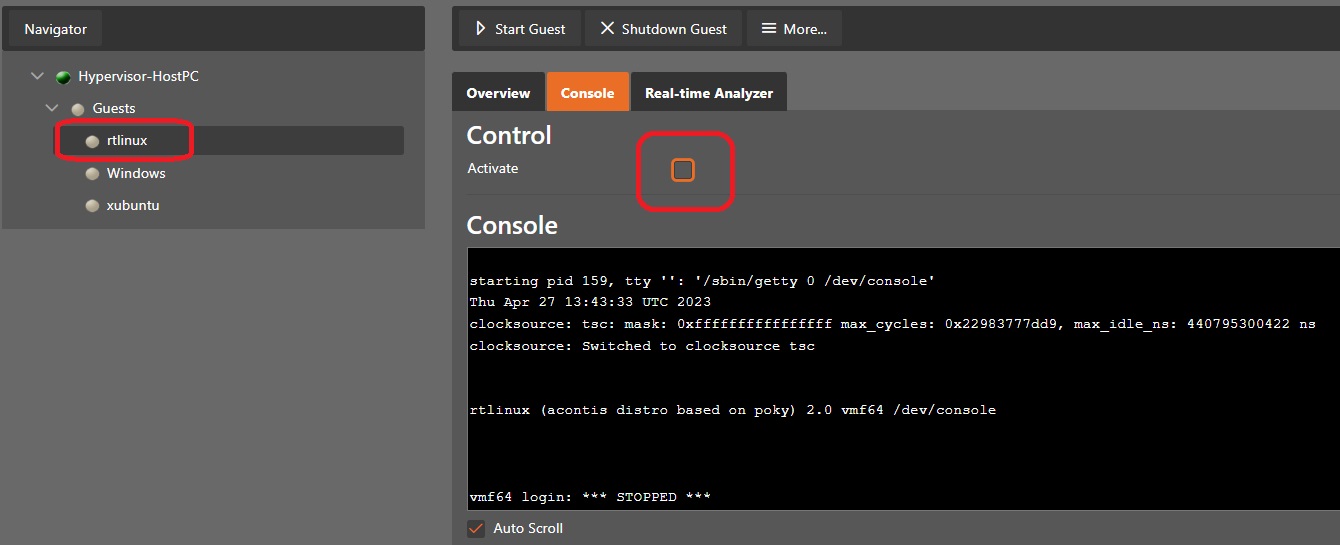
Select the guest in the tree view and then switch into the Console tab in the right part. You will see the boot messages of the RTOS and finally, if supported by the guest, you will be able to log in into its shell.
If you prefer to use a local terminal to work with the guest console, you must de-activate the console before starting the guest.
5.4. Start a General Purpose guest
Select the guest and press the Start Guest button.
After you started the guest, you need to wait for some time and finally the status indicators should have switched to green.
Select the guest in the tree view and then start the guest viewer via the More… combo-box.
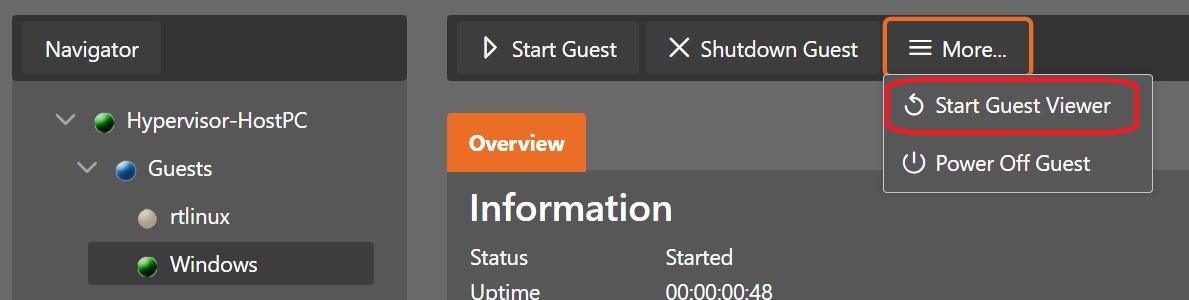
In case you will get an error No Display device defined, please login via the graphical desktop and run the command: hv_sysmgr restart, then you need to start a terminal in the Hypervisor Host (not in a remote logged in shell) and run the hv_sysmgr restart command. After running this command you need to refresh the browser and reconnect again.
Hint
You can launch the viewer also from a shell console in the Hypervisor Host. You need to switch into the respective guest folder, in the example below it is /hv/guests/guest0002.
cd /hv/guests/guest0002
hv_guest_console
5.5. Refresh Guest Status
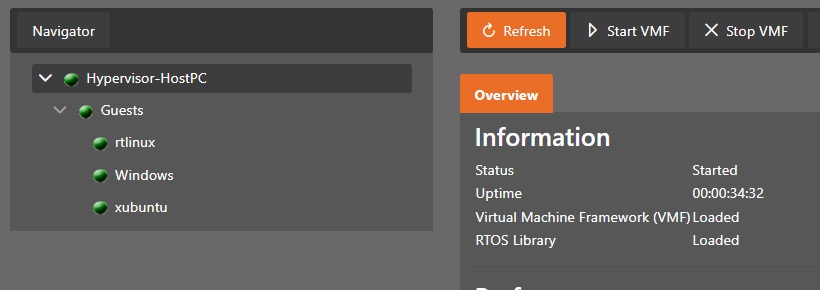
The System Manager will not always correctly show the real status of the guests.
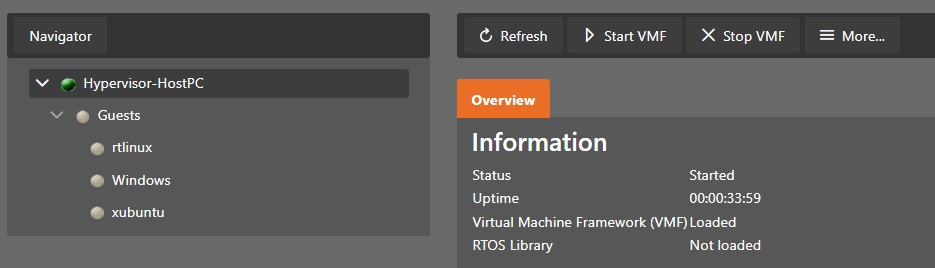
If you want to be sure about the current guest status, press the Refresh button.
5.6. Shutdown a RTOS guest
Select the guest in the tree view and then press the Shutdown Guest button. You need to wait for some time and finally the status indicators should have switched to gray.
Caution
The System Manager will not accept user input until the guest finally has shutdown.
5.7. Shutdown a General Purpose guest
Select the guest in the tree view and then press the Shutdown Guest button.
The System Manager will then initiate the guest shutdown process. Depending on the guest or guest status, this may not work (for example, if the guest does not support ACPI shutdown messages or if the guest crashed). You may take a look into the guest console to see if the shutdown process is effective.
In case shutdown does not work, you may shutdown the guest manually (within the guest) or you may forcibly power off the guest.
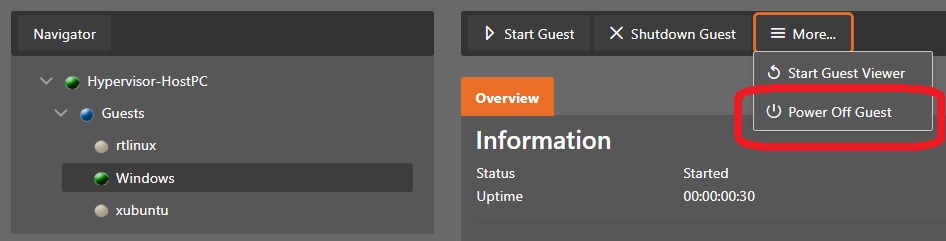
As the System Manager does not wait until the shutdown finished, you may not see the real status of the guest. You need to refresh to update the guest status manually.